Problem
- Stop eller genstart ESET PROTECT Server-tjenesten
- SC-fejlkode: 11 returneres, når du forsøger at skubbe en installation
- Du er i gang med at fejlfinde ESET PROTECT Web Console
- Genstart ESET PROTECT Server-tjenesten på Windows-systemer
- Genstart ESET PROTECT Server-tjenesten på Linux-systemer
Løsning
Genstart ESET PROTECT Server-tjenesten på Windows-systemer
-
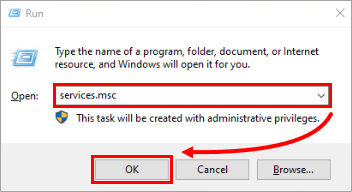
Klik på Start → Kør, skriv services.msc, og klik på OK.
-
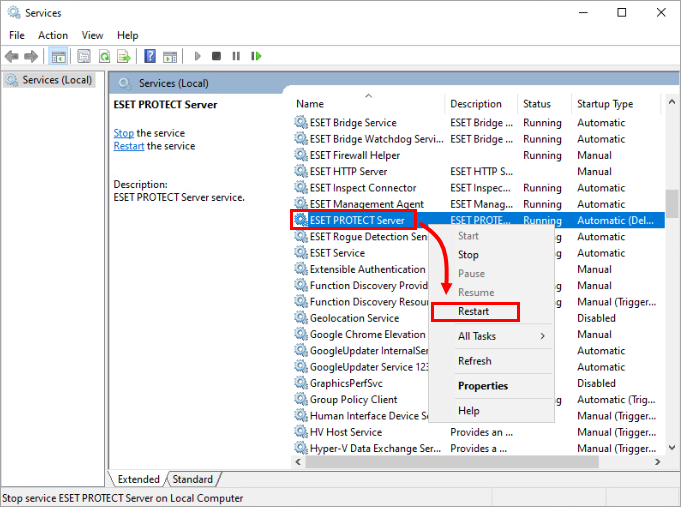
Højreklik på ESET PROTECT Server -tjenesten i vinduet Tjenester , og klik på Genstart i kontekstmenuen. Klik på Stop for at stoppe tjenesten.
Genstart ESET PROTECT Server-tjenesten på Linux-systemer
Forskellige Linux-distributioner bruger forskellige kommandoer til at starte og genstarte tjenester. Nogle distributioner har GUI-værktøjer til dette formål (f.eks. bum).
De mest almindelige kommandoer til servicestyring blandt Linux-distributioner er:
- systemctl
- service
For at genstarte ESET PROTECT Server på et Linux-system skal du åbne en terminal, stoppe ESET PROTECT Server-tjenesten og derefter starte den ved hjælp af kommandoerne nedenfor:
systemctl stop eraserver systemctl start eraservereller
service eraserver stop service eraserver start


