Issue
- In some cases, Web Protection and Parental Control / Web Control may not work correctly when support for the QUIC protocol is enabled in Google Chrome, Microsoft Edge or Mozilla Firefox
- If you have encountered some of these functionality issues, you may try to disable QUIC support in Google Chrome or Microsoft Edge manually
- Disable the QUIC protocol in Microsoft Edge manually
- Disable the QUIC protocol in Microsoft Edge using Group Policy
- Disable the QUIC protocol in Google Chrome manually
- Disable the QUIC protocol in Google Chrome using Group Policy
- Disable the QUIC protocol in Mozilla Firefox manually
- Disable the QUIC protocol in Mozilla Firefox using Group Policy
Details
Click to expand
QUIC (Quick UDP Internet Connections) is an experimental transport layer network protocol designed by Google and announced publicly in 2013 as a part of Chromium version 29 of the Chrome internet browser. The protocol was designed to support secure connections with low latency and bandwidth requirements.
QUIC is currently enabled by default in the Chromium-based internet browsers, and some of the sites (including Google and YouTube) offer connections via this protocol.
The idea behind QUIC is to create a transport protocol that works better for the internet than TCP. Using UDP helps to optimize transport-layer algorithms and use its specific cryptography (in comparison to TLS over HTTPS on TCP). For the small percentage of users with UDP blocked, QUIC automatically reverts to TCP-based connectivity.
Solution
Google Chrome
Disable the QUIC protocol in Google Chrome manually:
-
Open Google Chrome.
-
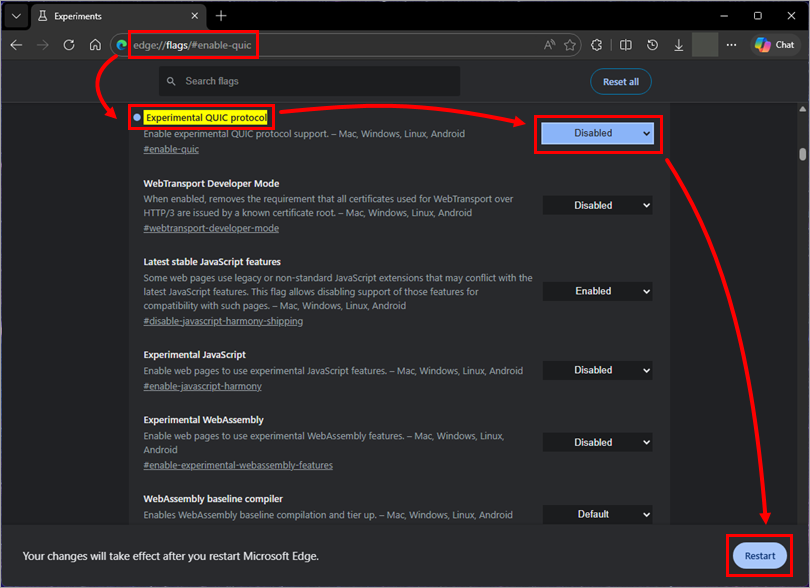
In the URL address field, type
chrome://flags/#enable-quicand press Enter. -
Next to Experimental QUIC protocol, select Disabled from the drop-down menu and click Restart to restart Google Chrome for your changes to take effect.
Disable the QUIC protocol in Google Chrome using Group Policy
-
Ensure the Google Chrome administrative templates are imported into your Group Policy Editor.
-
Open the Group Policy Management Console. Press Windows key + R and type
gpmc.msc. -
Create a new Group Policy Object or make the following changes to an existing object.
-
In the Group Policy Management Editor window, expand: Computer Configuration → Administrative Templates → Google → Google Chrome → Network.
-
Find the policy Enable QUIC protocol, and set the policy to Disabled to turn off the QUIC protocol.
-
Apply the Group Policy Object setting and update the settings on client machines.
Microsoft Edge
Follow the steps below to disable the QUIC protocol in Microsoft Edge:
-
Open Microsoft Edge.
-
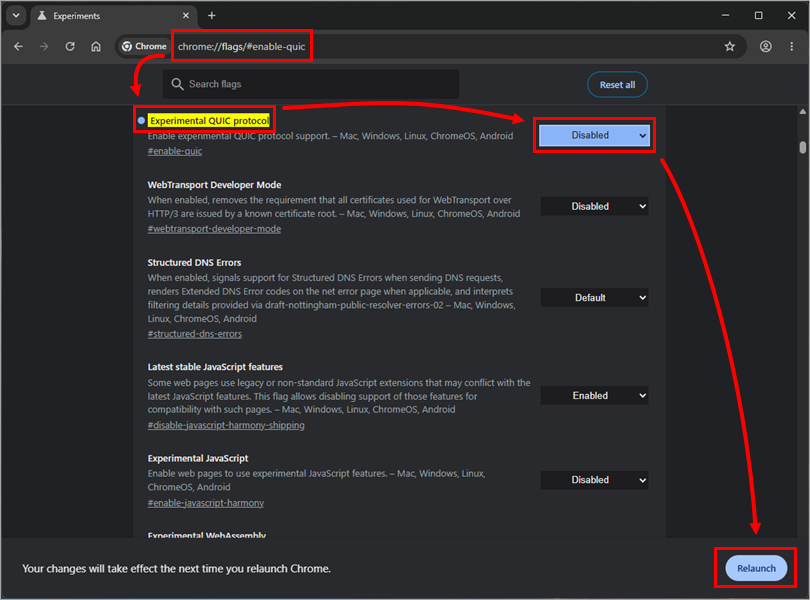
In the URL address field, type
edge://flags/#enable-quicand press Enter. -
Next to Experimental QUIC protocol, select Disabled from the drop-down menu and click Restart to restart Microsoft Edge for the changes to take effect.
Disable the QUIC protocol in Microsoft Edge using Group Policy
-
Ensure the Microsoft Edge administrative templates are imported into your Group Policy Editor.
-
Open the Group Policy Management Console. Press Windows key + R and type
gpmc.msc. -
Create a new Group Policy Object or make the following changes to an existing object.
-
In the Group Policy Management Editor window, expand: Computer Configuration → Administrative Templates → Microsoft → Microsoft Edge → Network.
-
Find the policy Enable QUIC protocol, and set the policy to Disabled to turn off the QUIC protocol.
-
Apply the Group Policy Object setting and update the settings on client machines.
Mozilla Firefox
Follow the steps below to disable the QUIC protocol in Mozilla Firefox:
-
Open Mozilla Firefox.
-
In the URL address field, type
about:configand press Enter. Click Accept the Risk and Continue.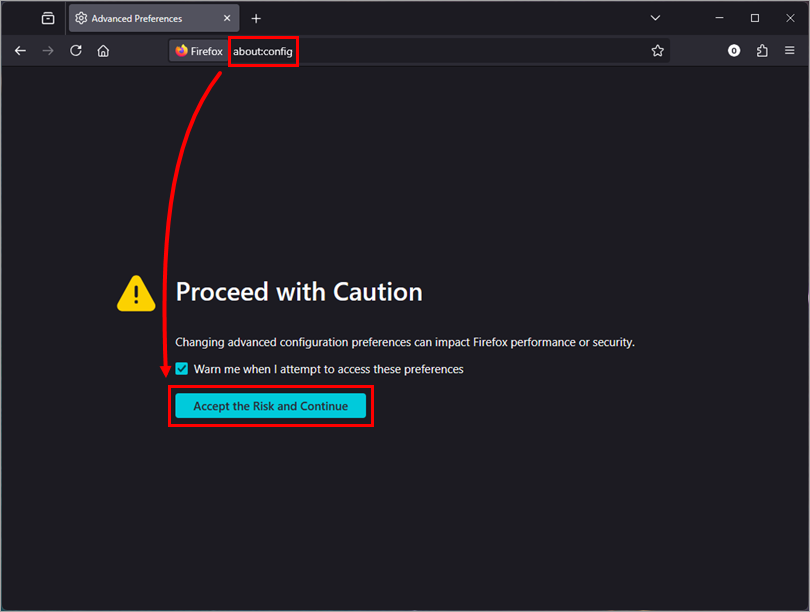
-
In the Search preference name field, type
network.http.http3.enableand press Enter. -
Next to network.http.http3.enable select the toggle to false from the drop-down menu.
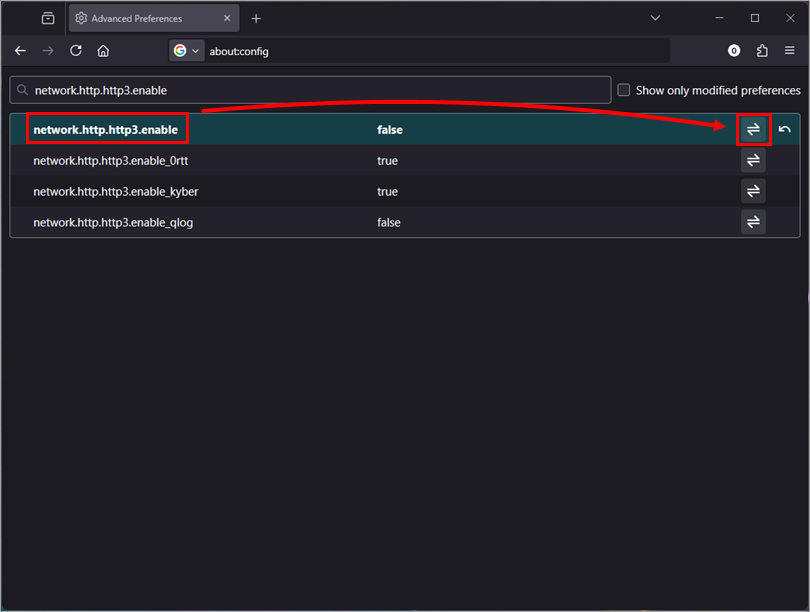
- Restart Mozilla Firefox for changes to take effect.
Disable the QUIC protocol in Mozilla Firefox using Group Policy
-
Ensure the Mozilla Firefox administrative templates are installed in your Group Policy Editor.
-
Open the Group Policy Management Console. Press Windows key + R and type
gpmc.msc. -
Create a new Group Policy Object or make the following changes to an existing object.
-
In the Group Policy Management Editor window, expand: Computer Configuration → Administrative Templates → Mozilla→ Firefox → Preferences.
-
Ensure the Group Policy Object is set to Enabled, and add or merge the following code into the Options field.
{
  "network.http.http3.enable": {
     "Value": false,
     "Status": "default"
   }
}
For more information, visit the Mozilla Firefox administrator reference page.
-
Click Apply.
- Apply the Group Policy Object setting and update the settings on client machines.


