Issue
- Create a policy in ESET PROTECT or ESET PROTECT On-Prem and assign it to a group
- Edit a policy in ESET PROTECT or ESET PROTECT On-Prem
- View policies assigned to a group in ESET PROTECT or ESET PROTECT On-Prem
Details
Click to expand
Policies serve to push configuration settings to ESET application modules on managed devices, eliminating manual per-device configuration. For more information, see Policies.
Solution
Create a policy in ESET PROTECT or ESET PROTECT On-Prem and assign it to a group
-
Open the policy creation page.
ESET PROTECT
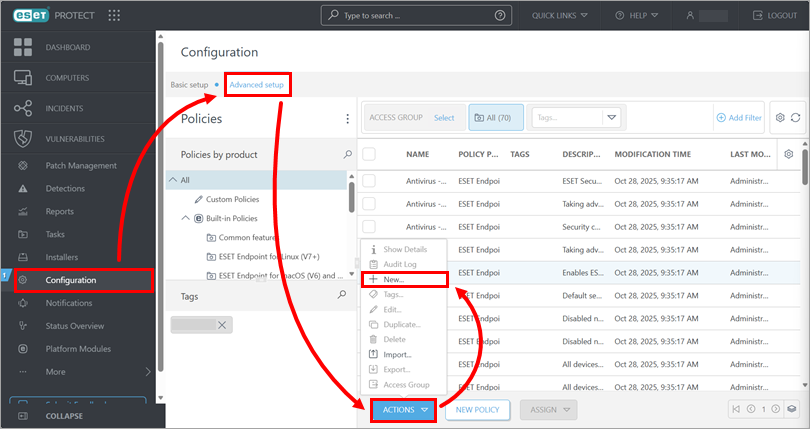
Click Configuration → Advanced setup → Actions → New.
ESET PROTECT On-Prem
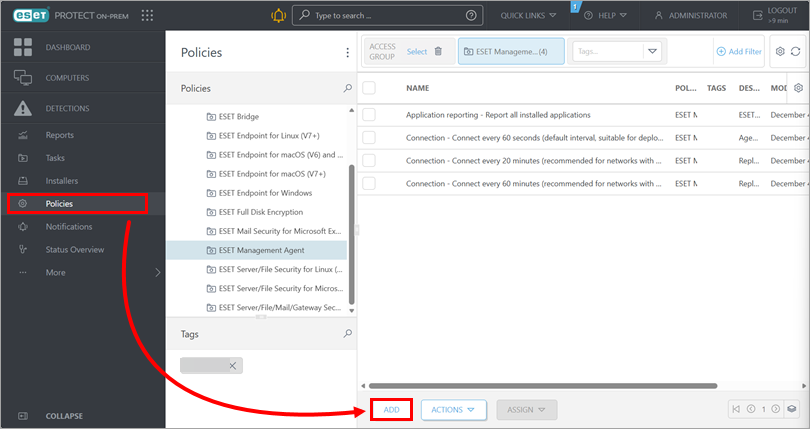
Click Policies → Add.
-
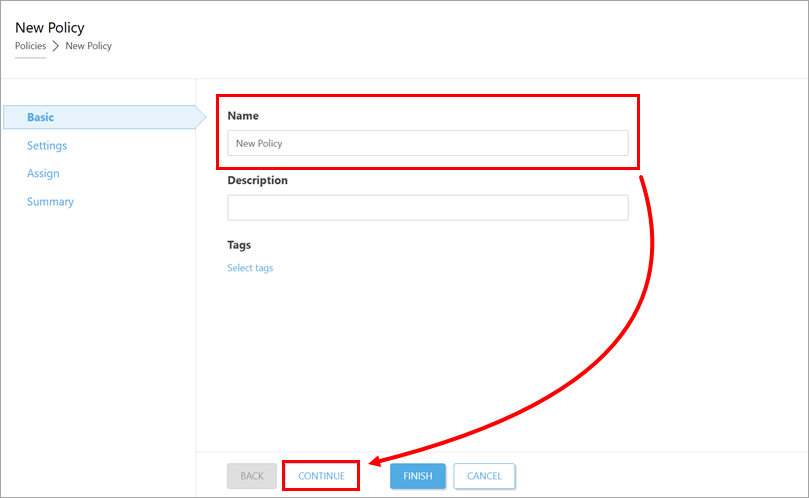
In the Name field, type a name for the policy and click Continue.
-
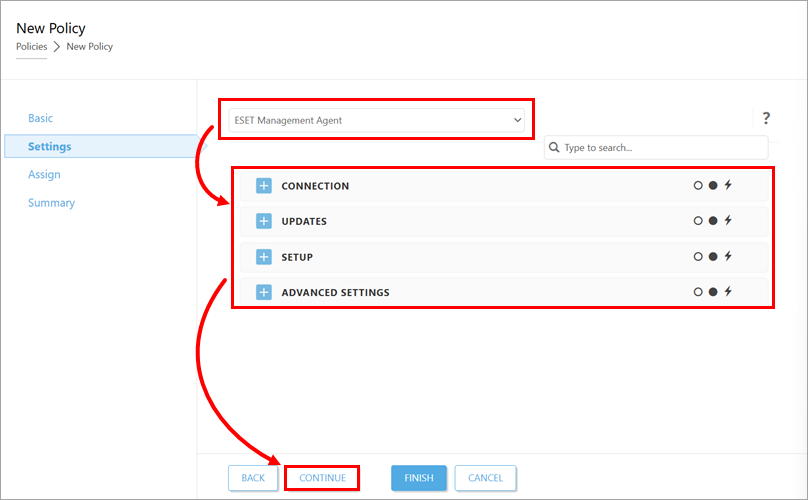
Under Settings, in the drop-down menu at the top of the page, select the application to which the policy should apply and configure the policy settings as needed. The settings may differ based on the selected application. When configured, click Continue.
-
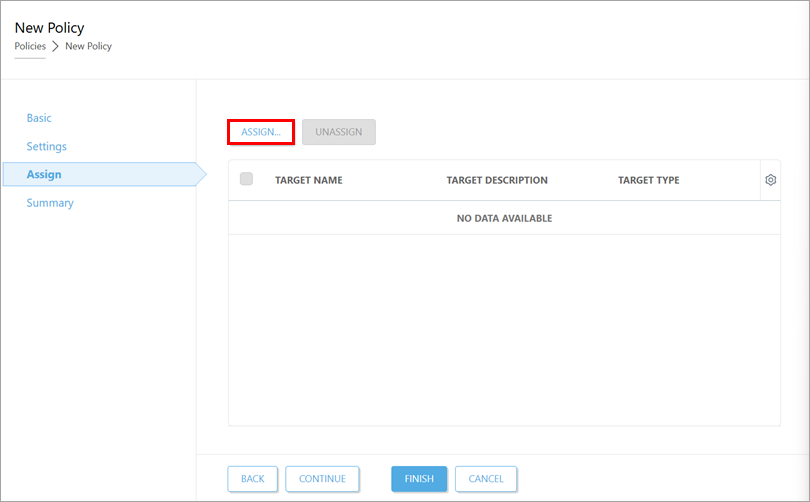
Click Assign.
-
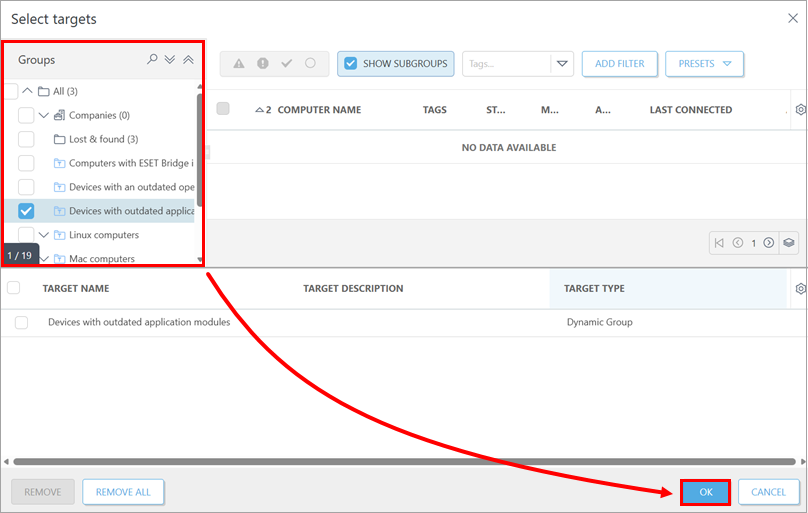
In the Groups list, select the check boxes next to the static and dynamic groups to which you want to apply the policy and click OK.
-
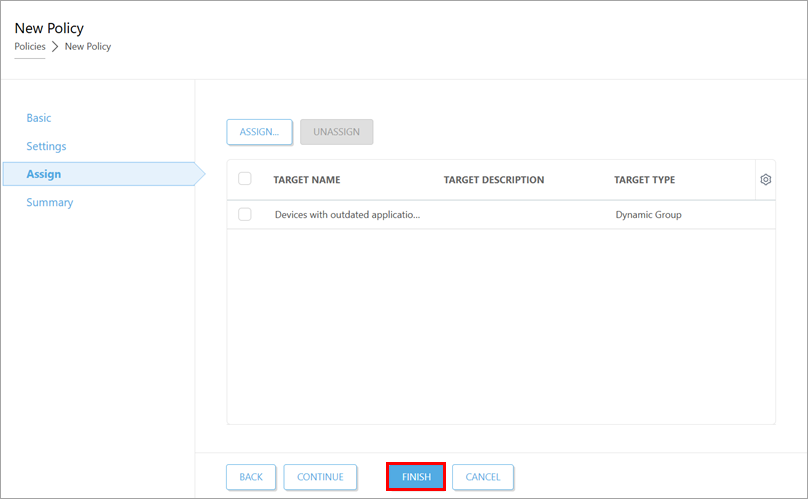
Click Finish. The policy will be applied to the target groups.
Edit a policy in ESET PROTECT or ESET PROTECT On-Prem
- Open the policy for editing.
ESET PROTECT
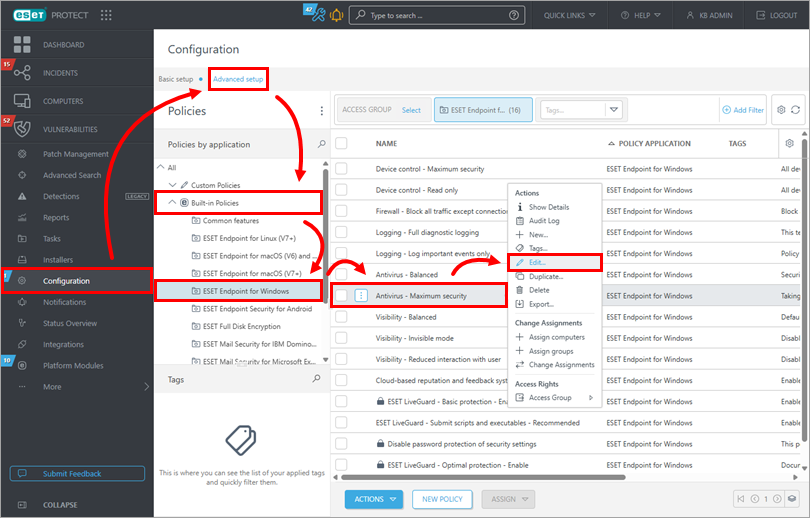
Click Configuration → Advanced setup. Select the policy group (in this example, ESET Endpoint for Windows in Built-in Policies is selected), click the policy you want to modify and click Edit.
ESET PROTECT On-Prem
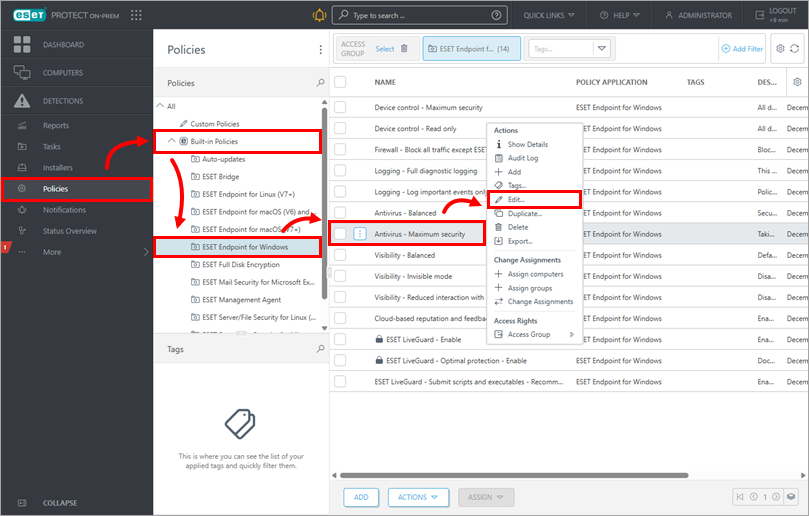
Click Policies and select the policy group (in this example, ESET Endpoint for Windows in Built-in Policies is selected). Click the policy you want to modify and click Edit.
-
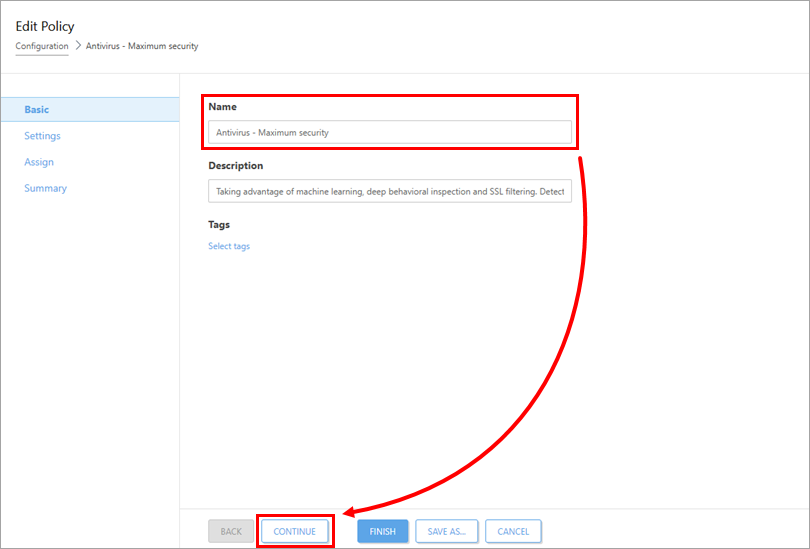
In the Name section, you can edit the name of the policy. Click Continue.
-
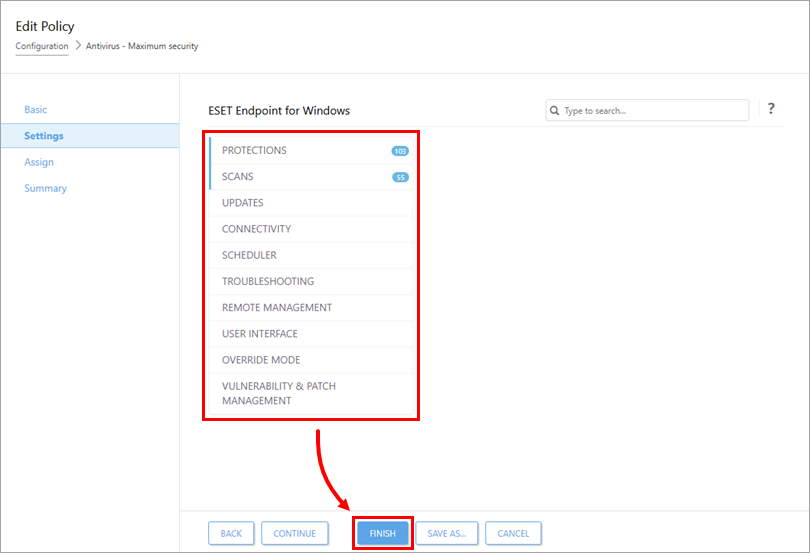
In the Settings section, configure the policy settings as needed. The settings differ based on the ESET application. When configured, click Finish to save your changes. Computers with this policy assigned will receive the changes the next time they connect to ESET PROTECT or ESET PROTECT On-Prem.
View policies assigned to a group in ESET PROTECT or ESET PROTECT On-Prem
-
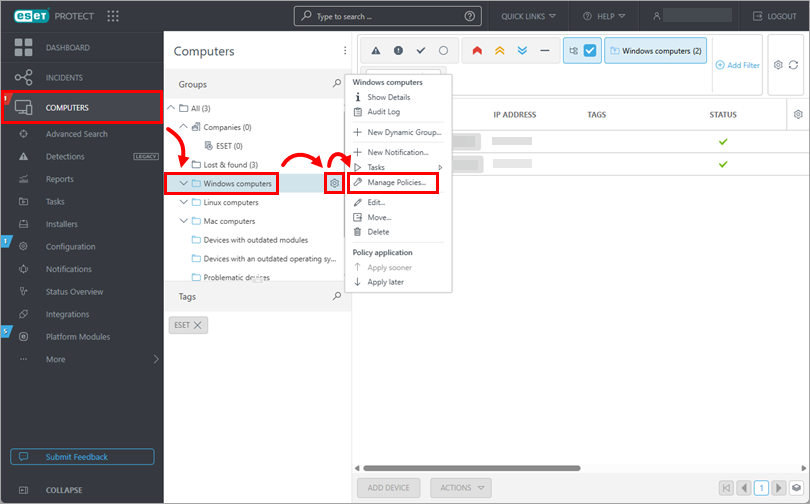
Click Computers. In the the Groups list, click the group whose policies you want to view, then click the gear icon next to it and click Manage policies.