Issue
- You receive Error 1084: The service cannot be started in safe mode error message after failing to start the service or uninstall a program
- You received This installation package could not be opened error
- You received The Windows Installer Service could not be accessed. This can occur if the Windows Installer is not correctly installed error
Solution
The Windows Installer Service needs to be running in order to uninstall in Safe Mode. This solution will start the service.
Follow the steps below to run the installer service from Safe mode:
-
When Microsoft Windows boots into Safe mode, click Start → All Programs → Accessories. Right-click Command Prompt and choose Run as administrator from the context menu.
-
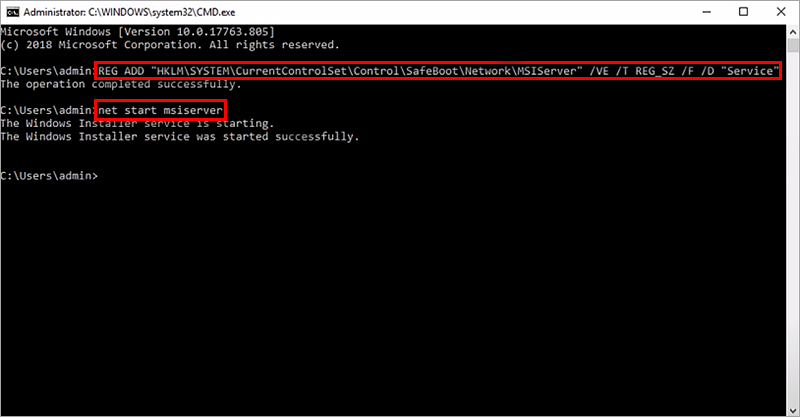
To enable the service, modify the following registry key by typing in the command below and pressing the Enter key:
REG ADD "HKLM\SYSTEM\CurrentControlSet\Control\SafeBoot\Network\MSIServer" /VE /T REG_SZ /F /D "Service" -
To start the service, type the following command and press the Enter key:
net start msiserver -
The Windows Installer will be started. You can now uninstall programs using your Control Panel or an uninstaller .msi package.