Issue
- Create a shortcut for your ESET product
- Pin your ESET product to Start
- Pin your ESET product to the taskbar
Solution
Create a shortcut for your ESET product
A shortcut for your ESET product on Windows 10 and later will open the ESET main program window directly from your desktop. To create a shortcut, follow the instructions below:
-
Click the Start button and type ESET into the search bar.
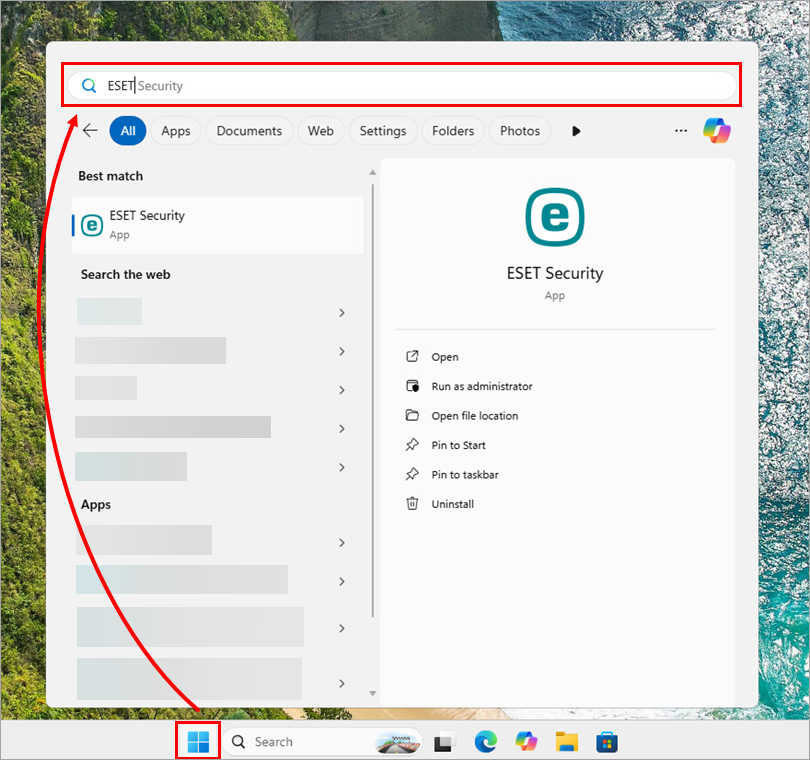
Figure 1-1 -
Right-click your ESET product and select Open file location from the context menu.

Figure 1-2 -
Right-click your ESET product and select Show more options from the context menu.

Figure 1-3 -
Click Create shortcut.

Figure 1-4 -
In the confirmation window, click Yes.

Figure 1-5 -
The shortcut to your ESET product is now available on your desktop.
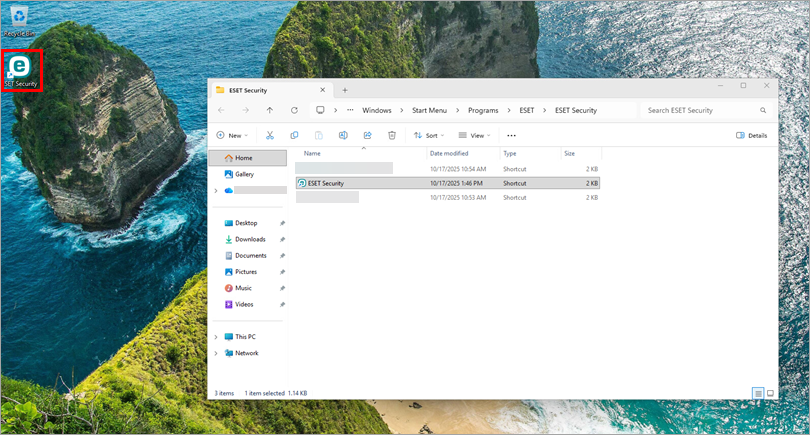
Figure 1-6
Pin your ESET product to Start
-
Click the Start button and type ESET into the search bar.
Figure 2-1 -
Right-click your ESET product and select Pin to Start from the context menu.
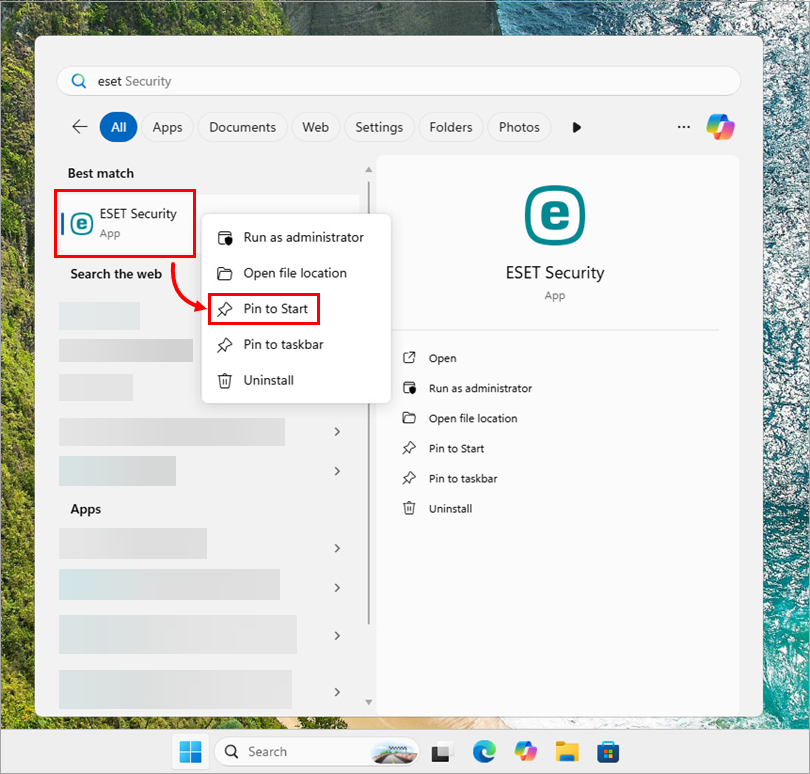
Figure 2-2 -
Your ESET product is now pinned to Start.
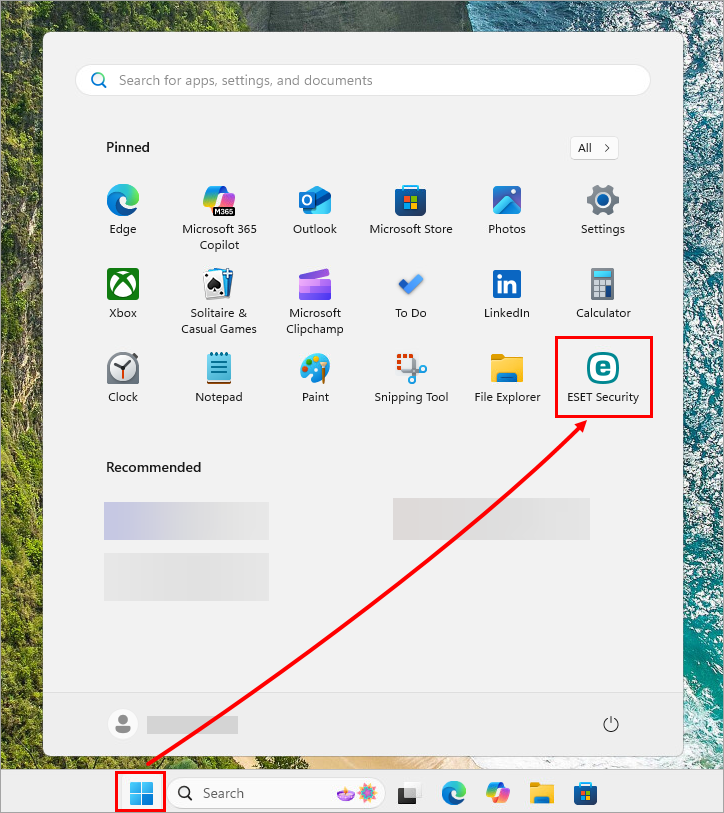
Figure 2-3
Pin your ESET product to the taskbar
-
Click the Start button and type ESET into the search bar.
Figure 3-1 -
Right-click your ESET product and select Pin to taskbar from the context menu.
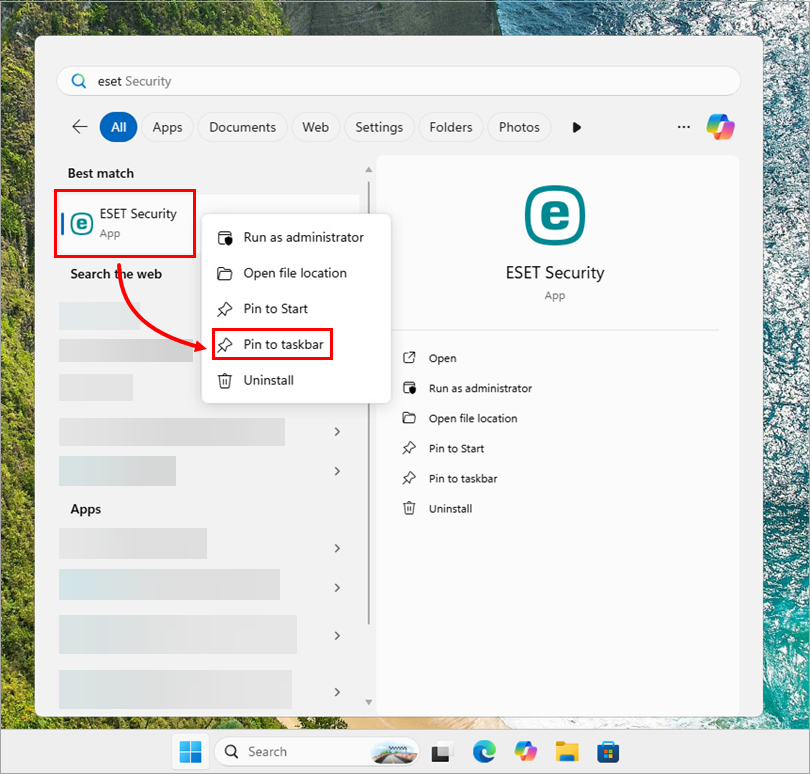
Figure 3-2 -
Your ESET product is now pinned to the taskbar.

Figure 3-3


