Issue
- Edit detection responses for on-demand scan to have your ESET product automatically remove Potentially unwanted applications
Solution
Related solutions: ESET PROTECT On-Prem | ESET Windows home and small office users
-
Open the main program window of your ESET Endpoint epplication for Windows.
-
Press the F5 key to access Advanced setup.
-
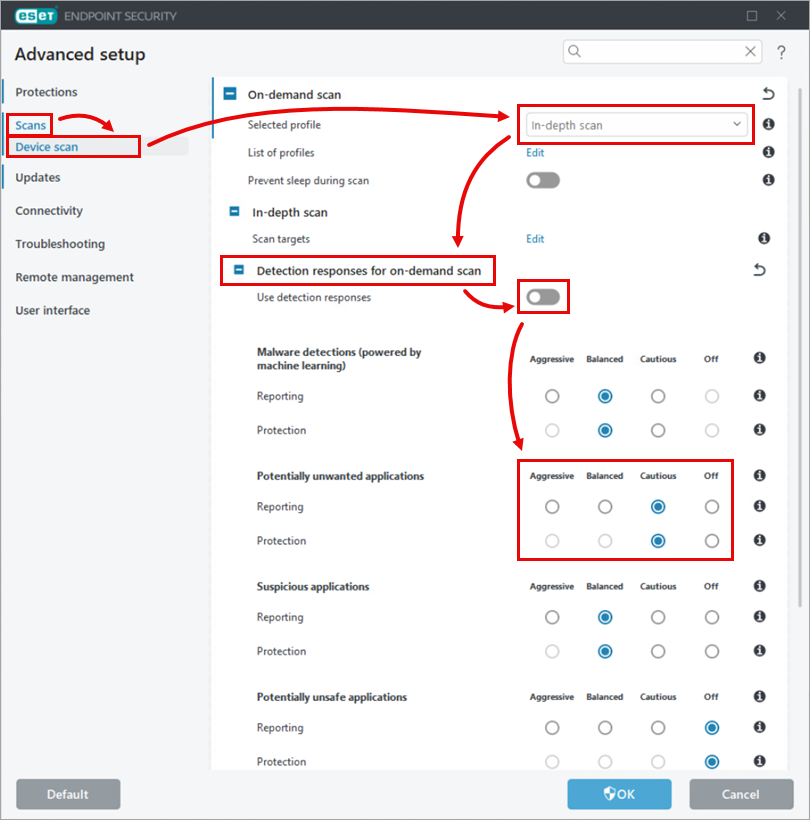
Click Scans → Device scan and in the section On-demand scan select In-depth scan from the Selected profile drop-down menu. Expand Detection responses for on-demand scan and click the toggle next to Use detection responses to disable it. Select the radio buttons in the Potentially unwanted applications section according to your preferences (ensure that Off is not selected).
-
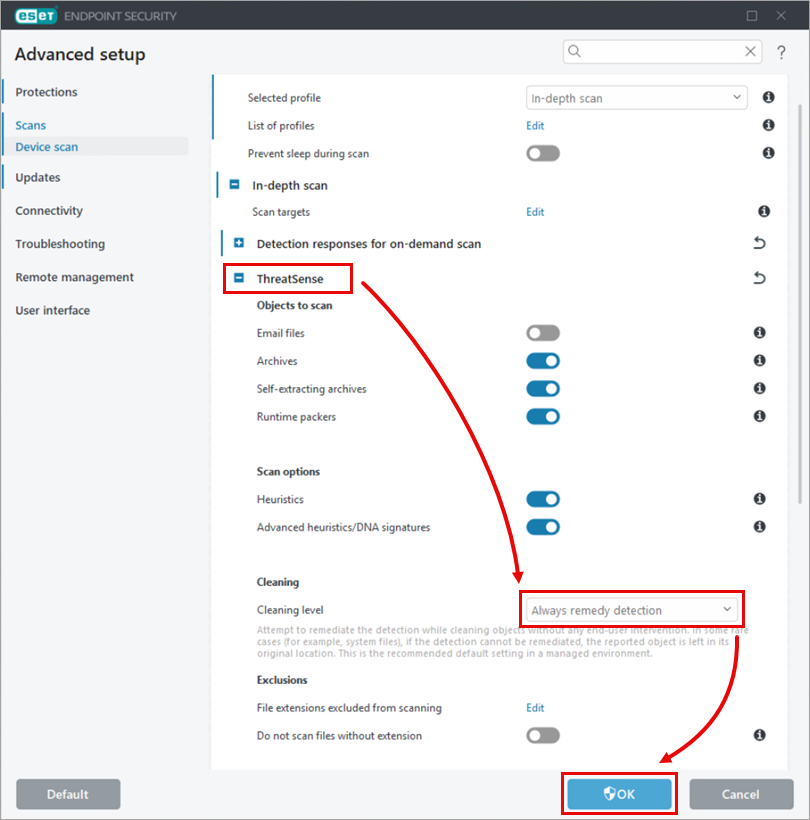
Scroll down and expand the ThreatSense section, select Always remedy detection from the Cleaning level drop-down menu, and click OK.
-
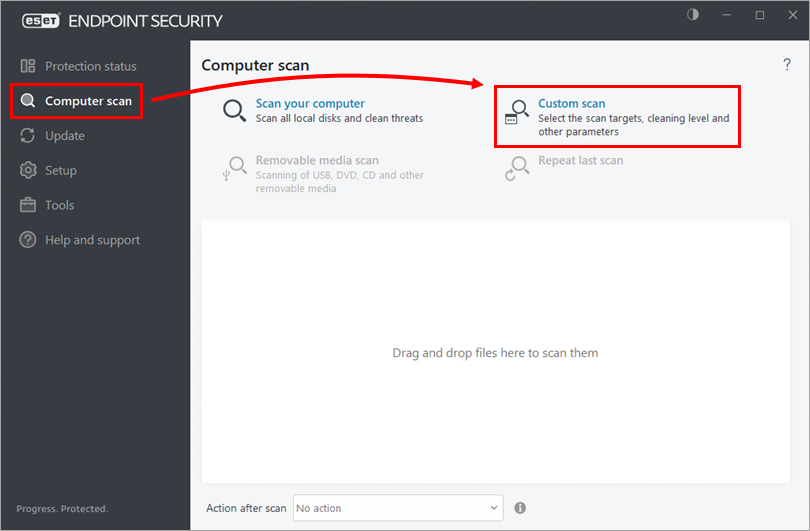
Click Computer scan → Custom scan.
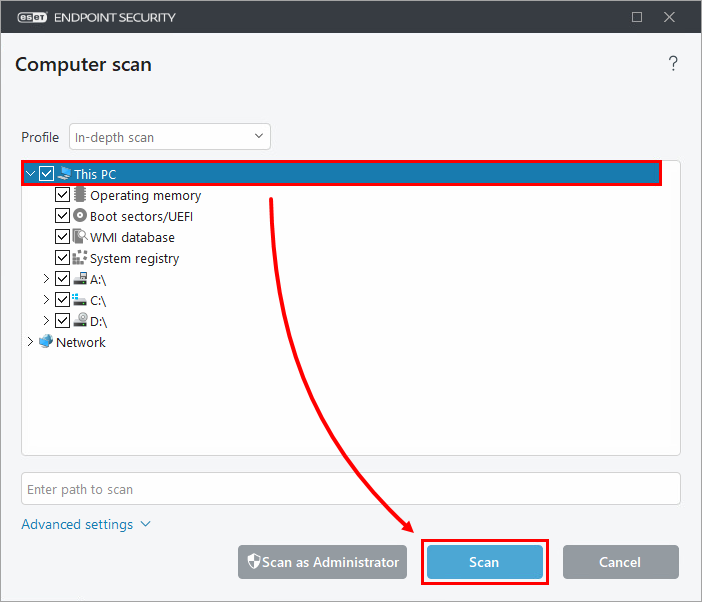
- Select the check box next to This PC (or Computer) and click Scan. Your ESET product will automatically clean or delete all detections found during the scan.
Learn more about the On-demand & Machine learning protection categories.


