Issue
- Install ESET Endpoint Encryption on a machine with internet access
- Install ESET Endpoint Encryption on a machine without internet access
- Install ESET Endpoint Encryption on multiple machines without internet access
Solution
Machine with internet access
-
Run the installer. Follow the Installation Wizard and restart your computer when prompted.
-
In the login window click Setup. This will launch the license Setup Wizard which requires internet access.
-
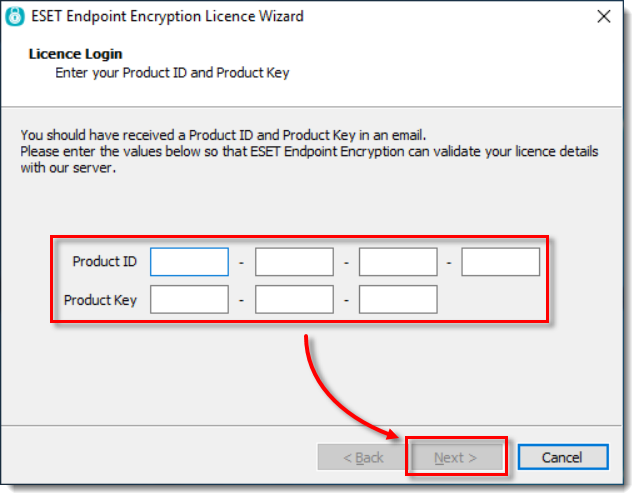
Type in your Product ID and Product Key to the respective fields and click Next.
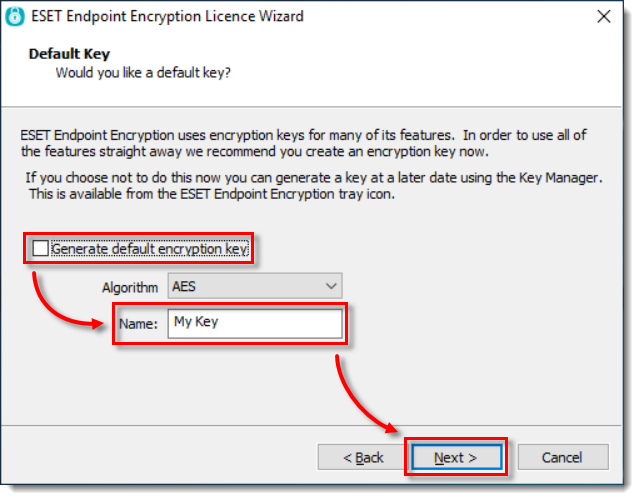
- Deselect the check box next to Generate default encryption key, type a name for your Key-File in the Name field and click Next.
- When the License Wizard has completed, a dialog will appear offering to back up the Key-File. Save this Key-File to a USB device.
Machine without internet access
- Run the installer. Follow the Installation Wizard and restart your computer when prompted.
-
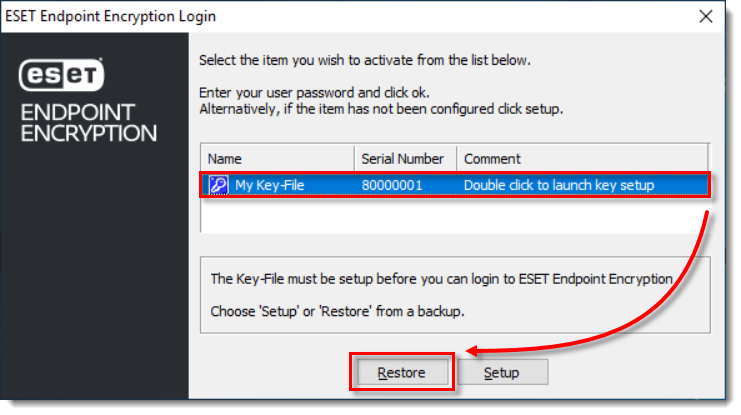
In the login window, select the Key-File and click Restore. This will launch a file dialog window.
- Plug in the USB device with your saved Key-File to the machine with internet access, locate the Key-File and double-click it.
Multiple machines without internet access
If you have multiple machines without internet access, repeat the process above to create another key file for these machines. If you need to use the same machine to create the key files, follow these steps to reset the licensing for the system which is connected to the internet.
-
Log out of ESET Endpoint Encryption and log back in.
-
Open the Key-File utility, select Backup and Reset Key-File to blank.
-
If you have backed up and reset your Key-File to blank, the setup process should start again. See Section 1 of this article to create a new Key-File and repeat the whole process for a new machine.


