Issue
- Migrate managed computers from ESET PROTECT to ESET PROTECT On-Prem Server
Solution
- Install the new ESET PROTECT On-Prem server
- Remove computers from ESET PROTECT
- Deploy agents on computers
- Delete ESET PROTECT
I. Install the new ESET PROTECT On-Prem Server
-
Install ESET PROTECT On-Prem using the All-in-one package installer (Windows) or choose another installation method (Windows manual installation, Linux or Virtual Appliance in your virtual environment).
-
Import all required ESET licenses to ESET PROTECT On-Prem.
II. Remove computers from ESET PROTECT
-
Click Computers and select the desired group. Select a computer and click Actions → Manage → Remove.
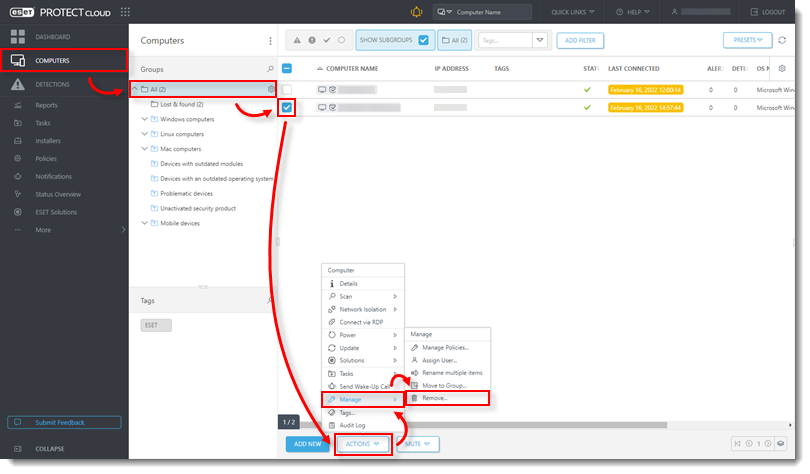
Figure 1-1 -
Click Manage Policies.
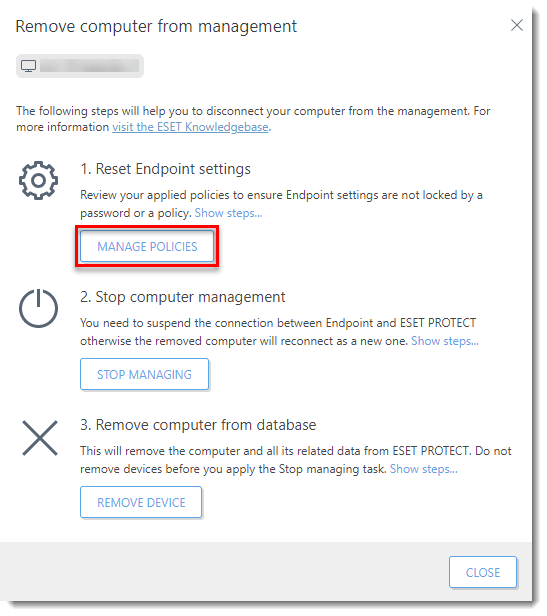
Figure 1-2 -
Click the arrow button next to the computer name to expand the list of policies applied to the computer. Select the check box next to each policy and click Remove policy. Click Close.
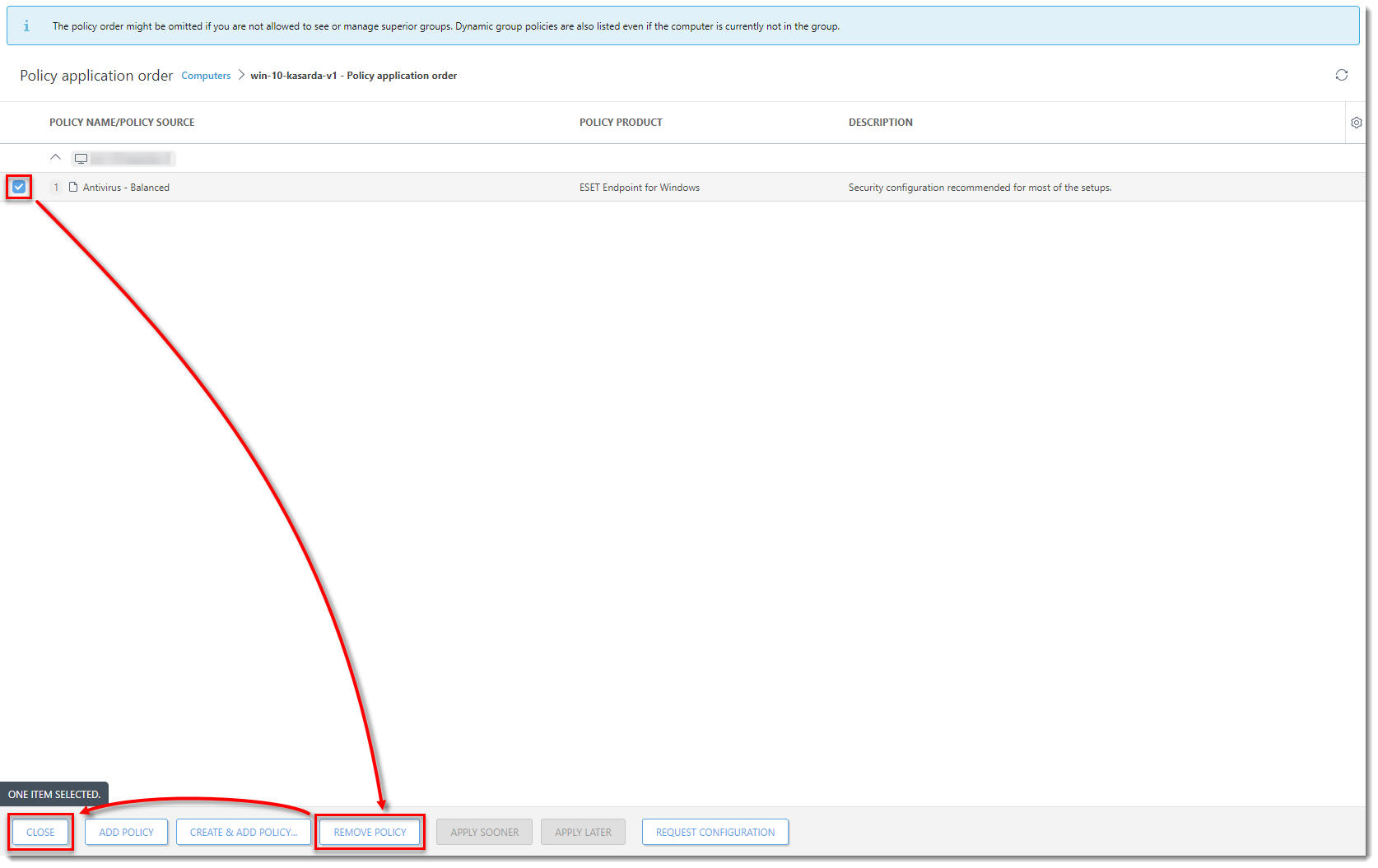
Figure 1-3
-
Run a Stop managing task or uninstall the ESET Management Agent or ESET security product locally on a computer. This suspends the connection between the computer and ESET PROTECT.
-
After you ensure that the computer is no longer connecting to ESET PROTECT, you can remove it from the list of managed devices. Repeat step 2 with the same computer and click Remove device.
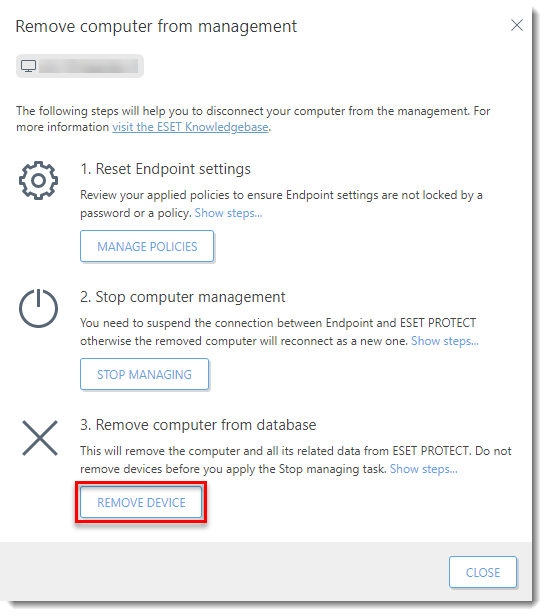
Figure 1-4 -
Deselect the check box next to I want to deactivate installed ESET products and click Remove.
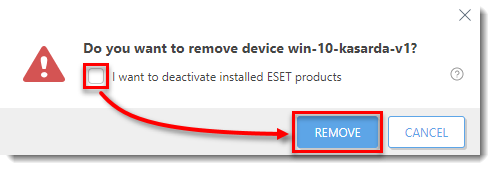
Figure 1-5
III. Deploy agents on computers
-
Deploy the ESET Management Agent to connect client computers to your ESET PROTECT Server.
-
Verify that the new computers are connecting to the new ESET PROTECT On-Prem and not connecting to the PROTECT you used previously.
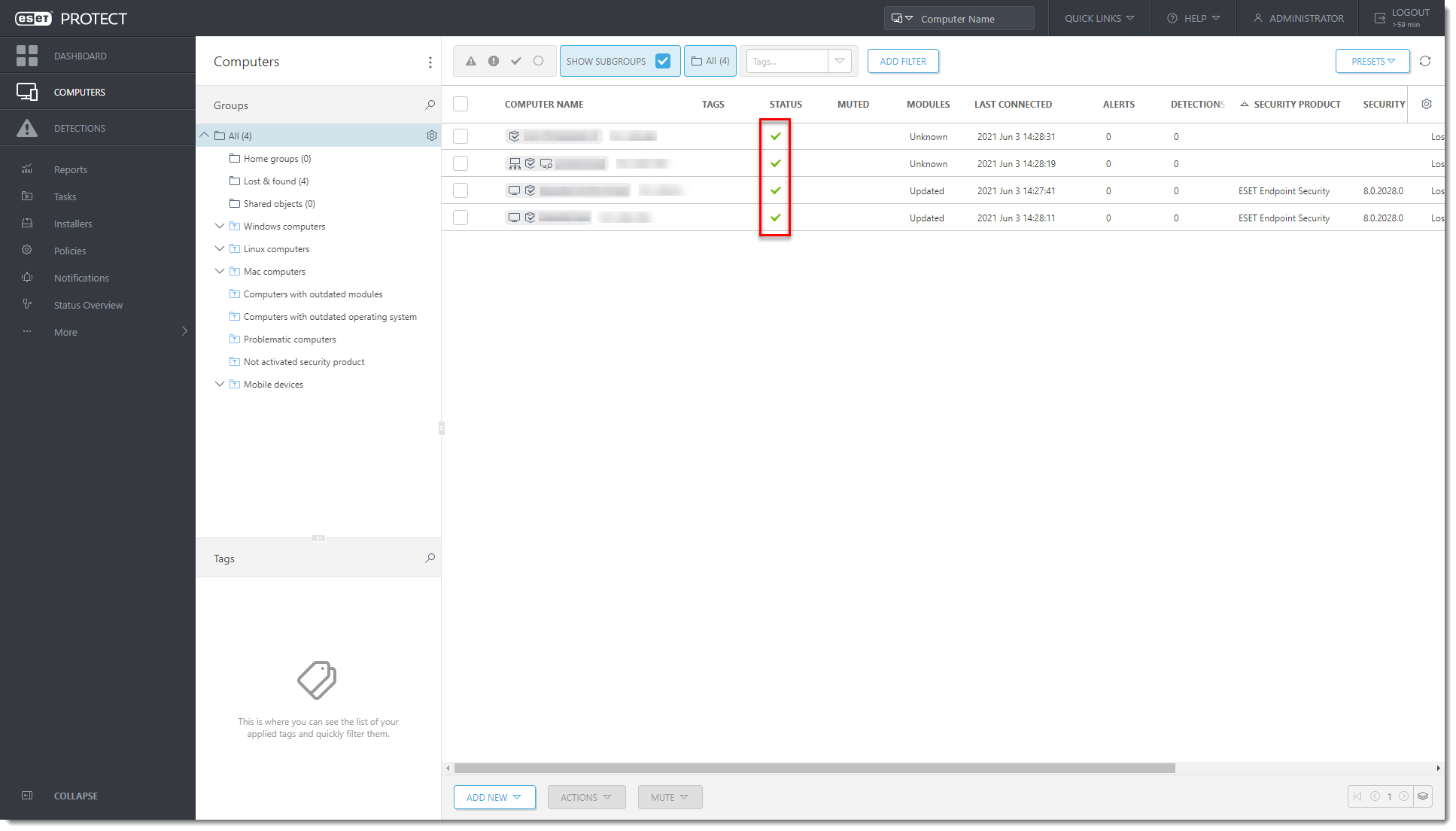
Figure 2-1
IV. Delete ESET PROTECT
Delete ESET PROTECT from ESET PROTECT Hub or ESET Business Account
-
Log in to your ESET PROTECT Hub or ESET Business Account.
-
Next to ESET PROTECT, click the gear icon and click Delete ESET PROTECT.
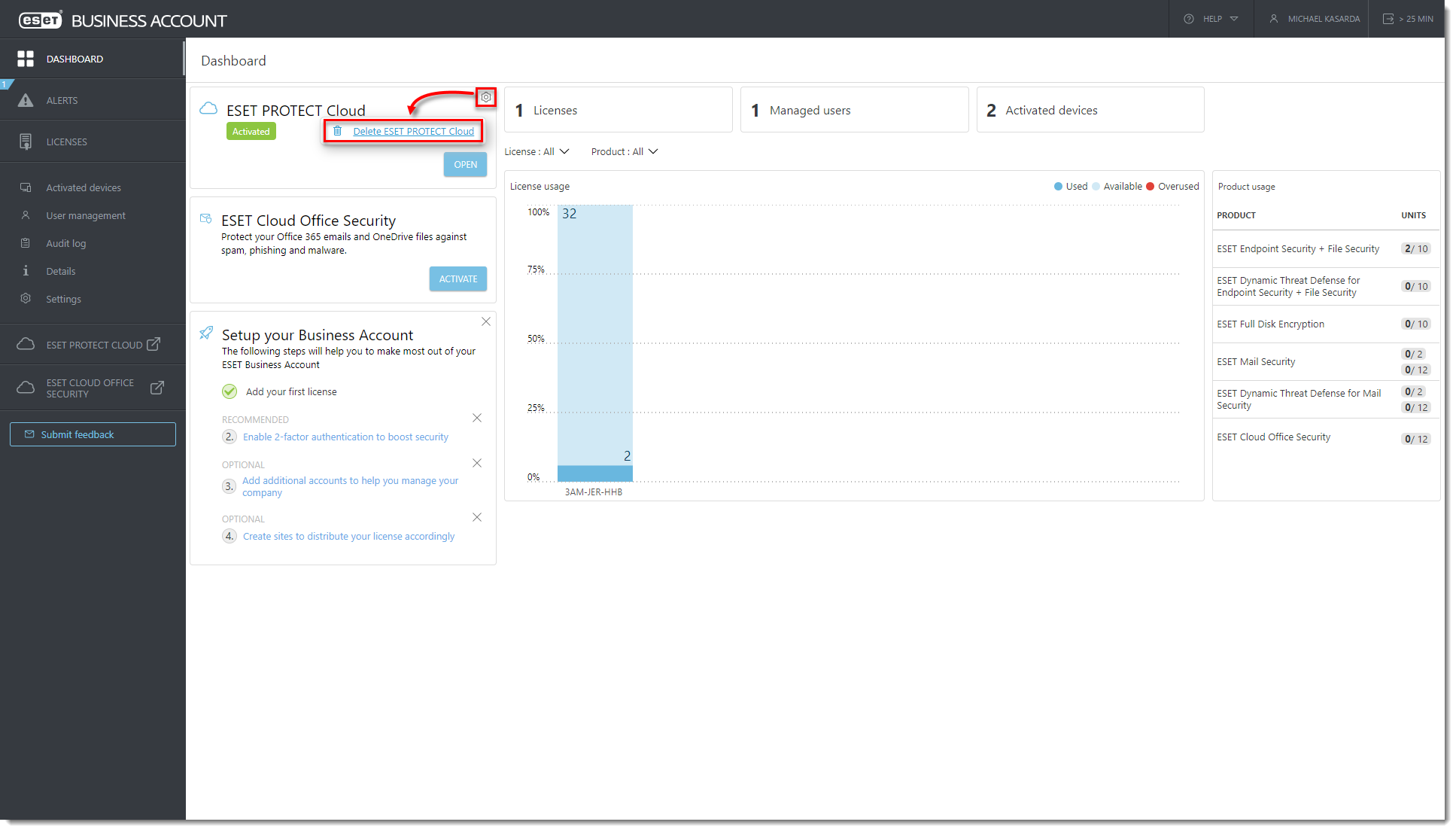
Figure 3-1 -
Type your ESET PROTECT Hub or ESET Business Account password and click Delete.
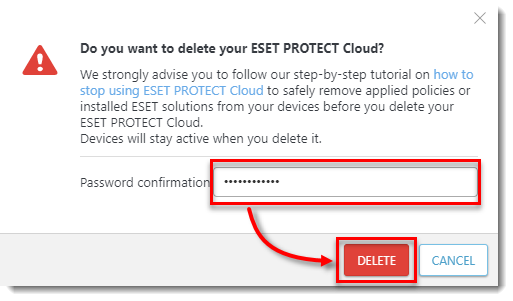
Figure 3-2


