Issue
- After uninstalling ESET Mail Security for Exchange using the ESET uninstaller utility, the Microsoft Exchange Transport Agent does not start, and one or both of the following have been added to the Application Event Log:
Log Name: ApplicationSource: MSExchange ExtensibilityDate: x/xx/xxxx x:xx:xx AMEvent ID: 1052Task Category: MExRuntimeLevel: ErrorKeywords: ClassicUser: N/AComputer: server.FQDN.localLog Name: ApplicationSource: MSExchange ExtensibilityDate: x/xx/xxxx x:xx:xx AMEvent ID: 16023Task Category: ConfigurationLevel: ErrorKeywords: ClassicUser: N/AComputer: server.FQDN.local
Solution
There are two solutions to resolve this issue. Start with solution 1 and only continue to solution 2 if the issue is unresolved.
Solution 1: Remove ESET Filtering Agents using the Exchange Management Shell
-
Click Start, type
Exchange Management Shell, and click Exchange Management Shell.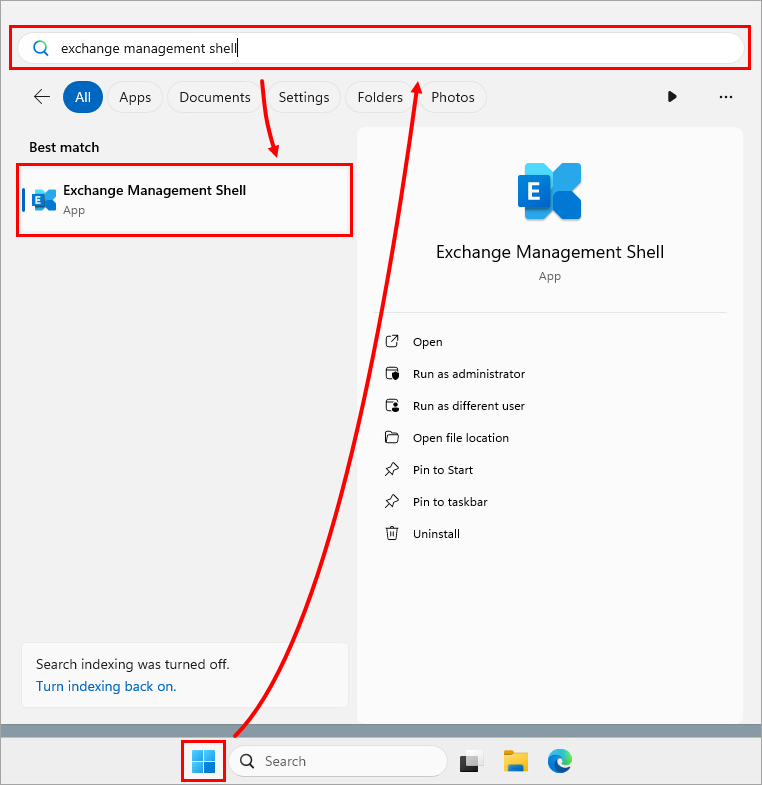
-
In the Exchange Management Shell, type
Get-TransportAgentand press Enter. Verify that ESET Filtering Agent and ESET Filtering AV Agent are present.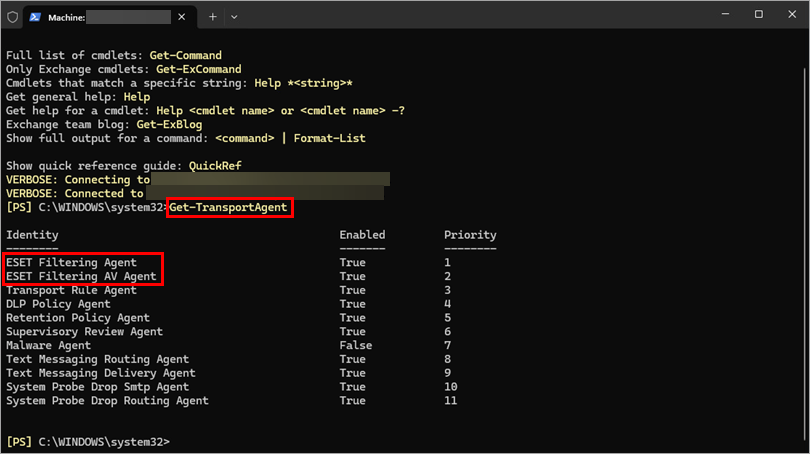
-
In the Exchange Management Shell, type
Uninstall-TransportAgentand press Enter. You will be prompted for the identity of the agent to uninstall. TypeESET Filtering Agentand press Enter, then typeYand press Enter.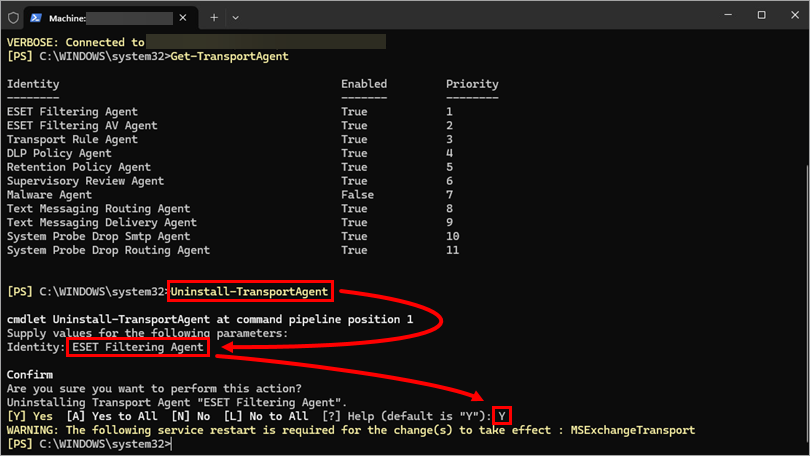
-
In the Exchange Management Shell, type
Uninstall-TransportAgentand press Enter. You will be prompted for the identity of the agent to uninstall. TypeESET Filtering AV Agentand press Enter, then typeYand press Enter.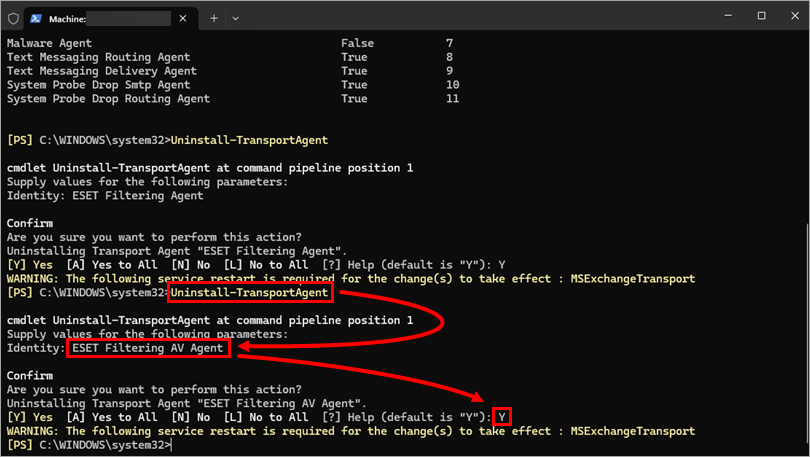
-
After successfully removing the two filtering agents, press the Windows key + R, type
services.mscinto the Open field, and click OK.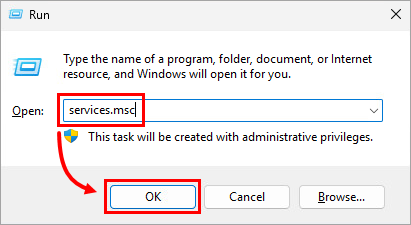
-
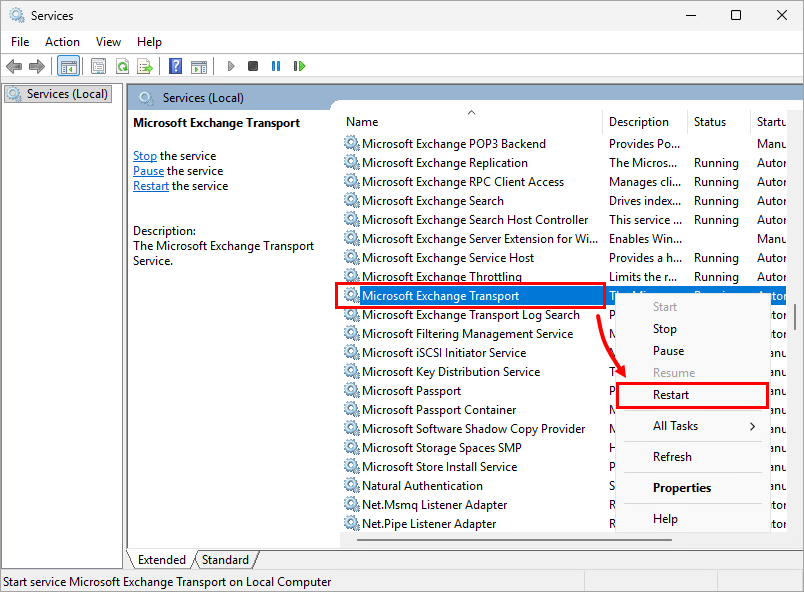
Right-click Microsoft Exchange Transport and click Restart.
-
The transport agent should now start and run as normal. Monitor the service in the event log, or the services snap-in to ensure it does not stop again. If the transport agent still does not start, continue to solution 2.
Solution 2: Manually edit the agent.config file
-
Navigate to
%Program Files%\Microsoft\Exchange Server\[EXCHANGE_VERSION]\transportRoles\shared\and open theagent.configfile in a text editor. -
Delete the
<agent name="entries for ESET Filtering Agent and ESET Filtering AV Agent and save the file.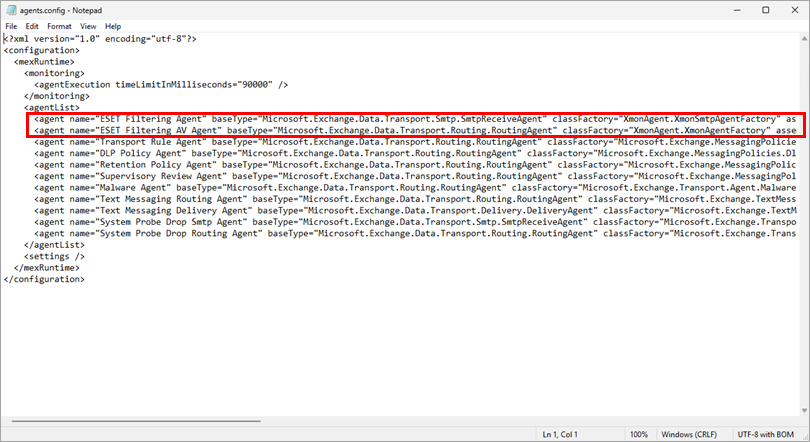
-
Press the Windows key + R, type
services.mscinto the Open field, and click OK. -
Right-click Microsoft Exchange Transport and click Restart.
-
The transport agent should now start and run as normal. Monitor the service in the event log or the service snap-in to ensure it does not stop running again.


