Issue
- Enable Gamer mode manually
- Pause Gamer mode (default state)
- Disable automatic Gamer mode activation
- Exclude applications from Gamer mode
Details
Click to expand
Gamer mode is a feature for users who demand uninterrupted software usage, do not want to be disturbed by notification/alert windows, and want to minimize CPU usage by ESET.
Enabling Gamer mode will:
- Maximize performance and minimize intrusion when full screen applications are running
- Postpone scheduled tasks (for example, module updates or scheduled computer scans)
- Disable notification/alert windows
- Minimize CPU usage by ESET to improve system performance
Gamer mode can also be used during presentations that should not be interrupted by antivirus activity.
Gamer mode is in Paused state by default and is enabled automatically when an application is running in a full screen mode. You can enable Gamer mode manually, disable automatic Gamer mode activation, or exclude applications from automatically starting Gamer mode.
Solution
Enable Gamer mode manually
-
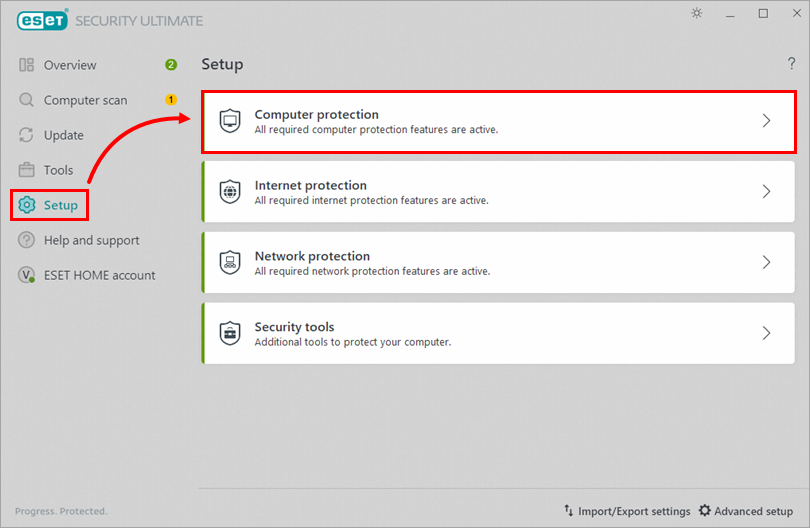
Click Setup → Computer protection.
-
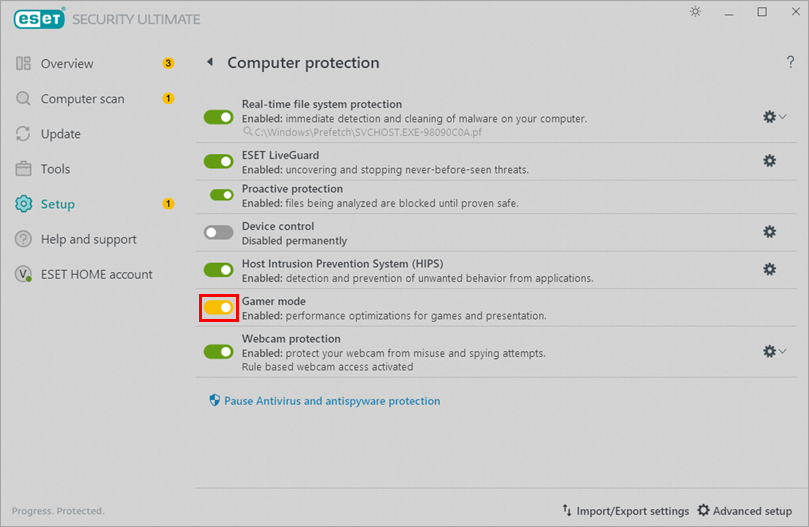
Click the toggle next to Gamer mode to enable it. Your product will show a yellow alert indicating the Gamer mode is enabled.
Pause Gamer mode (default state)
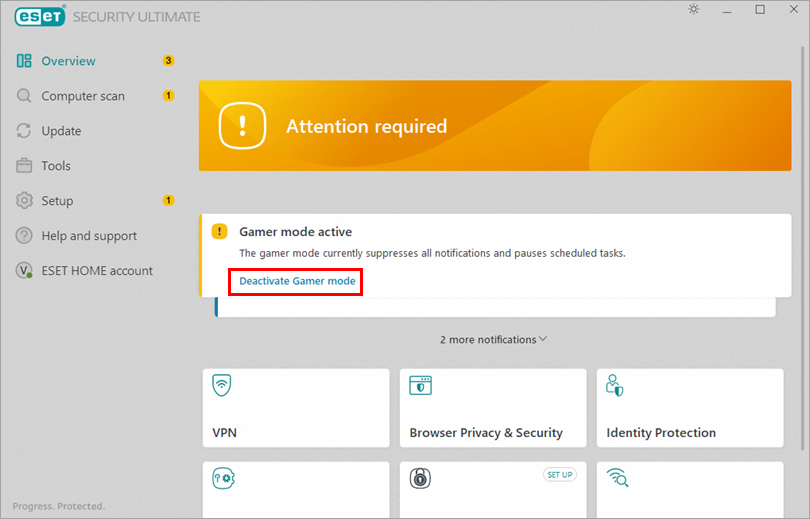
To pause gamer mode after manual activation, follow the steps below. Exiting applications running in full screen mode will automatically return Gamer mode to the default (paused) state.
-
Click Deactivate Gamer mode.
Disable automatic Gamer mode activation
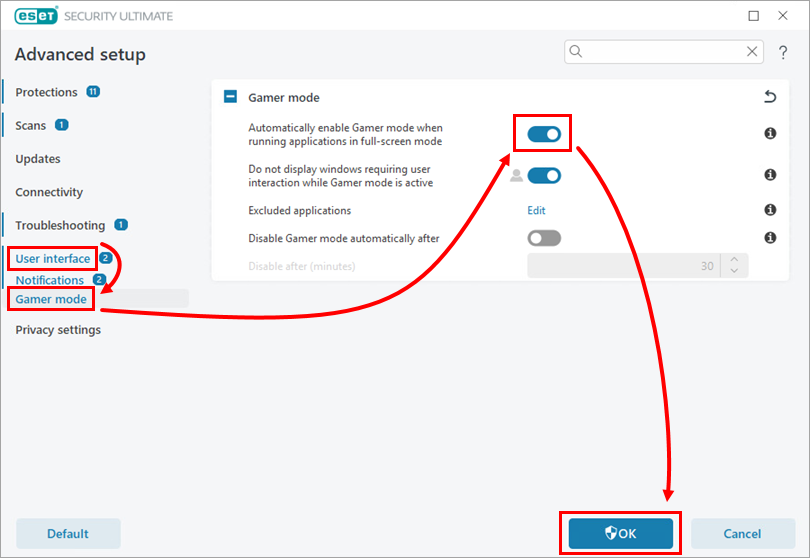
ESET Windows home products automatically enable Gamer mode when you run a full screen app. You can disable automatic Gamer mode activation in the Advanced setup:
-
Press the F5 key to open Advanced setup.
-
Click User interface → Gamer mode and click the toggle next to Automatically enable Gamer mode when running applications in full screen mode to disable it. Click OK.
Exclude applications from Gamer mode
-
Press the F5 key to open Advanced setup.
-
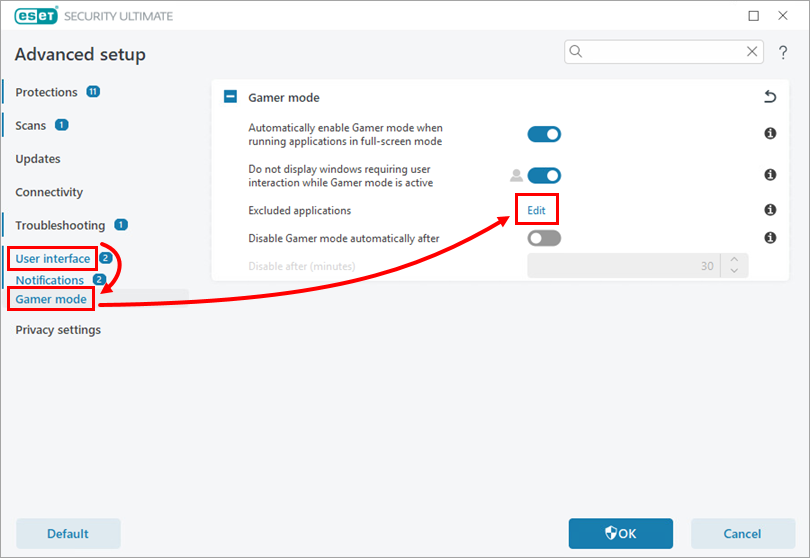
Click User interface → Gamer mode and click Edit next to Excluded applications.
-
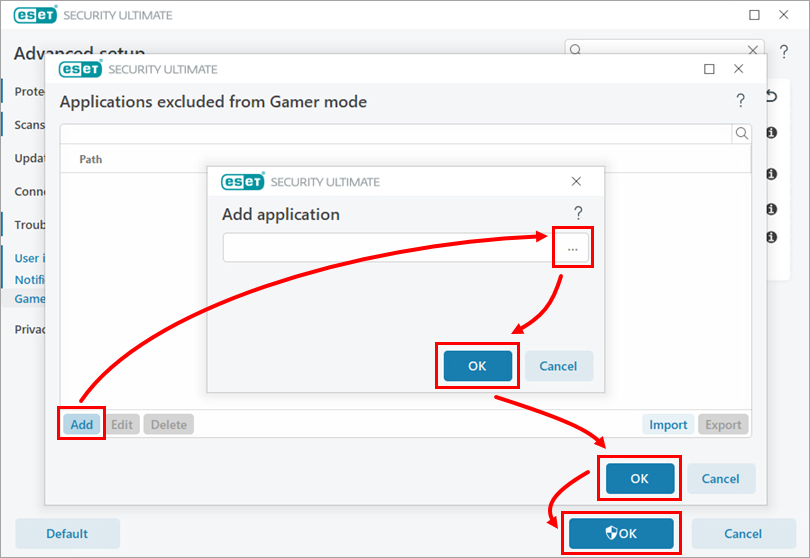
Click Add. Click the browse icon and select the app. Click OK → OK → OK.