Issue
- View the expiration date of your subscription in your ESET application
- View the expiration date of your subscription in ESET eStore
- Renew your ESET subscription
- Manage auto-pay settings for your ESET subscription
Solution
View the expiration date in your ESET application
-
Open the main program window of your ESET Windows application.
-
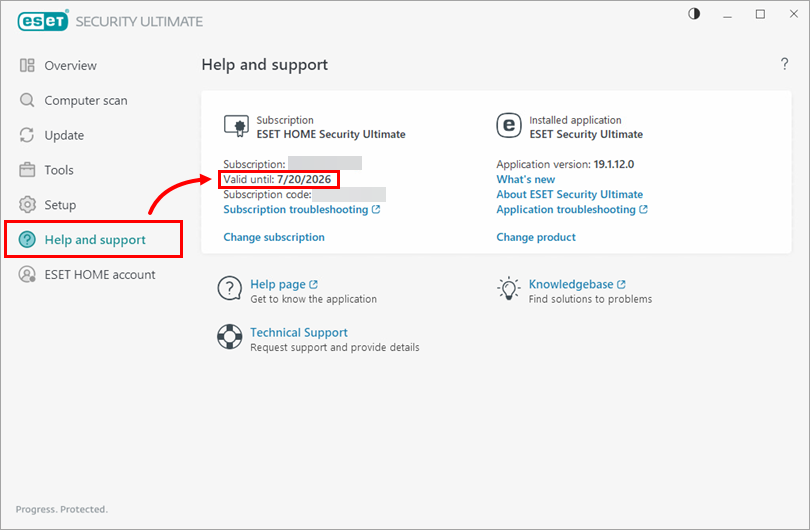
Click Help and support. The Valid until field displays the status of your auto-renewal subscription or the date your subscription expires.
View the expiration date in ESET eStore
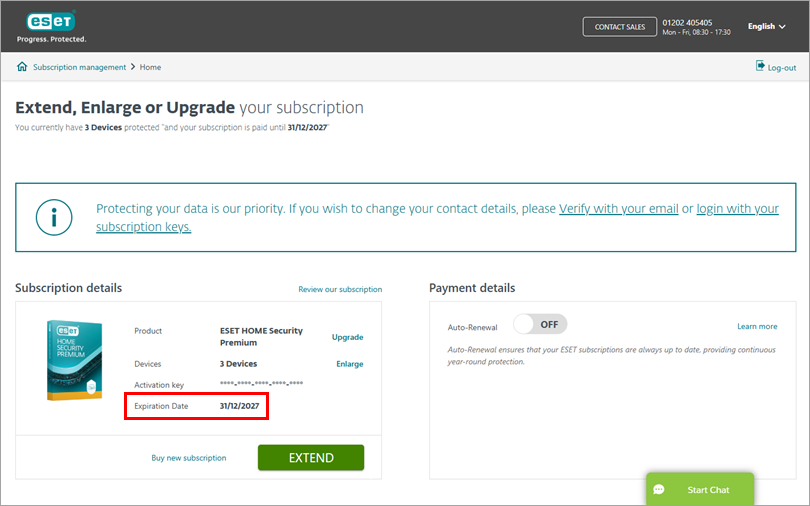
You can view the expiration date of your ESET subscription in your ESET eStore account, where you can enlarge, renew, or upgrade your subscription.
-
Log in to the ESET eStore using your Activation Key or Subscription code (If you logged in to the ESET eStore using your Subscription code, you need to verify your account).
-
View the Expiration Date in the Subscription details section.