Issue
- Filter objects using tags in ESET Inspect and ESET Inspect On-Prem
- Add a tag to an object in ESET Inspect and ESET Inspect On-Prem
Details
Click to expand
Tagging is used for classification and provides an additional way to filter objects. ESET Inspect and ESET Inspect On-Prem allow you to tag most objects, including computers, detections, incidents, executables, scripts, rules, exclusions, blocked hashes, tasks, and event filters. Tags make it easier to quickly sort, filter, and find the objects you need.
Solution
Filter objects using tags in ESET Inspect and ESET Inspect On-Prem
-
Open the view of the objects that you want to filter using tags: Click the expand icon (
 ) at the bottom left of the page to expand the navigation panel. If needed, click More. Click the view you want to open.
 -
If you want to see the list of all tags for the object, open the Tags view based on the view that is currently open.
Computers view
Click the three dots/menu icon (
 ) next to Computers and click Tags.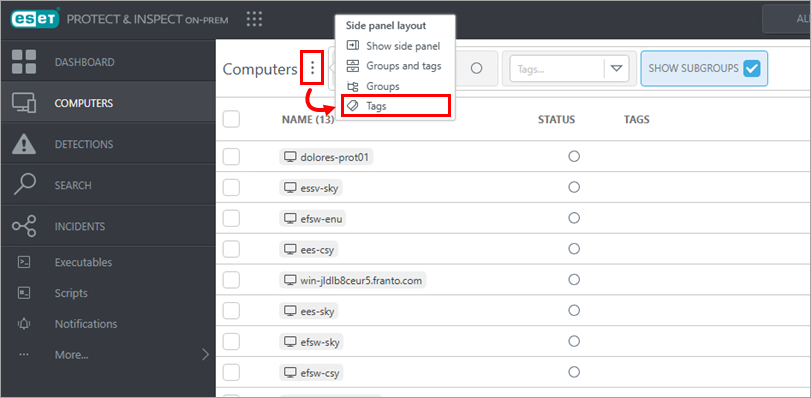
Figure 1-1 Other views
Click the expander icon (
) next to the view title.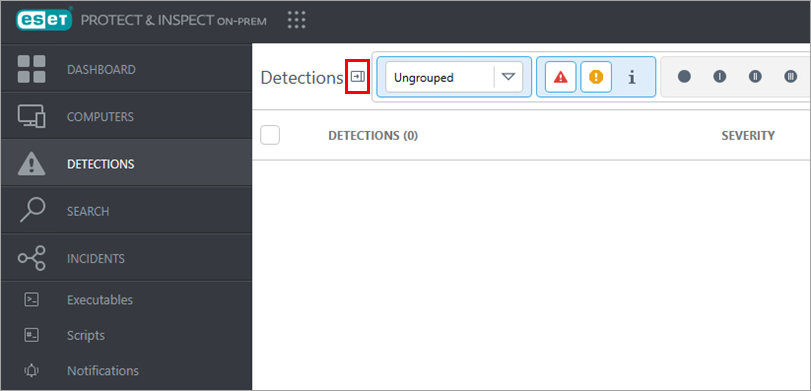
Figure 2-1 -
Activate tag filters as needed: Click the search icon (the magnifying glass) next to Tags, start typing a tag name to narrow the tag list, and click the tags you want to activate or select tags from the Tags drop-down menu.
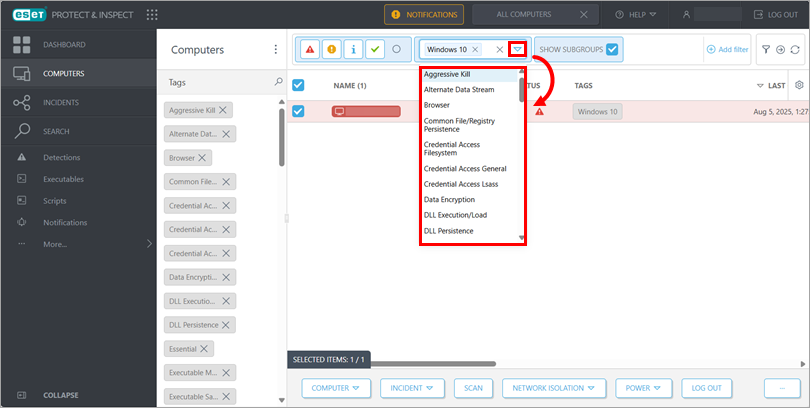
Figure 3-1 -
The activated tags are highlighted blue under Tags, and the object list contains only the objects with the selected tags. To remove a tag filter, in the Tags drop-down menu, click the remove icon (x) next to the tag you want to remove.
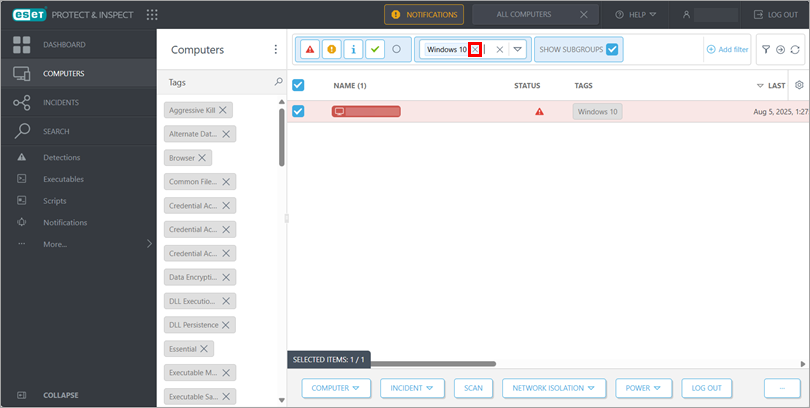
Figure 4-1
Add a tag to an object in ESET Inspect and ESET Inspect On-Prem
-
Open the view of the objects to which you want to add tags: Click the expand icon (
 ) at the bottom left of the page to expand the navigation panel. If needed, click More. Click the view you want to open.
 -
Right-click the object to which you want to add a tag and click Tags.
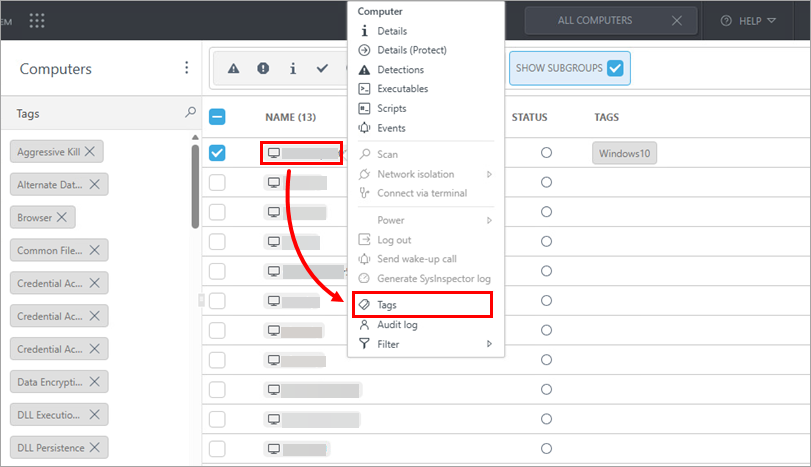
Figure 5-1 -
From the drop-down menu in the Edit tags dialog box, select the tags you want to add to the object.
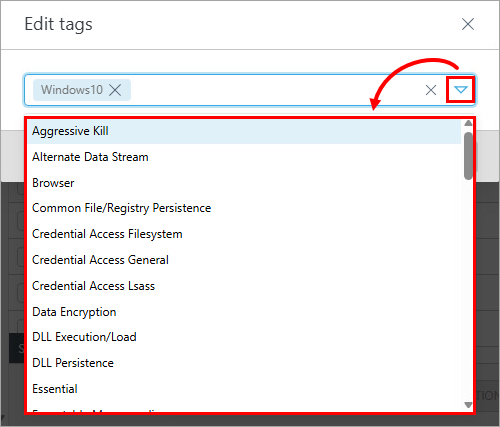
Figure 5-2 -
Click Apply.
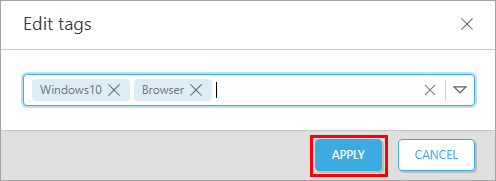
Figure 5-3


