Issue
Details
Click to expand
The Personal Identification Number (PIN) is a four-digit code that protects app settings on a child's device and prevents the user from uninstalling the application.
This PIN is set from ESET HOME or the ESET Parental Control for Android app.
Solution
Set the PIN via ESET HOME
-
Log in to your ESET HOME account.
-
In the navigation menu, click Parental Control.
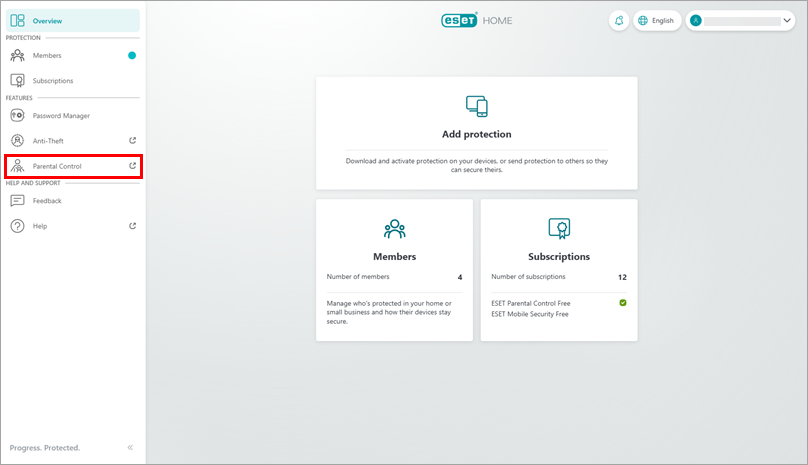
Figure 1-1 -
Click your email address in the top right corner of the screen and select Parental Control settings.
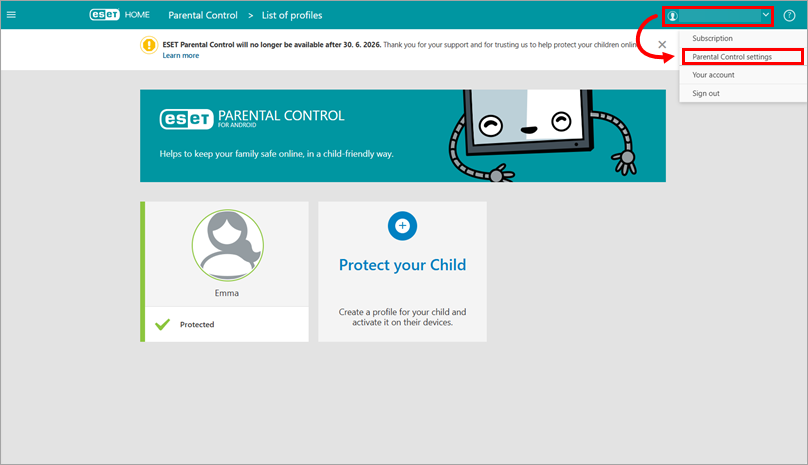
Figure 1-2 -
In the Parental PIN field, type and confirm your new PIN and click Save.
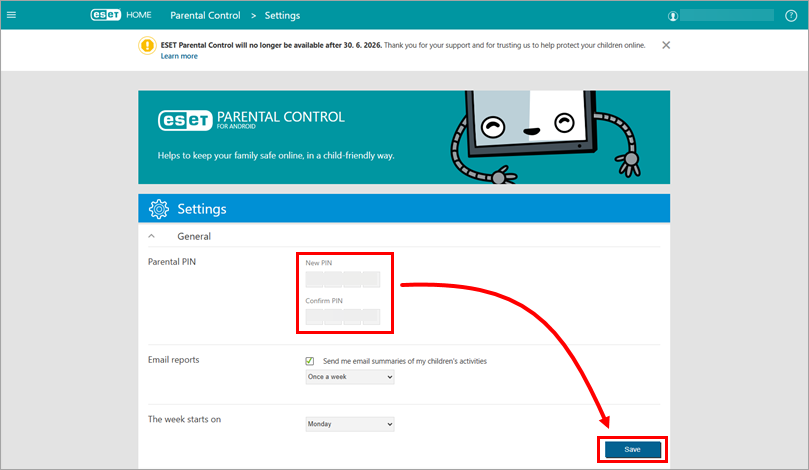
Figure 1-3 - Your PIN is now set; it will be required to change settings on your child's device. You can reset this PIN any time by repeating the steps in this article.
Set the PIN via the ESET Parental Control for Android app
-
Open ESET Parental Control for Android on your mobile device.
-
Tap the menu icon and tap Settings.
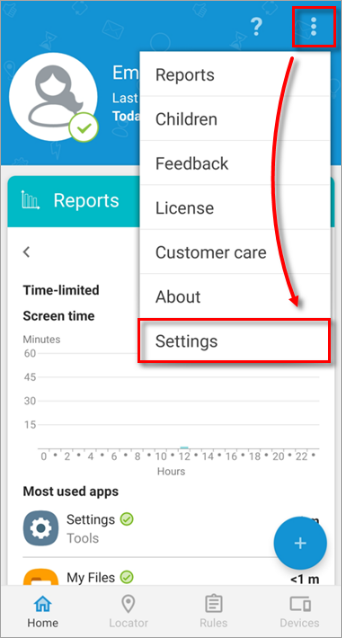
Figure 2-1 -
Tap General.
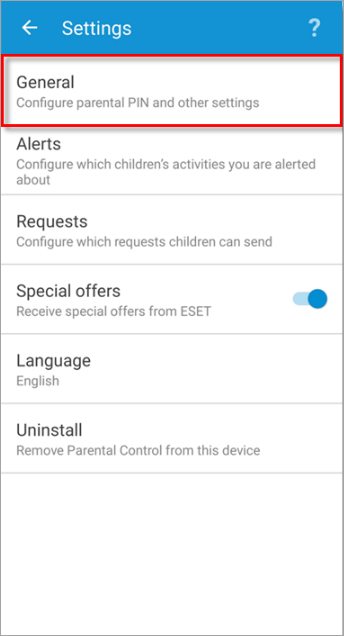
Figure 2-2 -
Tap Reset parental PIN.
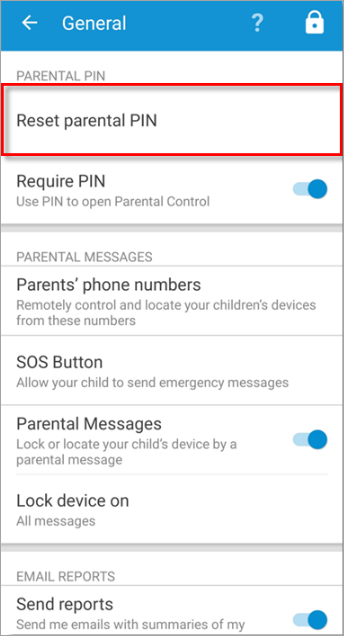
Figure 2-3 -
Type a four-digit PIN number.
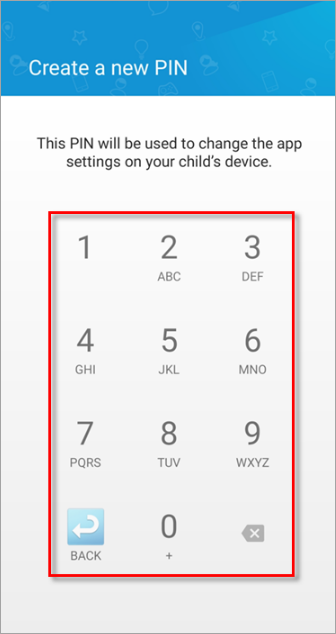
Figure 2-4 -
Re-type your PIN.
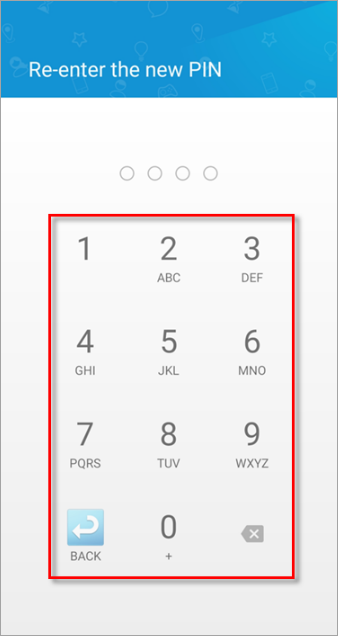
Figure 2-5 -
Your PIN is now set. You can reset this PIN any time by repeating the steps in this article.


