Issue
- Temporarily disable Network Access Protection for troubleshooting purposes
- Re-enable Network Access Protection
Solution
Temporarily disable Network Access Protection for troubleshooting purposes
-
Click Protections → Network Access.
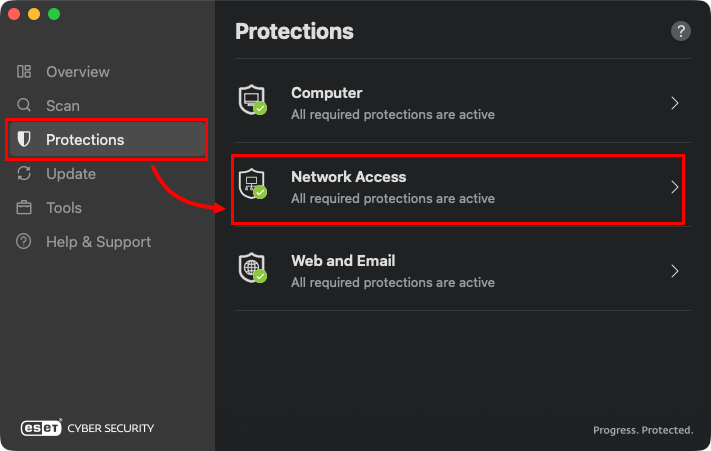
Figure 1-1 - Click the toggle next to Firewall to disable it. Firewall activity will be suspended until you re-enable Firewall. Proceed to troubleshoot your issue.
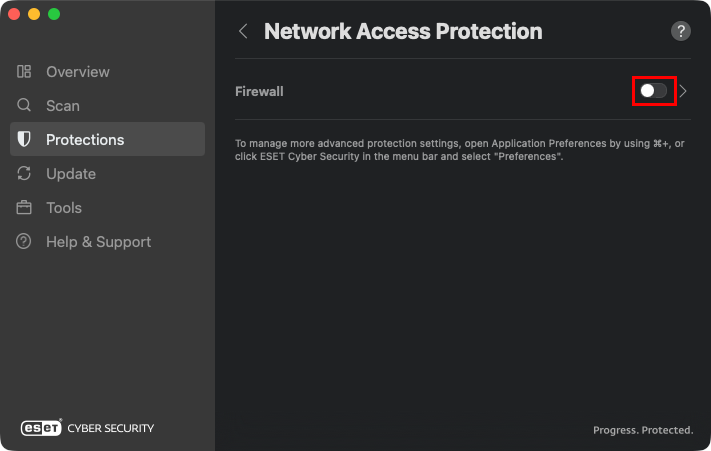
Figure 1-2
Re-enable Network Access Protection
-
Click Protections → Network Access.
Figure 2-1 -
Click the toggle next to Firewall to enable it. Network Access Protection is now re-enabled for your system.
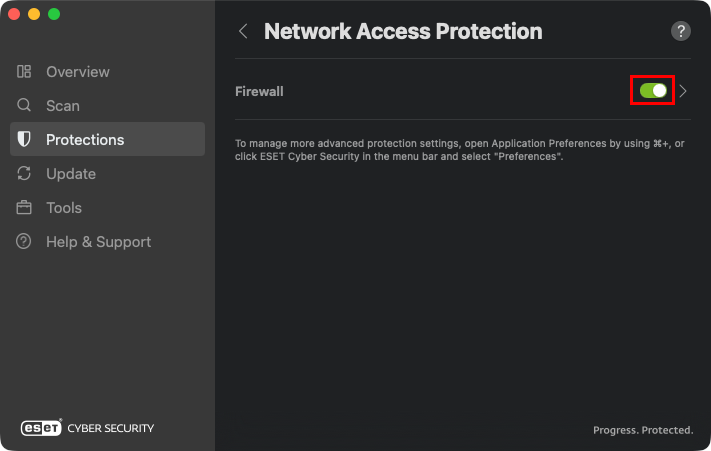
Figure 2-2 -
An alert window may appear stating that your device is connecting to a new network. Specify whether the network you are connected to is Private, Public or Guest. Read more about about network types and configuring network profiles in ESET Cyber Security.
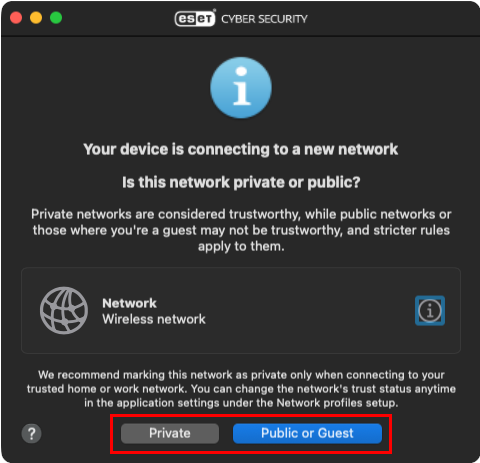
Figure 2-3


