Issue
Details
Click to expand
The User's address list in the email client's antispam protection allows you to add email addresses or domains to the blocked list. Blocked email addresses or domains are considered unsafe or associated with spam. Depending on your configuration, messages from these email addresses are automatically redirected to a spam folder.
Solution
-
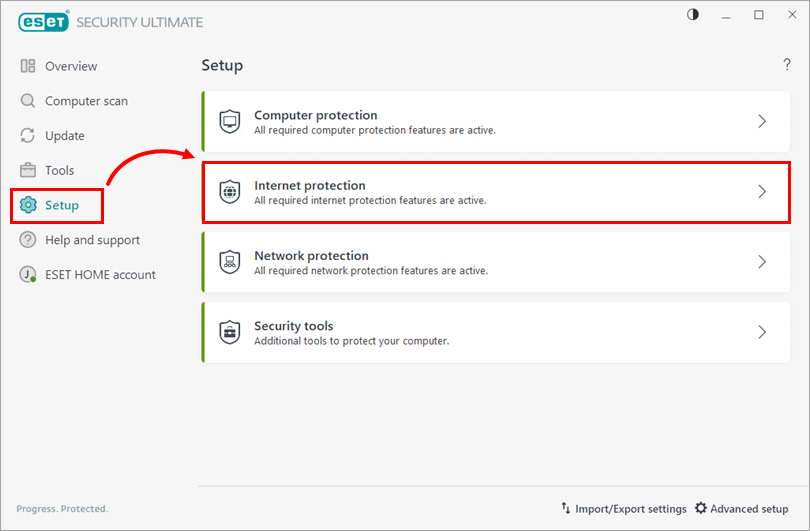
Click Setup → Internet protection.
-
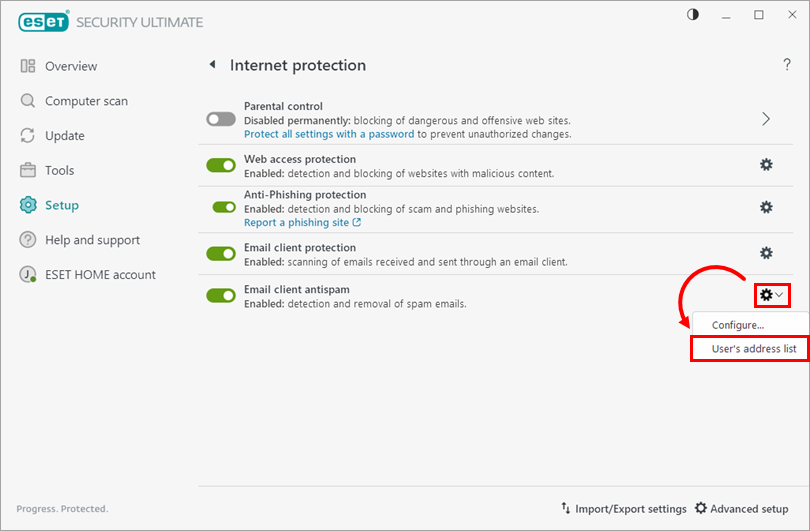
Next to the Email client antispam, click the gear icon and select the User's address list.
-
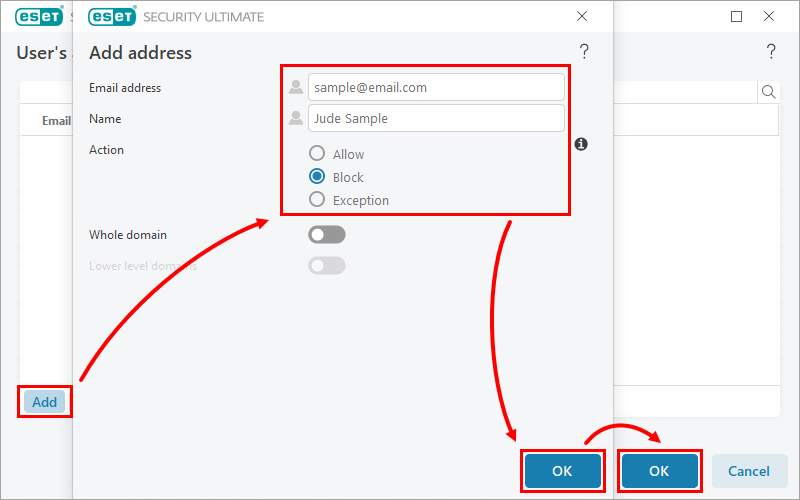
Click Add. In the Email address field, type the email address you want to block. In the Name field, type the company or individual associated with the address, and select the Block radio button. Click OK → OK to finish.
-
Next to the Email client antispam, click the gear icon and select the User's address list.
-
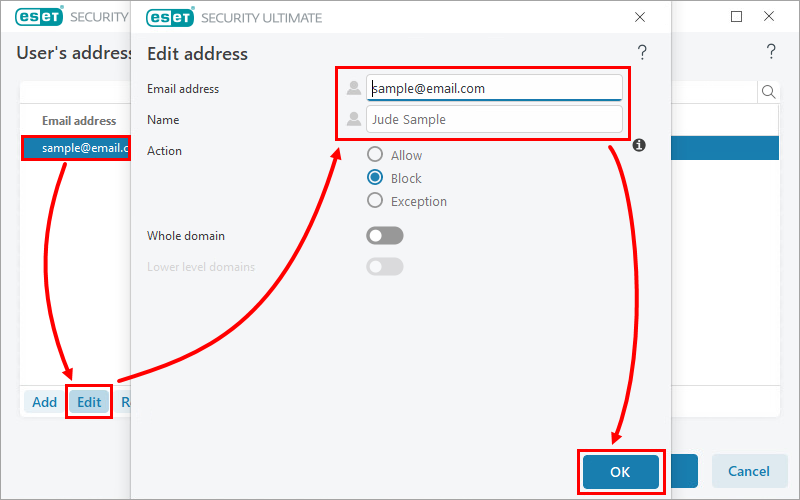
In the User's address list window, select the email address you want to edit and click Edit. Make any desired changes to the email address or name of the entry and click OK to save your changes.
-
Next to the Email client antispam, click the gear icon and select the User's address list.
-
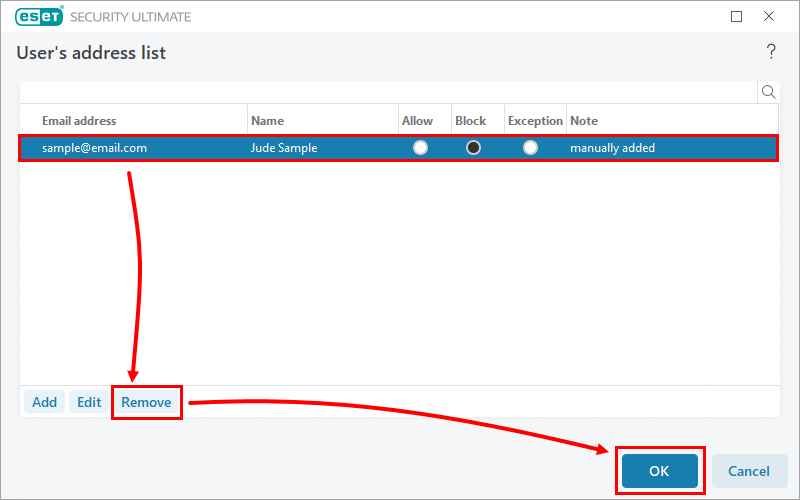
In the User's address list window, select one or more email addresses and click Remove. Click OK to finish.