Issue
- After re-installing ESET Endpoint Encryption (EEE) on a managed client, and generating and sending an activation code to the client, the activation box does not appear
Solution
To reset the activation process of a workstation, follow the steps below to modify the registry so that the workstation will prompt for activation again.
-
Press the Windows key
 + R, type
 regeditand click OK. -
Click regedit.exe and when the Registry Editor window opens, navigate to
HKEY_CURRENT_USER\Software\DESlock\Client\CentralCtrl.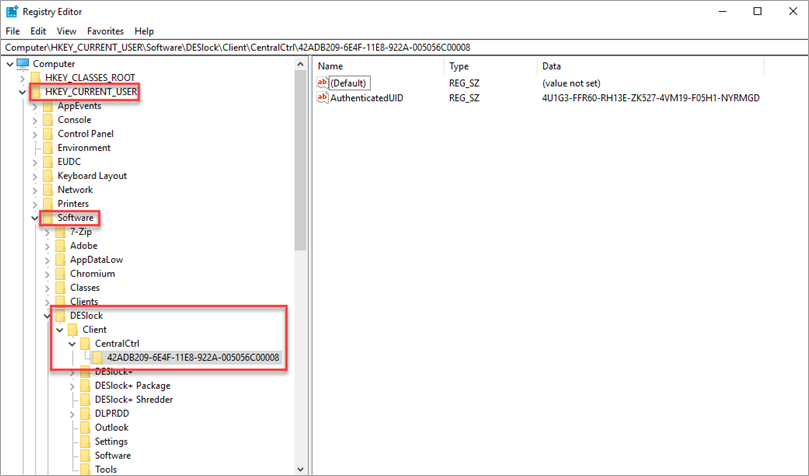
Figure 1-1 -
Delete the CentralCtrl registry key folder and restart the machine.

Figure 1-2
When the user logs back in, the activation dialog will re-appear and allow the use of a new activation code.


