Issue
- Configure ESET PROTECT to generate a notification when an incident is detected on a client device
Solution
-
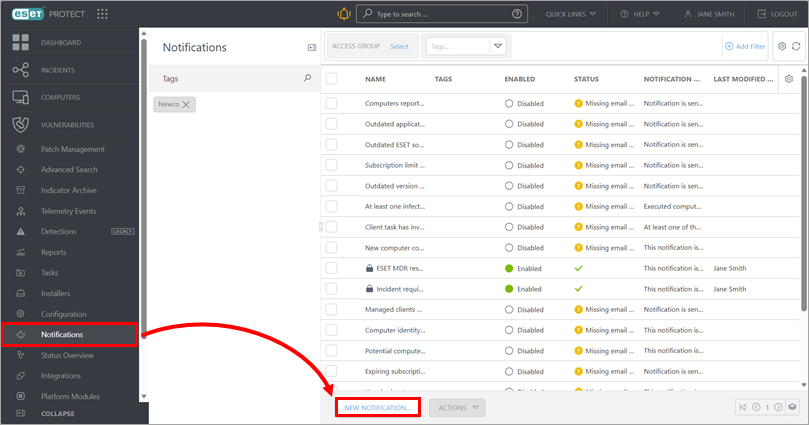
Click Notifications → New notification.
-
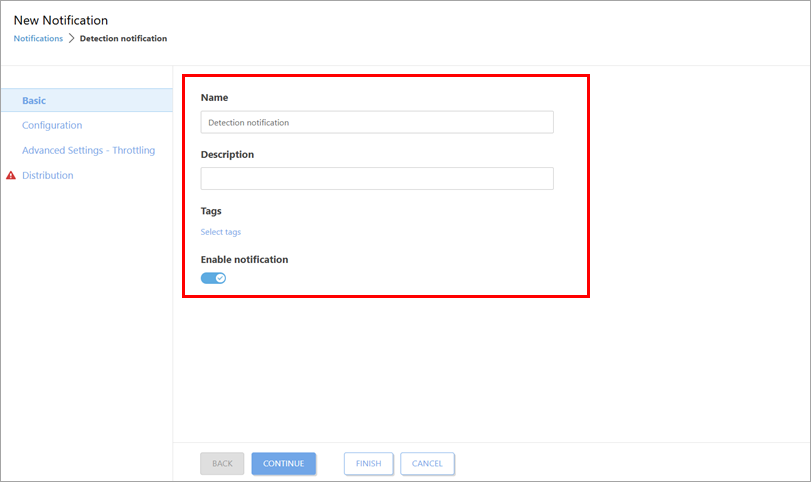
Type a name for the notification and optionally type a description. Enable the Enable notification toggle.
-
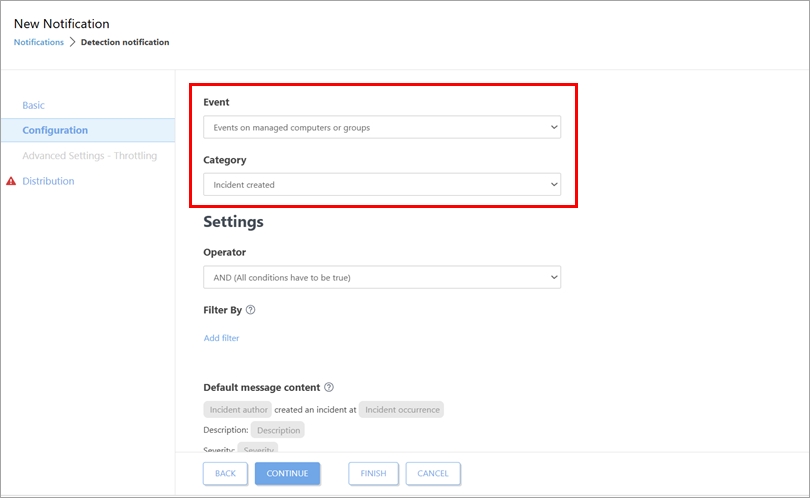
Click Configuration and ensure that in the Event drop-down menu, Events on managed computers or groups is selected. From the Category drop-down menu, select Incident created, Incident status changed or Incident severity changed, depending on what category of notification you want to trigger.
-
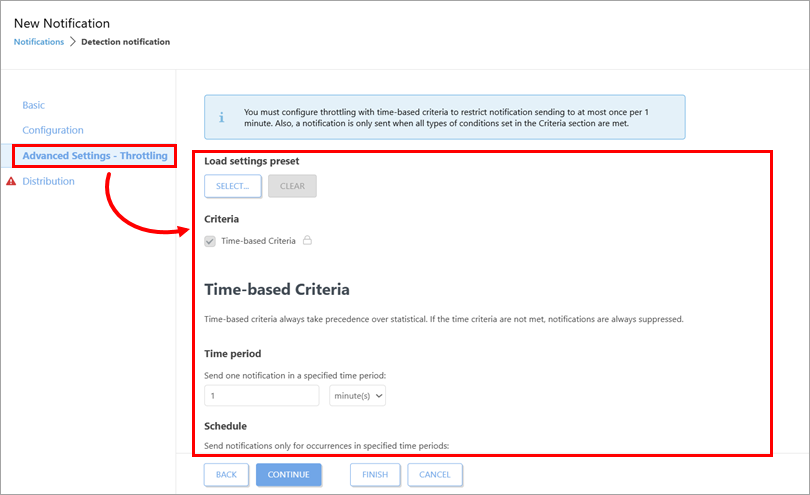
If you want to restrict when a notification is triggered, click Advanced Settings—Throttling and define the notification trigger criteria. Otherwise, leave Advanced Settings—Throttling empty and proceed to the next step.
Advanced Settings—Throttling may not be available for each notification category. For more information, see Advanced Settings—Throttling.
-
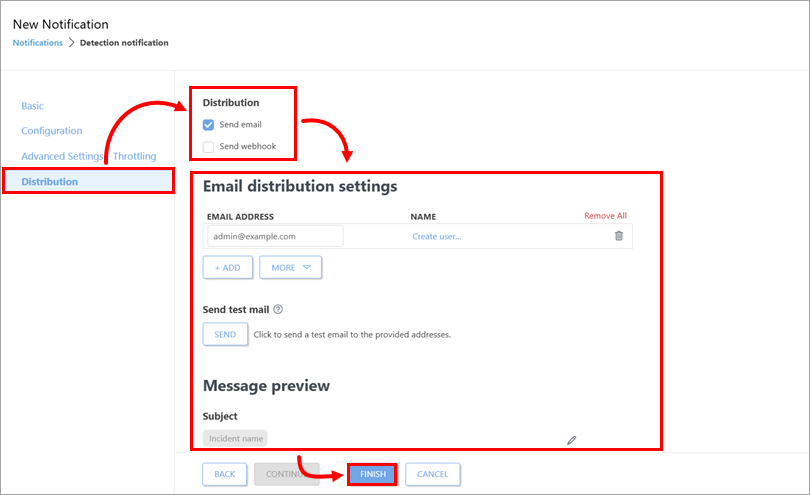
Click Distribution, select the distribution method and configure the related distribution settings. For more information, see Distribution. After you have configured the distribution settings, click Finish.