Solution
-
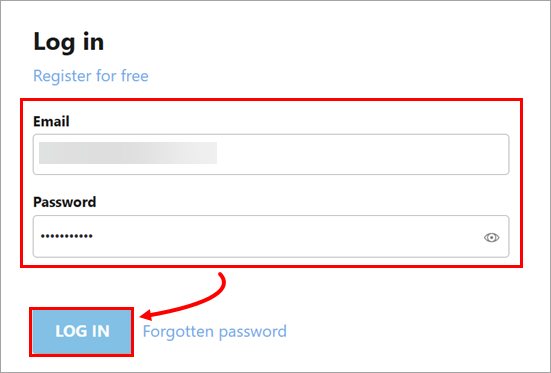
Open ESET PROTECT Hub, type your email address and password and click Log in.
-
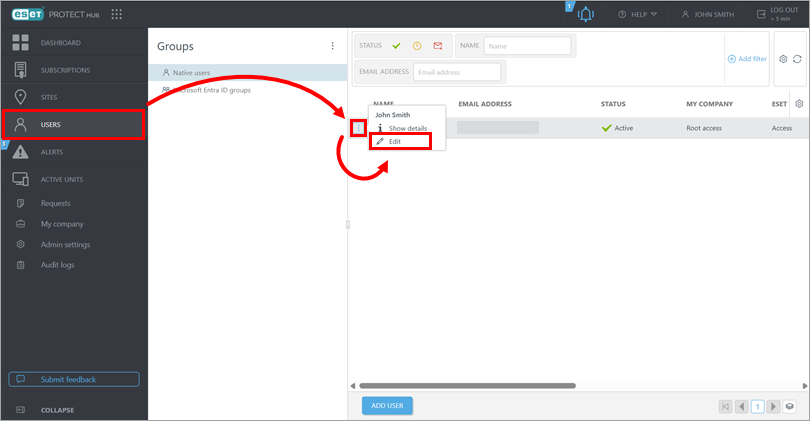
Click Users, click the selected user and click Edit.
-
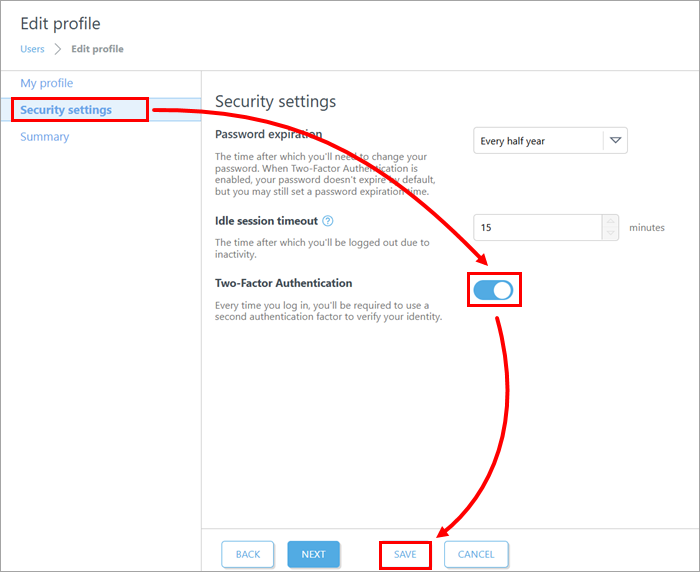
Click Security settings, enable the Two-Factor Authentication toggle and click Save.
-
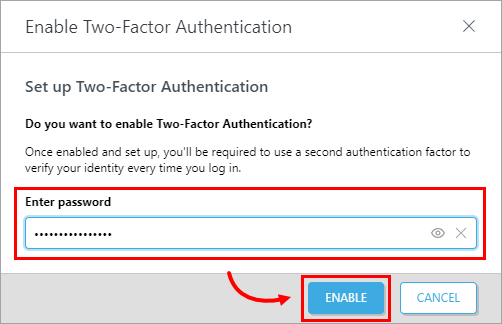
Type your ESET PROTECT Hub password and click Enable.
-
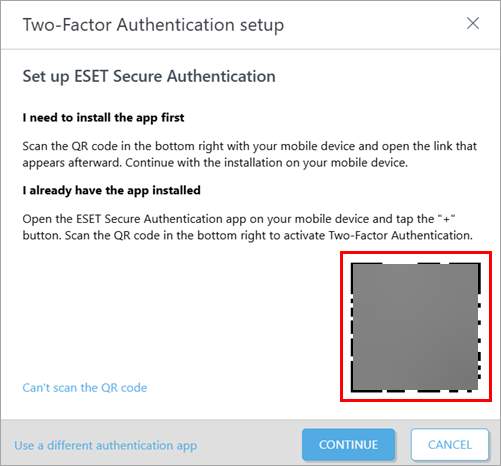
Open the ESET Secure Authentication app on your mobile device, tap Add account and scan the QR code.
-
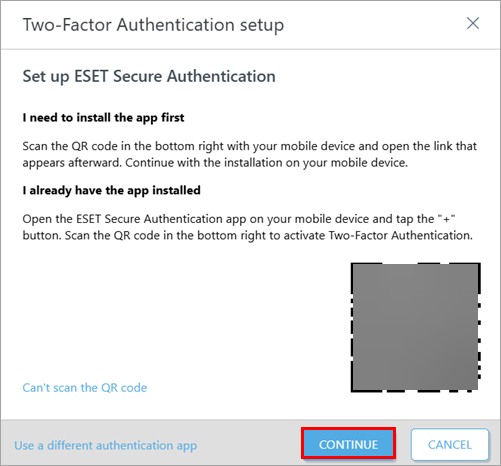
After you have set up the ESET PROTECT Hub account in the ESET Secure Authentication app, click Continue.
-
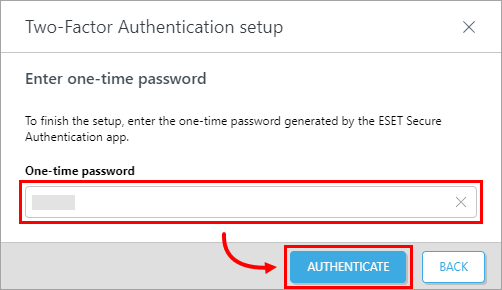
On your mobile device, open the ESET Secure Authentication app and tap the ESET PROTECT Hub account to display the one-time password. In the One-time password field in ESET PROTECT Hub, type the one-time password from the app and click Authenticate.
-
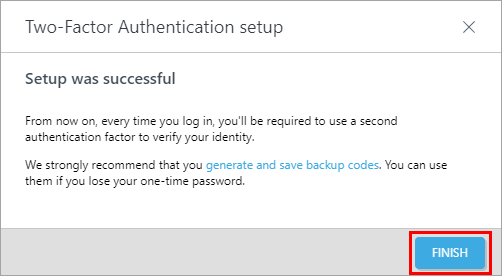
Click Finish. From now on, you will be prompted to use Two-Factor Authentication every time you log in to ESET PROTECT Hub or ESET PROTECT.