Issue
Solution
Review device control rules from previous ESET macOS products
- When migrating from older ESET Endpoint Security, default rules are automatically created to mimic previous media control settings.
- Rules are prioritized top-down. The first matching rule is applied.
- Device Control rules are evaluated based on a user OR group match. This behavior differs from earlier versions (v6.x), which required both user and group to match (AND logic).
- Users and groups are validated by the user SID (not by user UID or username).
- The system mounts external disks under the root user. Therefore, if at least one rule enable access for any user or group, the mount operation will be permitted.
Block removable media (for example, USB flash drives, CD-ROMs) from accessing your computer
-
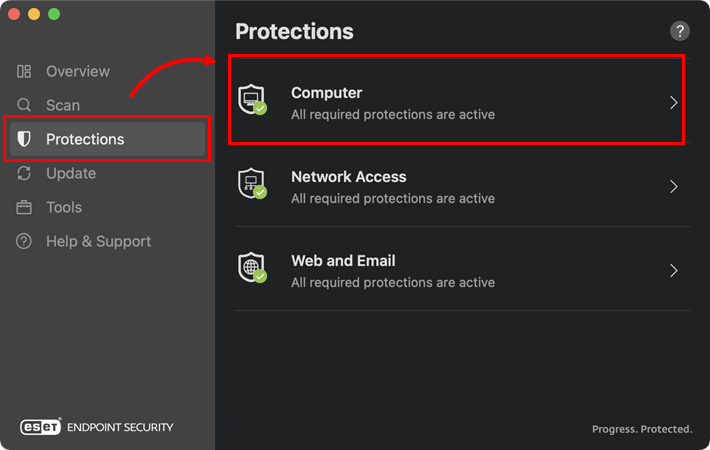
Click Protections → Computer.
-
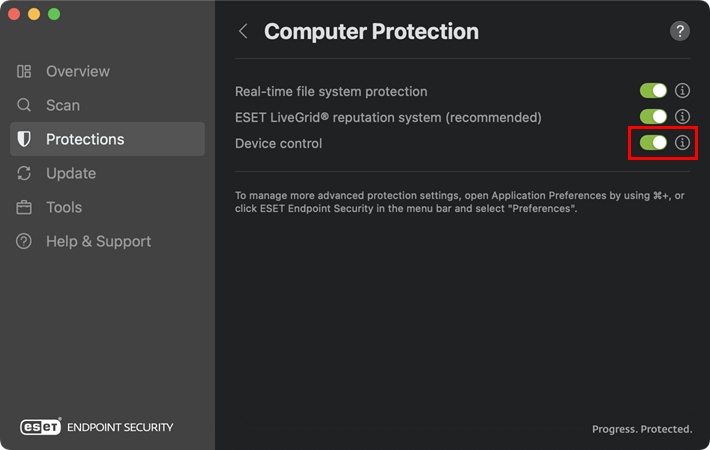
Click the toggle next to Device control and click the ℹ icon.
-
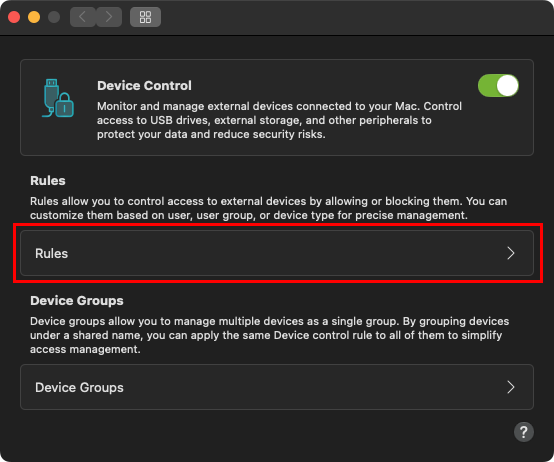
In the Device control window, select Rules.
-
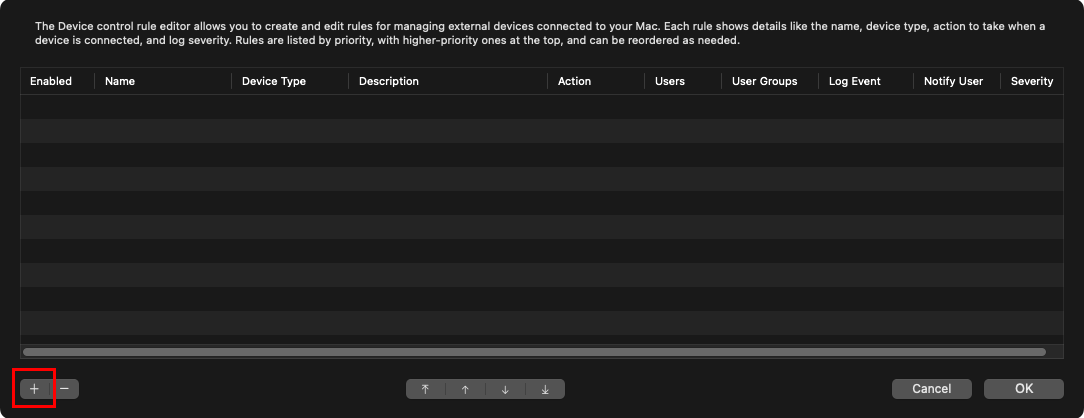
In the Rules window, click the + icon in the upper-right corner.
-
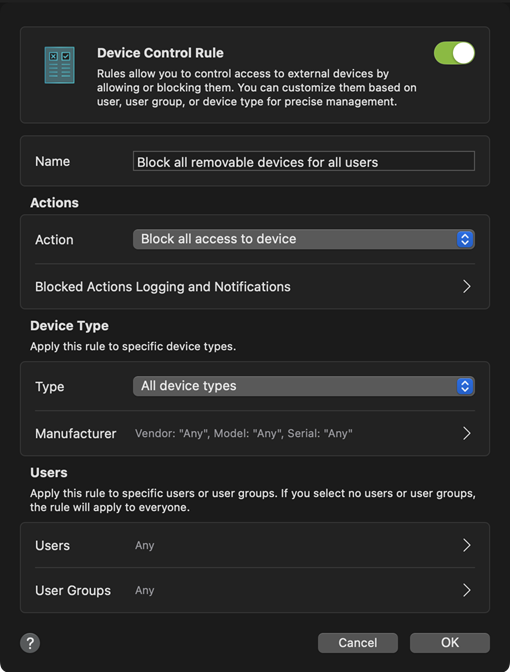
Choose a Name for the rule, select Action to take for the rule, Device type, and Users or User Groups for which the rule will be applied. Click OK to save and apply the rule.
Set device control rules from ESET PROTECT
You can add, modify Device control rules or create a Device control report using ESET PROTECT, for more information and a step-by-step guide visit this ESET Knowledgebase article.


