Issue
- Disable the "ESET Anti-Theft is available" notification on your home screen
- Disable the Anti-Theft feature in your ESET home and small office product for Windows
Solution
Disable the Anti-Theft Reminder
-
In the Anti-Theft is available notification, click Do not remind me again. To enable Anti-Theft anytime, click Setup → Security tools → Anti-Theft.
Disable Anti-Theft protection
-
Click Setup → Security tools.

Figure 1-1 -
Click the toggle next to Anti-Theft to disable it.

Figure 1-2 -
Click Disable and remove when the information message is displayed.

Figure 1-3 -
Type your ESET HOME Email address and Password, and click Disable.
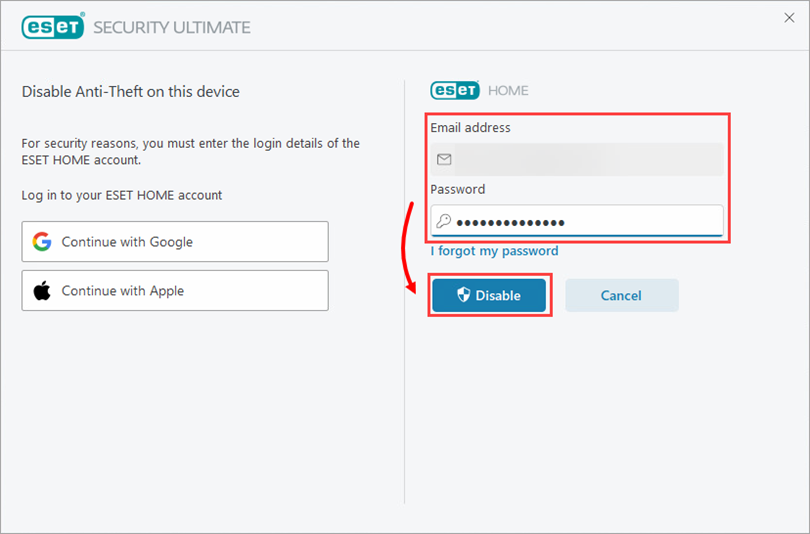
Figure 1-4 -
Click Close. Anti-Theft has been successfully disabled.
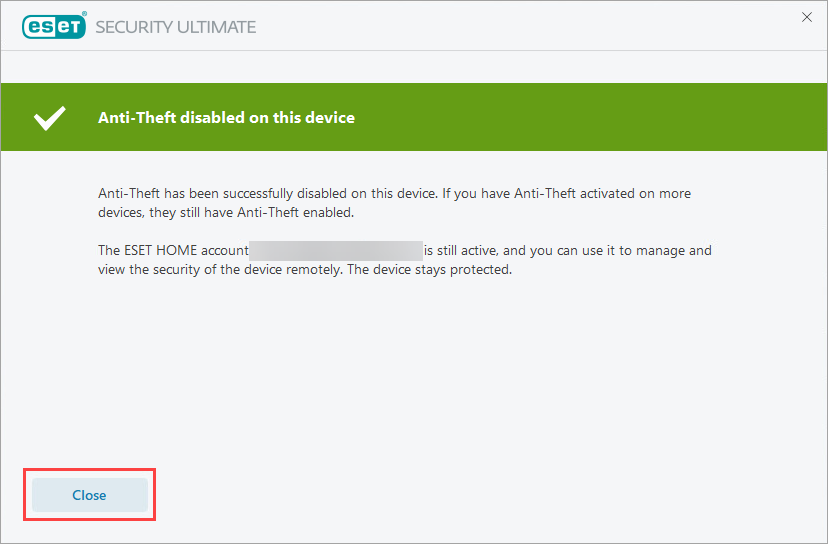
Figure 1-5


