Issue
- Select an existing ESET Inspect Server certificate in the ESET Inspect Server installer
- Create a new ESET Inspect Server certificate from the ESET Inspect Server installer
Details
Click to expand
An Inspect Server certificate is required for a successful installation of the ESET Inspect Server. During the installation, you are prompted to use one. You can either import the certificate from a file or use one from ESET PROTECT On-Prem. If you choose to use an ESET PROTECT On-Prem certificate, you can select an existing one or create a new one directly from the installer.
You can also create the certificate in ESET PROTECT On-Prem.
After you set up the ESET Inspect Server certificate, continue to configure the certificate for the HTTPS/SSL connection between the ESET Inspect Web Console and the web browser. You can choose one of the following options:
- Get the ESET Inspect Web Console certificate from ESET PROTECT On-Prem
- Import the ESET Inspect Web Console certificate from a file
- Use the ESET Inspect Server certificate (the certificate you selected in the previous installation step)
Solution
Select an existing ESET Inspect Server certificate in the ESET Inspect Server installer
-
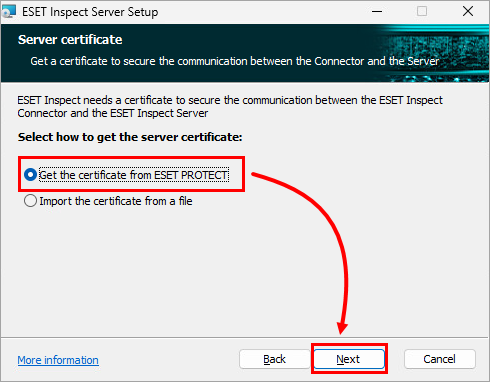
On the first Server certificate screen in the ESET Inspect Server installer, select Get the certificate from ESET PROTECT and click Next.
-
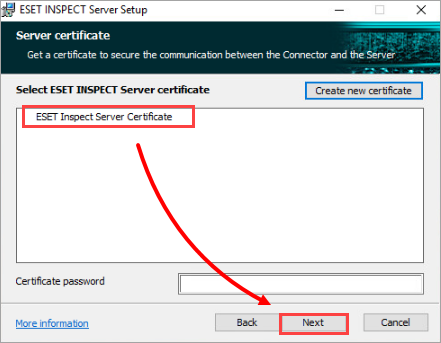
Select the ESET Inspect Server certificate you want to use and, if required, type the password. Click Next.
Create a new ESET Inspect Server certificate from the ESET Inspect Server installer
-
On the first Server certificate screen in the ESET Inspect Server installer, select Get the certificate from ESET PROTECT and click Next.
-
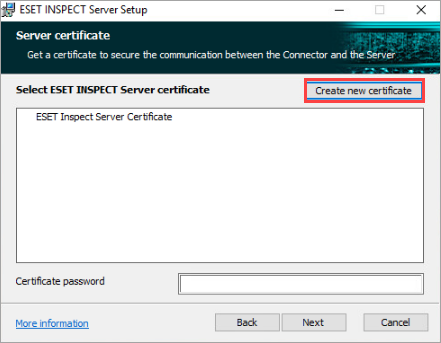
Click Create new certificate.
-
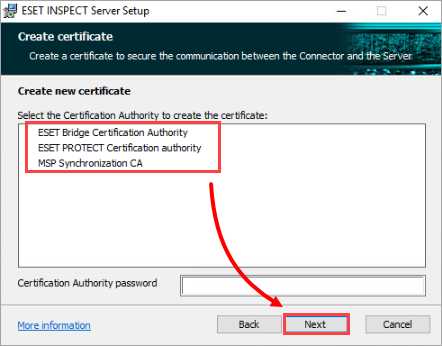
Select a certification authority and, if required, type the password. Click Next. If needed, you can create a new certification authority in ESET PROTECT On-Prem.
-
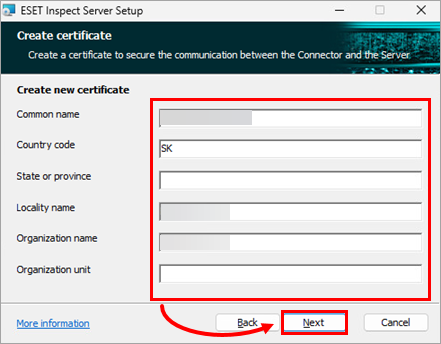
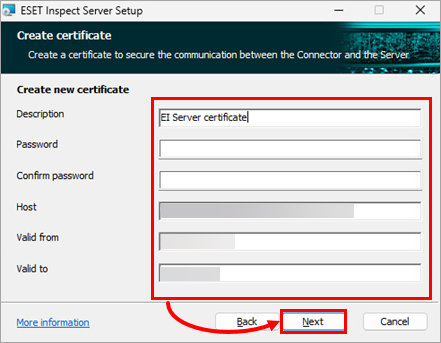
Fill in the required details and click Next.
-
Fill in the required details and click Next.