Issue
- Use Bootloader Keyboard Manager to change the keyboard language of the ESET Endpoint Encryption (EEE) pre-boot screen
Details
The selected keyboard map is displayed in the bottom left corner of the EEE pre-boot screen.
Solution
See the full list of keyboard layouts supported by EEE
-
In your Windows notification area, right-click the EEE icon and click Settings.
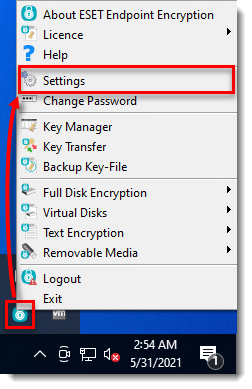
Figure 1-1
Click the image to view larger in new window -
Select the Full Disk Encryption tab, then in the Bootloader Keyboard Manager section click Manage.
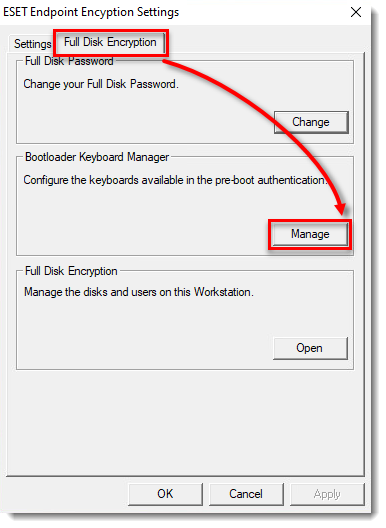
Figure 1-2
Click the image to view larger in new window -
The dialog window shows the current keyboard map. Click Add to add a keyboard map.
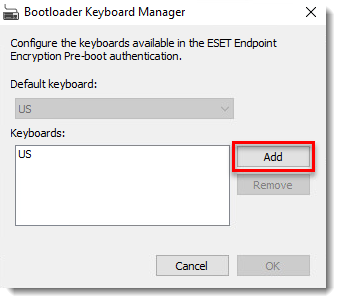
Figure 1-3
Click the image to view larger in new window -
Select a keyboard from the list of supported keyboard maps and click Add.
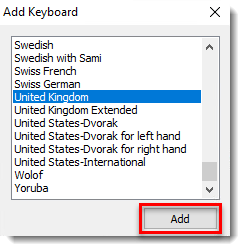
Figure 1-4
Click the image to view larger in new window -
Click OK. After reboot, the keyboard map that you selected will be available.
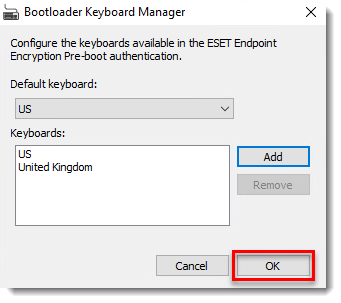
Figure 1-5
Click the image to view larger in new window -
In the pre-boot screen, press F2 key on your keyboard to switch keyboard maps.
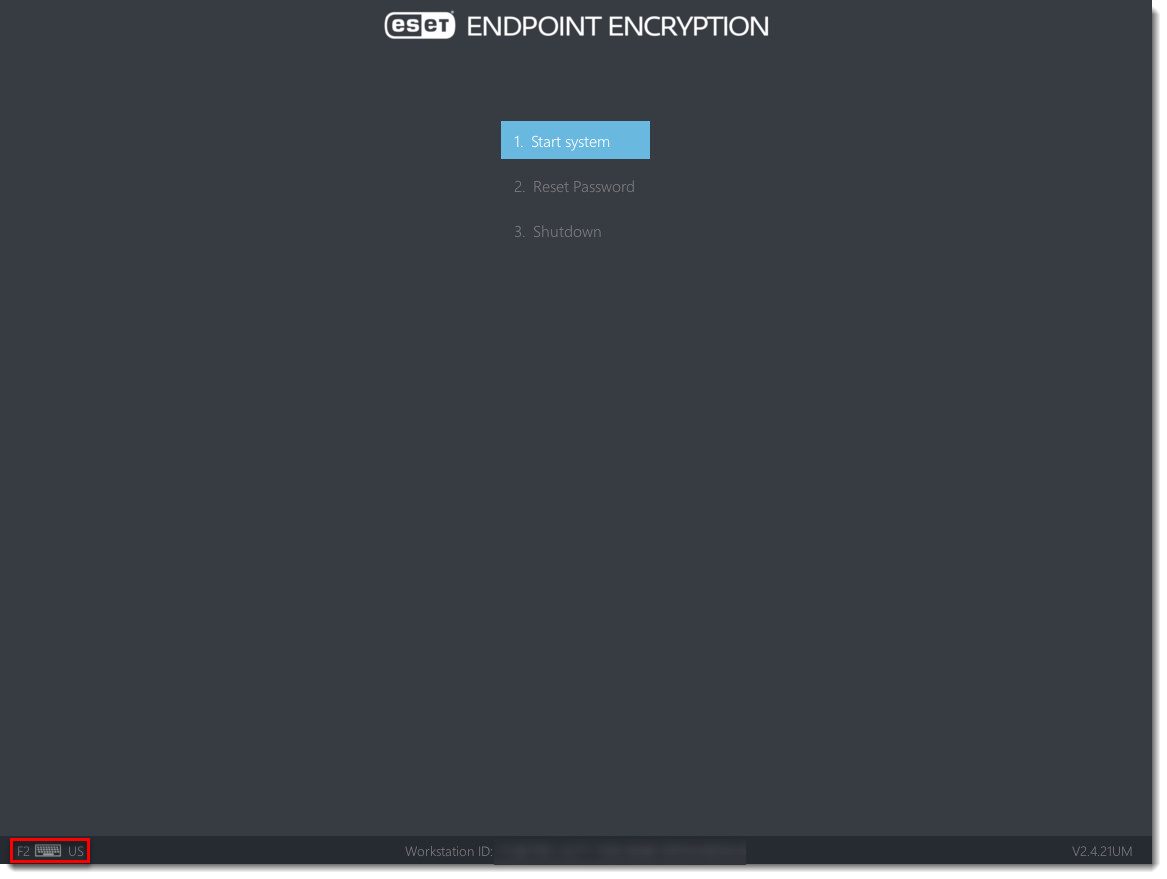
Figure 1-6
Click the image to view larger in new window


