Issue
- You want to encrypt or decrypt blocks of texts within emails, documents or web forms such as webmail
- Set up Hotkeys command
- Encrypt text with Hotkeys
- Decrypt text with Hotkeys
- Encrypt and decrypt text without Hotkeys
Solution
Set up Hotkeys command
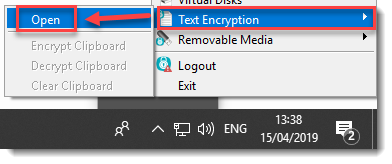
- Right-click the ESET Endpoint Encryption (EEE) icon in the system tray. If the EEE icon is not available, click the arrow to show hidden icons. Click Text Encryption → Open.
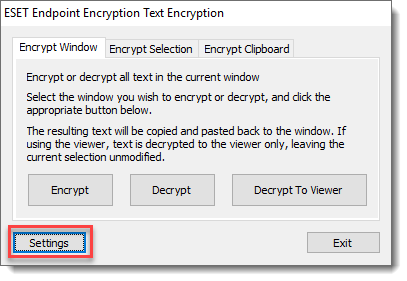
- Click Settings.
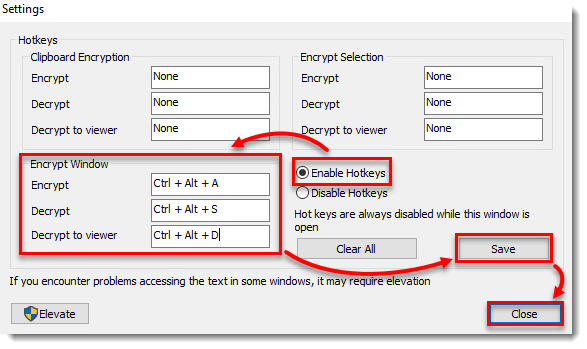
- Select Enable Hotkeys. Type a letter or number to specify the hotkeys for Clipboard Encryption, Encrypt Window or Encrypt Selection. Click Save → Close.
- Click Exit.
Encrypt text with Hotkeys
- Open the document, email or webform that contains the text that should be encrypted.
- Click the edit field containing the text or copy the text to the clipboard.
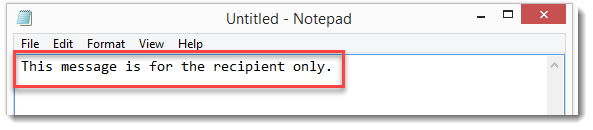
- Press the hotkey combination on your keyboard.
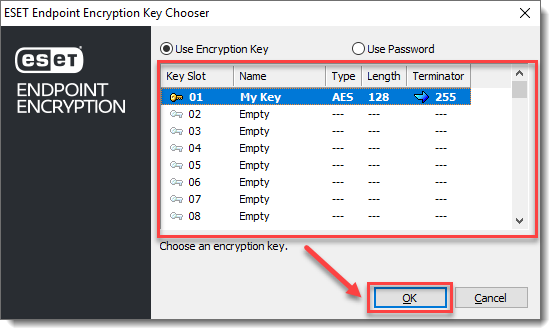
- Select the encryption key and click OK. Alternatively, you can select Use Password and type a password to use for encryption.
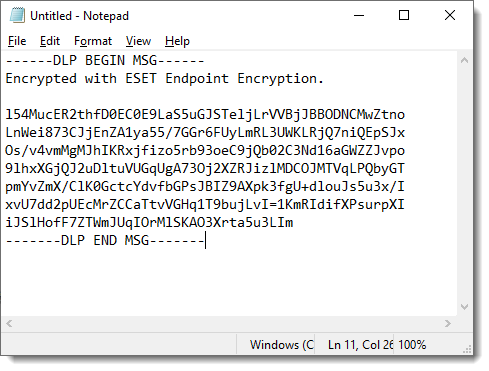
- The text is replaced with an encrypted version. Do not edit the encrypted text including the header (DLP BEGIN MSG) and footer (DLP END MSG) sections.
Decrypting text with Hotkeys
- Open the document, email or webform that contains the text that should be decrypted.
- Click the edit field containing the text.
- Press the hotkey combination. If the message was encrypted with a password, type the password.
- The encrypted text is replaced with the plain text version.
- Users that do not have EEE installed can use the EEE reader to decrypt password encrypted files.
Encrypt and decrypt text without Hotkeys
If you do not want to assign hotkeys, Encrypt and Decrypt options can be accessed by clicking through the EEE Text Encryption dialog box.
- Open the document, email or webform that contains the text that should be encrypted.
- Click the edit field containing the text or copy the text to the clipboard.
- Right-click the ESET Endpoint Encryption (EEE) icon in the system tray. If the EEE icon is not available, click the arrow to show hidden icons. Click Text Encryption → Open.
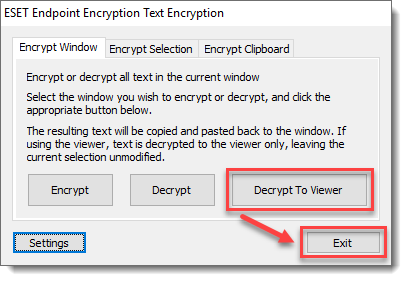
- Select the encryption type and click Encrypt, Decrypt or Decrypt To Viewer. Click Exit.