Issue
- Configure ESET Server Security for Microsoft Windows Server installed on a terminal or Citrix server
Details
Click to expand
To optimize the performance and usability of ESET Server Security for Microsoft Windows Server on terminal or Citrix servers, adjust selected default settings.
Solution
- Disable the ESET Server Security for Microsoft Windows Server graphic user interface (GUI) to prevent the main program window from opening every time a user logs in
- Optimize real-time file system protection (Citrix servers only)
- Exclude Citrix-related objects from scanning (Citrix servers only)
I. Disable the ESET Server Security for Microsoft Windows Server graphic user interface (GUI)
Through ESET PROTECT or ESET PROTECT On-Prem
-
Assign the Visibility - Silent mode policy to the client server device for which you want to disable the graphic user interface (GUI):
ESET PROTECT
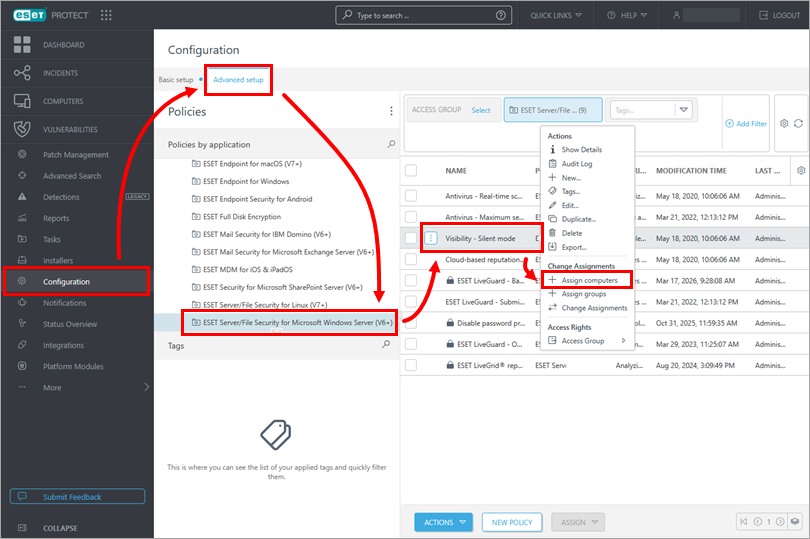
Click Configuration → Advanced setup → ESET Server/File Security for Microsoft Windows Server. Click the Visibility - Silent mode policy and click Assign computers.
ESET PROTECT On-Prem
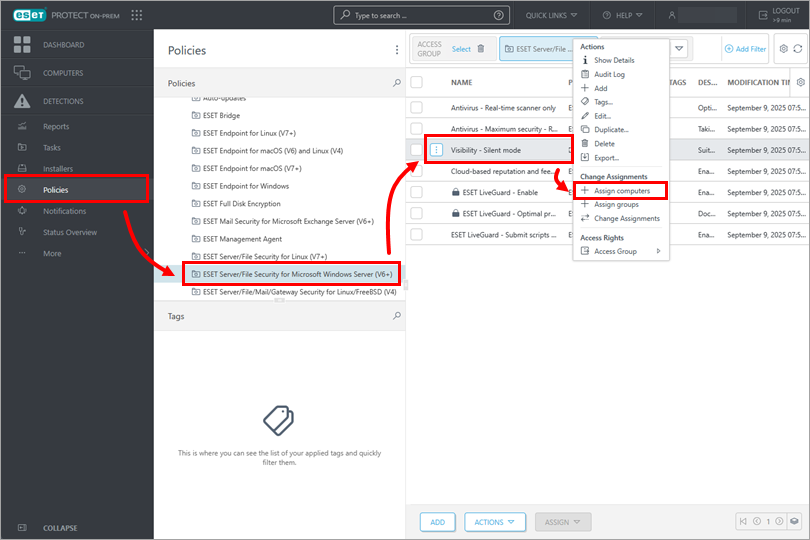
Click Policies → ESET Server/File Security for Microsoft Windows Server. Click the Visibility - Silent mode policy and click Assign computers.
-
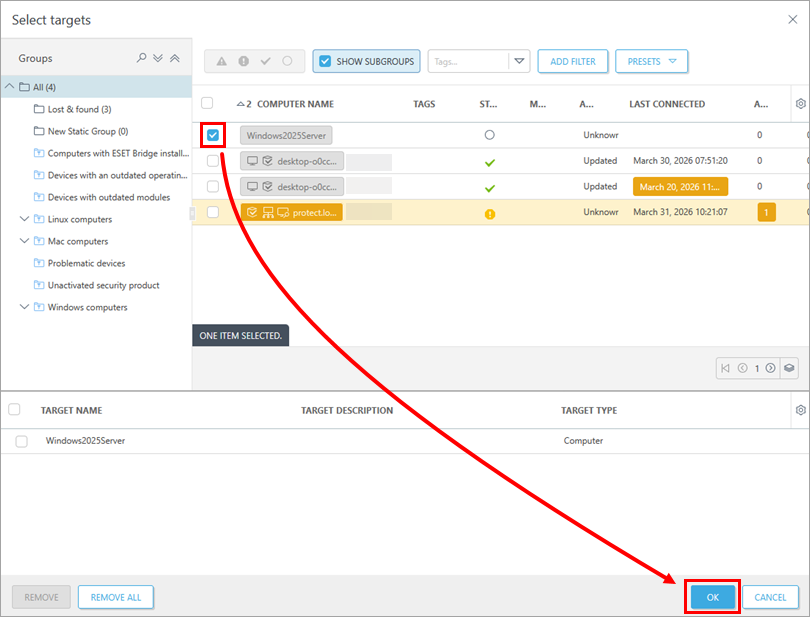
Select the check box next to the client server device and click OK.
For more information about applying policies, see how policies are applied to clients.
Manually on a client server device
-
Click Start, type
ESET Shelland click ESET Shell.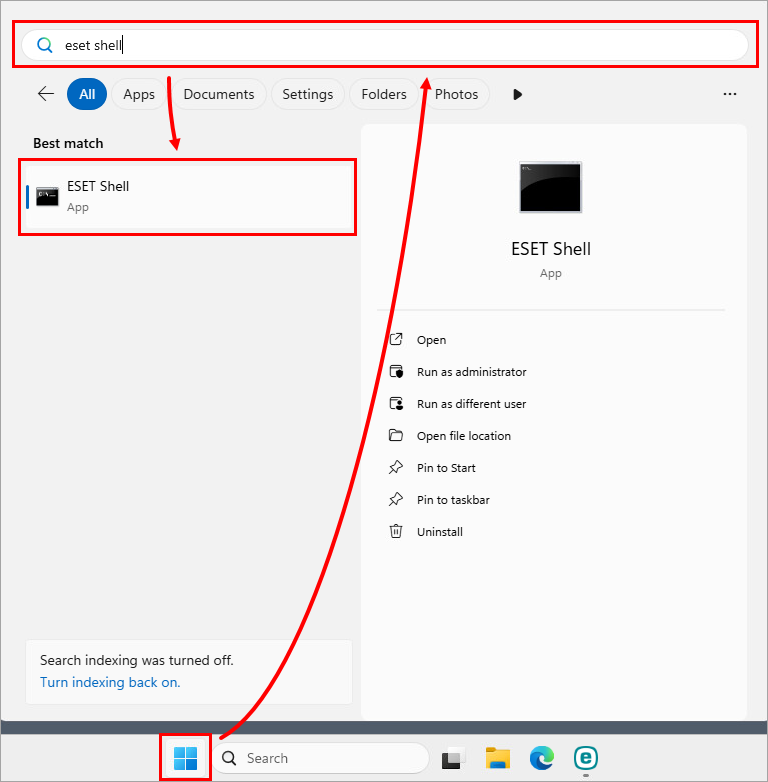
-
Type
set ui ui gui-start-mode noneand press Enter: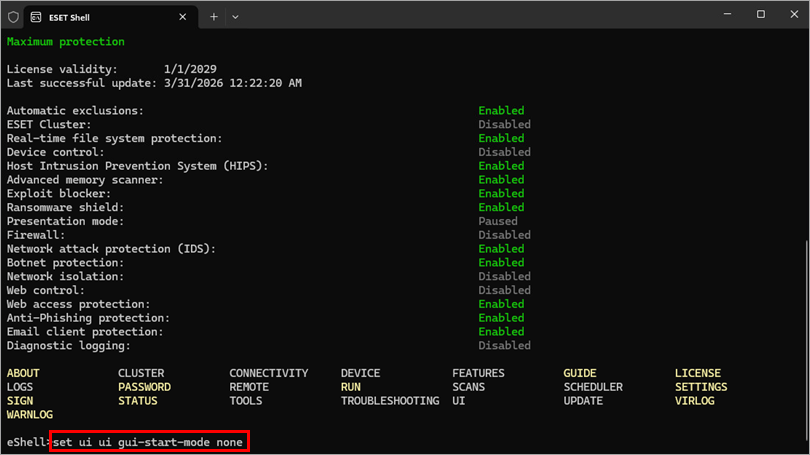
II. Optimize real-time file system protection (Citrix servers only)
-
Open the main program window of ESET Server Security for Microsoft Windows Server.
-
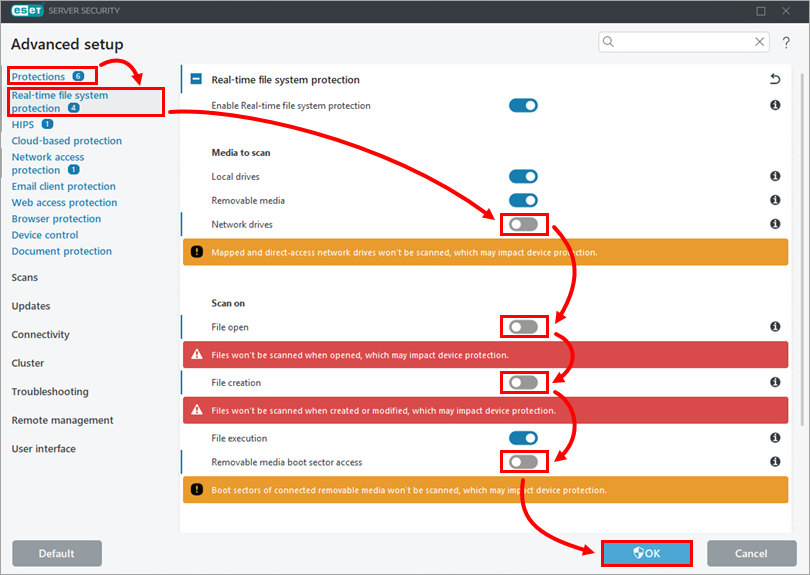
Press F5 to open Advanced setup.
-
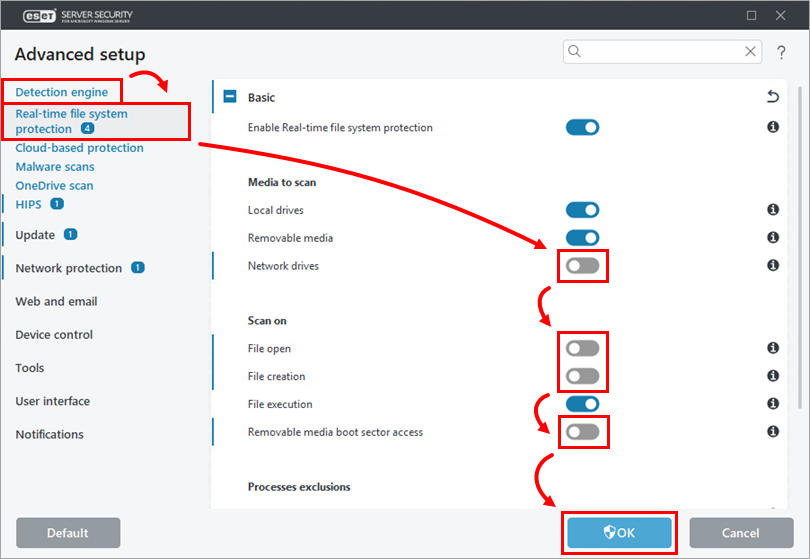
Click Protections → Real-time file system protection. Disable the toggle next to the following settings and click OK:
- Network drives
- File open
- File creation
- Removable media boot sector access
III. Exclude Citrix-related objects from scanning (Citrix servers only)
-
Open the main program window of ESET Server Security for Microsoft Windows Server.
-
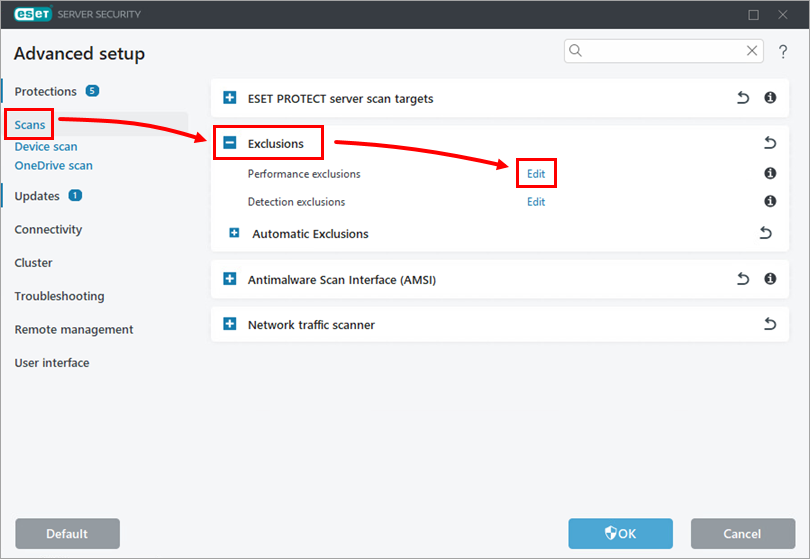
Press F5 to open Advanced setup.
-
Click Scans, expand Exclusions, and click Edit next to Performance exclusions.
-
Create exclusions for Citrix-related objects; if needed, view the Citrix Consolidated list of Antivirus exclusions. To create an exclusion, click Add, type the object path into the Path field, for example,
C:\Program Files\Citrix\, and click OK.To exclude all folder contents, type
\*at the end of the path in the Path field. For more information, see Performance exclusions.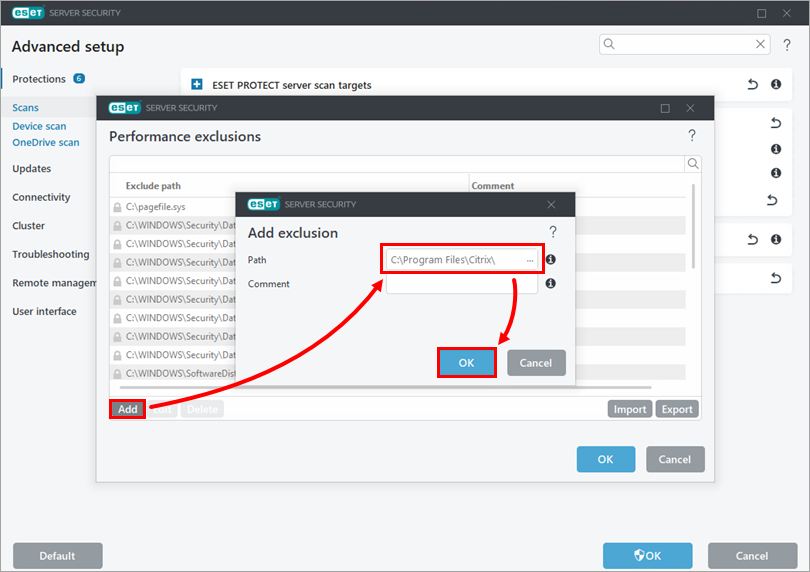
-
After you add all required Citrix-related exclusions, click OK → OK.