Issue
- Configure ESET PROTECT On-Prem to generate a notification when a new detection is detected on a client device
Solution
-
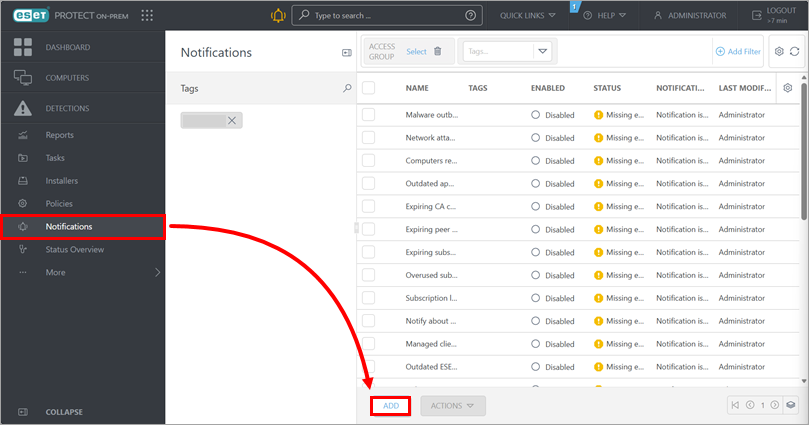
Click Notifications → Add.
-
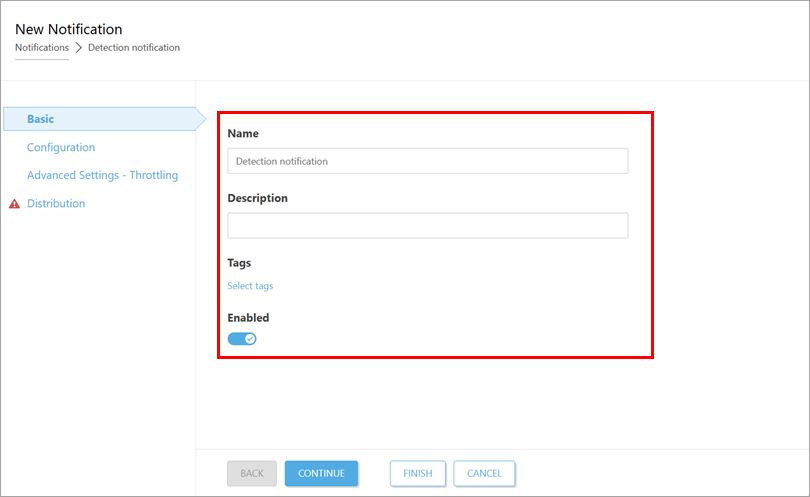
Type a name for the notification, optionally type a description and click the toggle below Enabled to enable the notification.
-
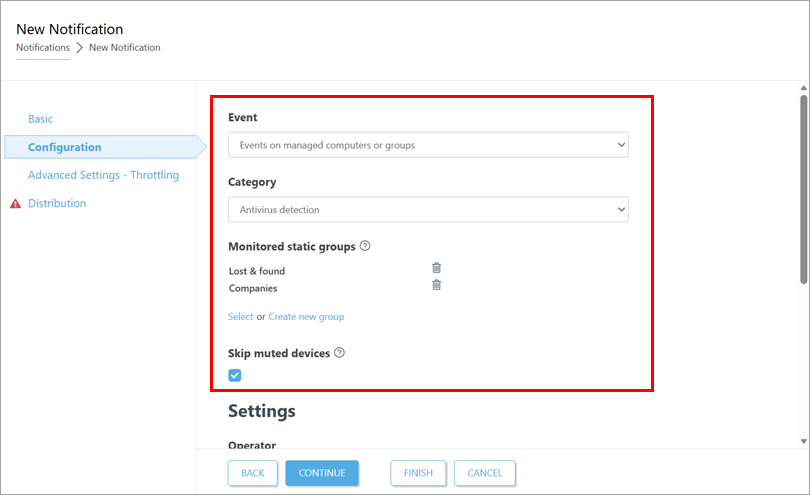
Click Configuration and ensure that in the Event drop-down menu, Events on managed computers or groups is selected. From the Category drop-down menu, select Antivirus detection or Firewall detection, depending on the type of detection you want to trigger a notification. Below Monitored static groups, select the groups of devices to be monitored. If you do not want to receive a notification for muted devices, select the Skip muted devices check box.
-
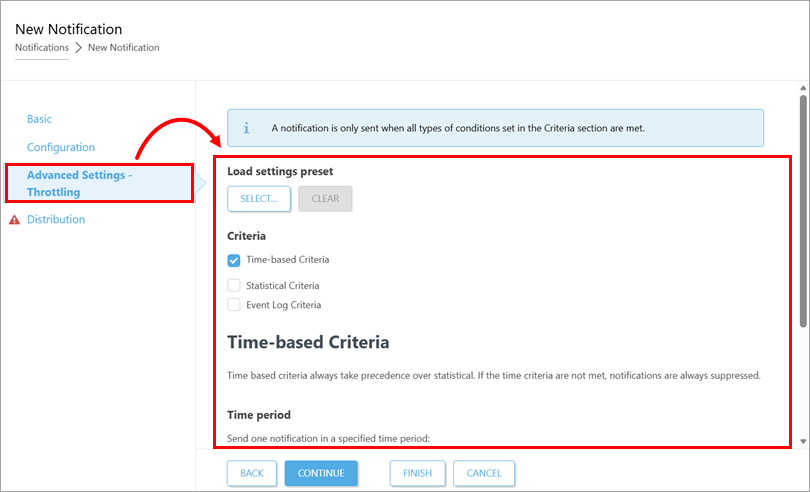
If you want to restrict when a notification is triggered, click Advanced Settings—Throttling and define the notification trigger criteria. To trigger a notification whenever a detection is found, leave Advanced Settings—Throttling empty and proceed to the next step. For more information, see Advanced Settings—Throttling.
-
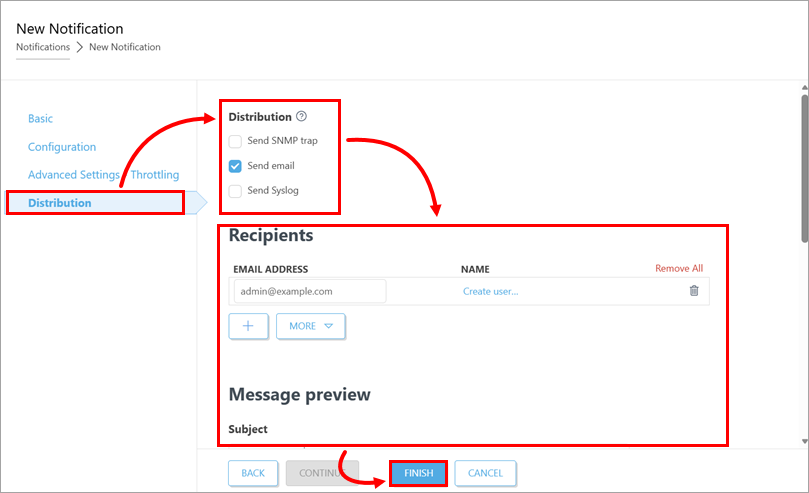
Click Distribution, select the distribution method and configure the related settings. For more information, see Distribution. After you have configured the distribution settings, click Finish.