Issue
- Create an ESET Endpoint Encryption (EEE) Archive
- Open files from an EEE Archive
- Extract files from an EEE Archive
- Add files to an EEE Archive
Details
ESET Endpoint Encryption Archive is used for compressing and storing sensitive data. EEE Archive works in a similar way as a ZIP folder. All data stored inside the Archive will be encrypted and protected with either an encryption key or a password.
Solution
Create an ESET Endpoint Encryption Archive
-
Right-click the file you want to store inside an Encrypted Archive, and click ESET Endpoint Encryption → Add to ESET Endpoint Encryption Archive....
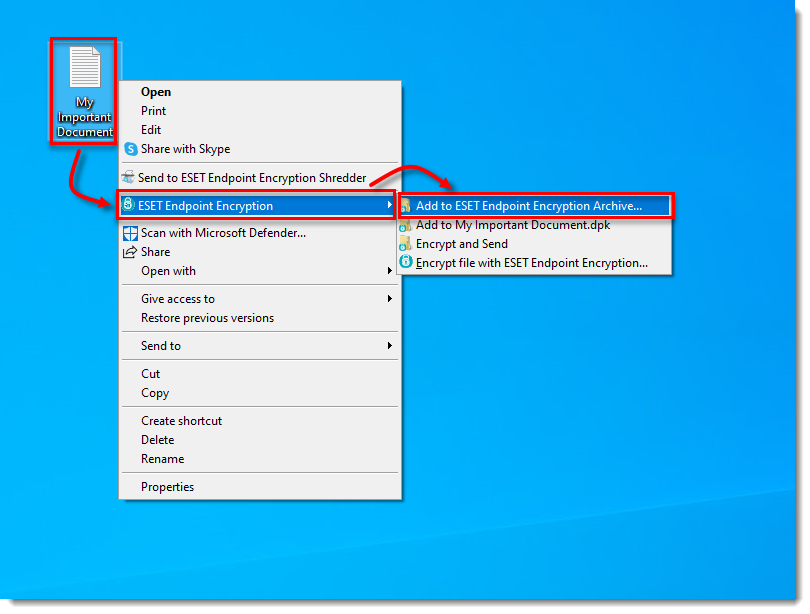
Figure 1-1 -
Select a destination folder for your EEE Archive, type a name and click Save.
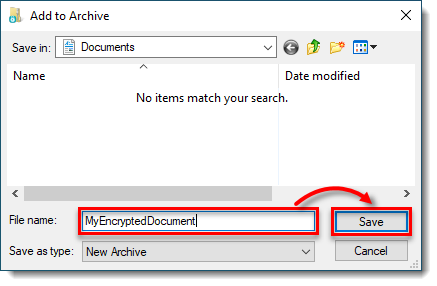
Figure 1-2 -
Choose either an Encryption Key or type a password.
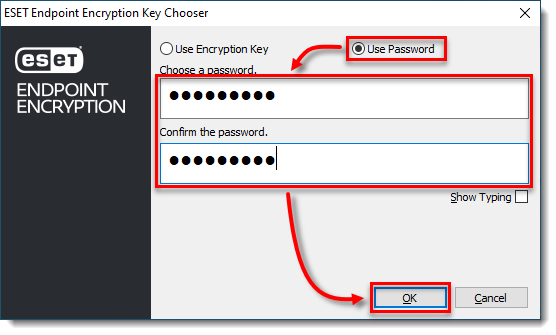
Figure 1-3 -
The EEE Archive will save in the location specified. The Archive contains the selected file.
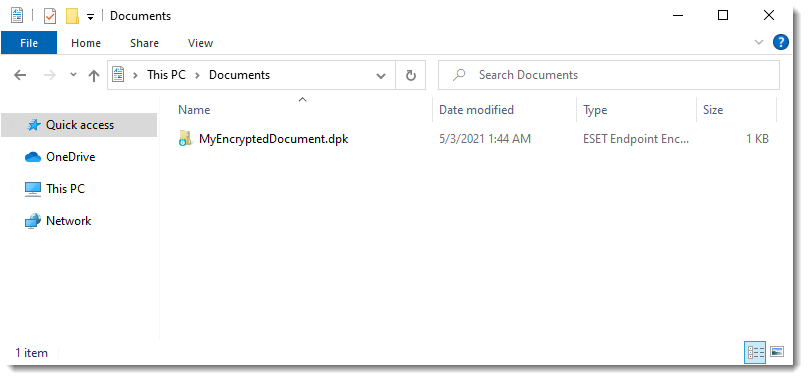
Figure 1-4
Open files from an EEE Archive
-
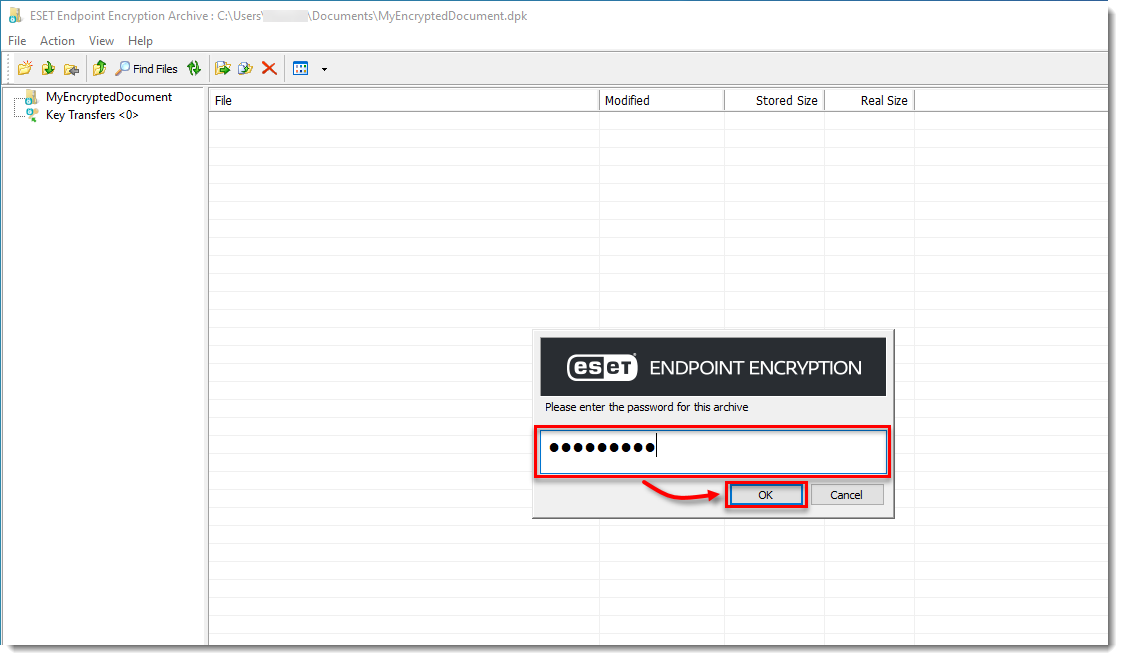
Double-click the Archive.
- If your Archive is password-protected, type the password.
- If your Archive is protected by an Encryption Key, you need to be logged in to EEE and have access to the Encryption Key used to open the Archive.
-
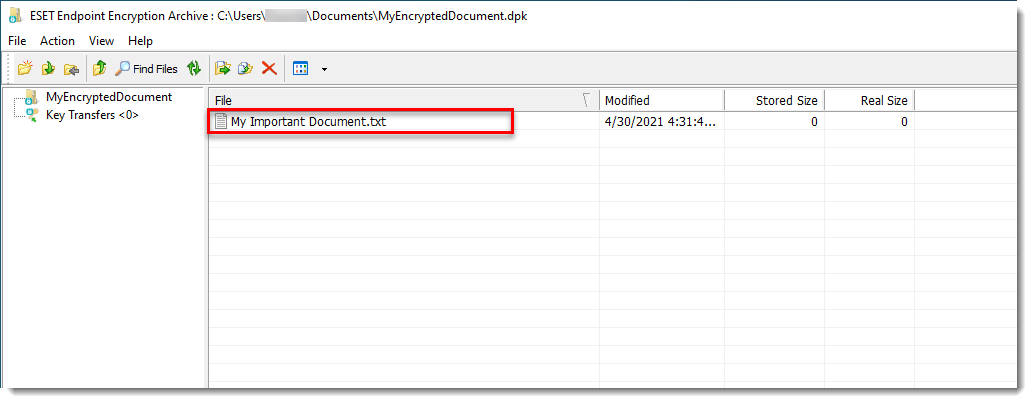
EEE shows you the contents of the Archive. To select a file to view, double-click the file.
Extract files from an EEE Archive
-
Open the EEE Archive.
-
Right-click the file and click Extract File(s).
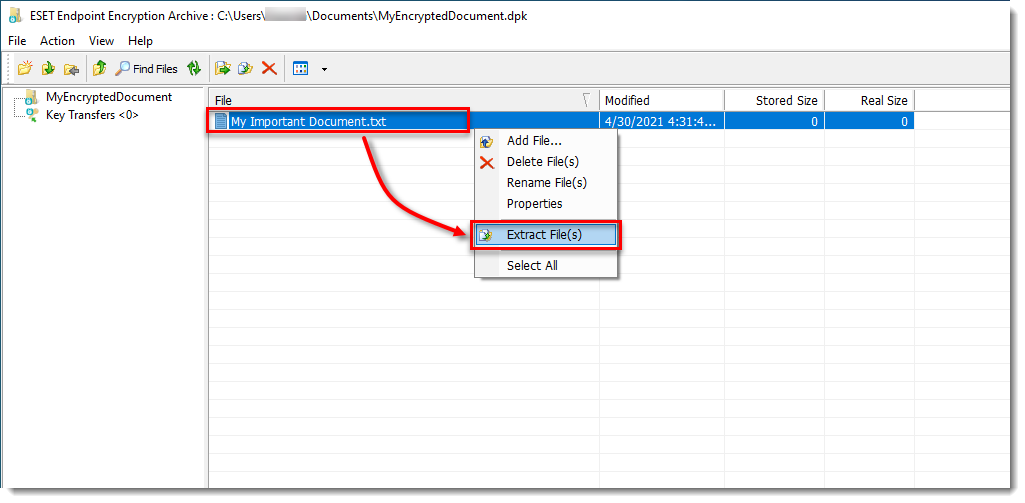
Figure 3-1 -
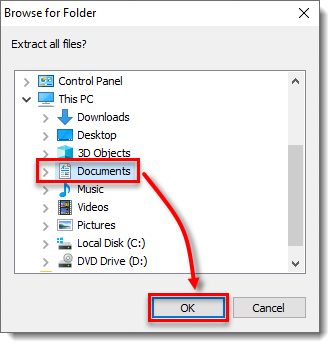
Select a location for the decrypted file to be extracted and click OK.
-
The document is now ready to be edited from the location specified. After extraction, the file will remain stored inside the Archive.
Add files to an EEE Archive
-
Open the EEE Archive.
-
Right-click in the white space of the opened Archive and select Add File....
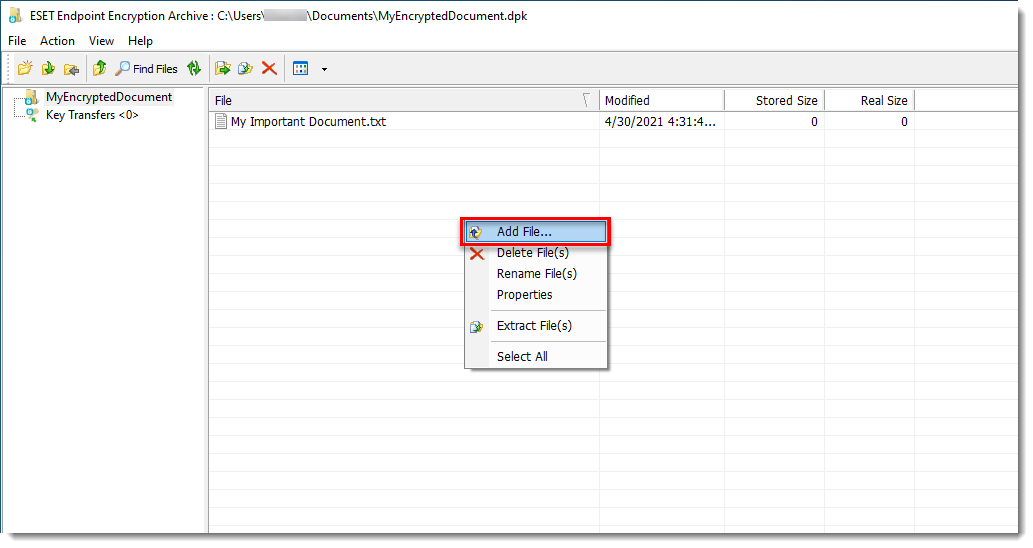
Figure 4-1 -
Locate the file and then click Add. The file will now show in the archive window.
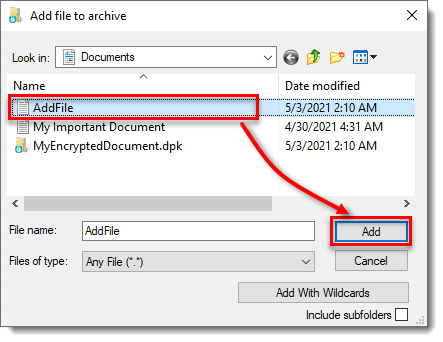
Figure 4-2


