Issue
- Set up roles for each user account that has access to a computer with Parental Control
- Configure ESET Cyber Security Pro to allow or restrict access to certain web content depending on the age and profile of the user account
To edit an existing role in Parental control, block or allow website categories using Parental control in ESET Cyber Security Pro.
Solution
-
Open ESET Cyber Security Pro. How do I open my ESET product?
-
Click Setup → Parental Control.
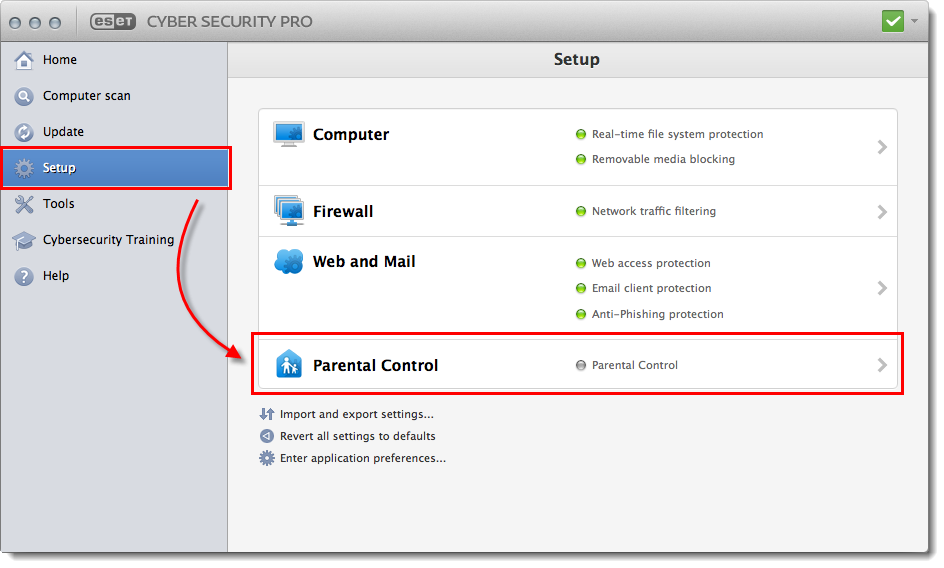
Figure 1-1
Click the image to view larger in new window -
Click the toggle next to Disabled to disable it.
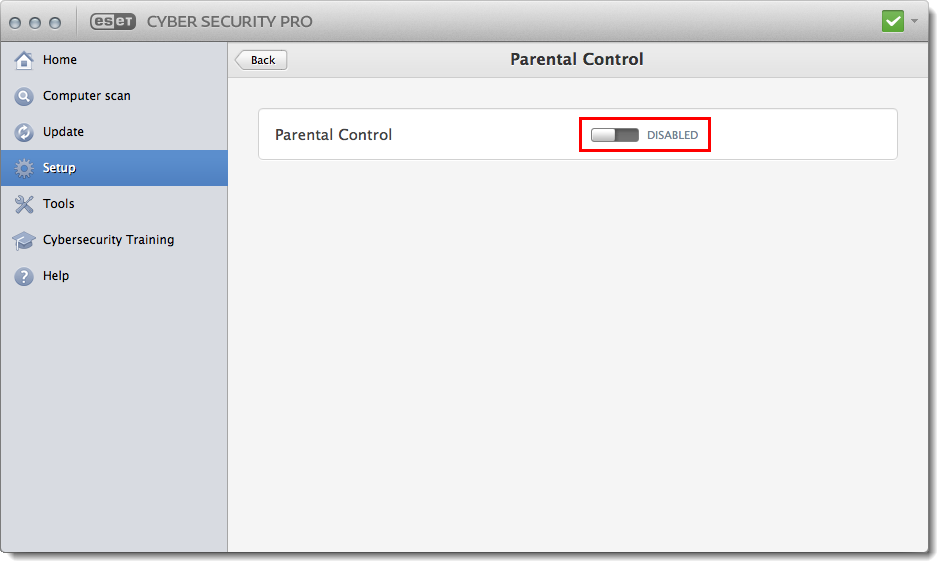
Figure 1-2
Click the image to view larger in new window -
Click Role is undefined, and select the role you want to assign this user.
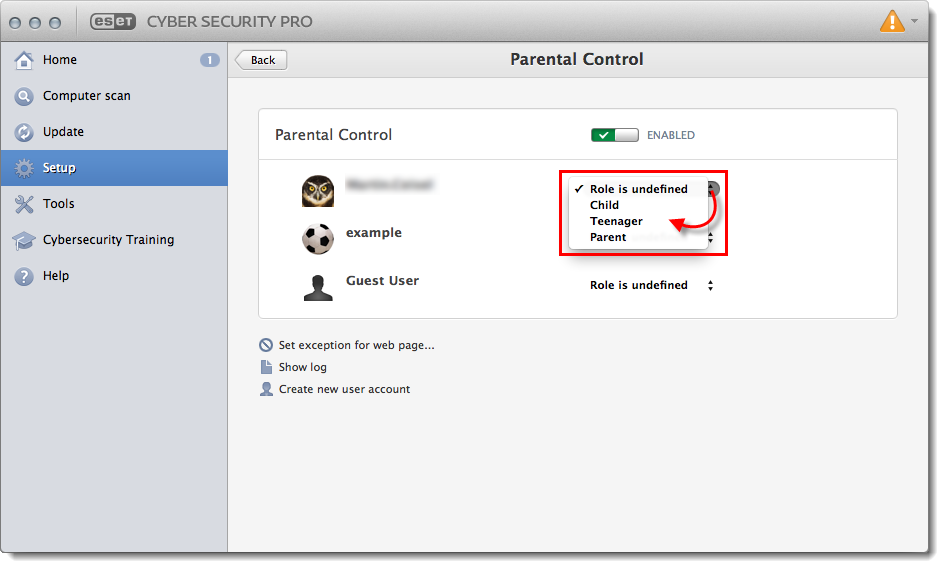
Figure 1-3
Click the image to view larger in new window -
When you select a role for the user account, Enabled appears next to that user account. Click Setup.
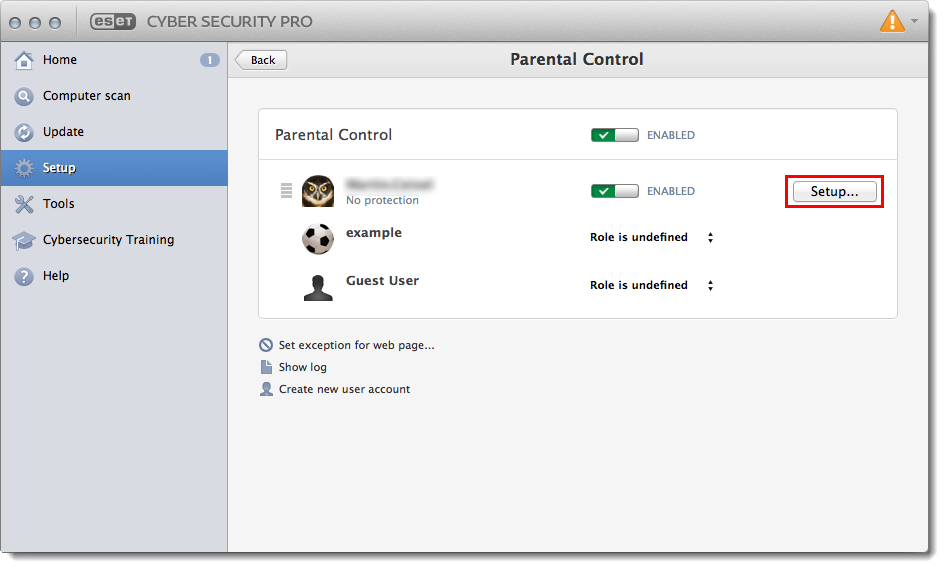
Figure 1-4
Click the image to view larger in new window -
In the Parental Control setup window, you will see a list of categories. Mouse over each category, (for example, Alcohol and Tobacco in Figure 1-5) to view a summary of the web content that category includes. The check boxes are selected for categories that are allowed for the selected user, while the check boxes that are deselected denote the categories that are blocked. Select or deselect the check box next to the category you want to define and then click OK to save your changes.
You can also allow or restrict specific web pages for certain Parental control roles. How do I block a website using Parental control in ESET Cyber Security Pro?
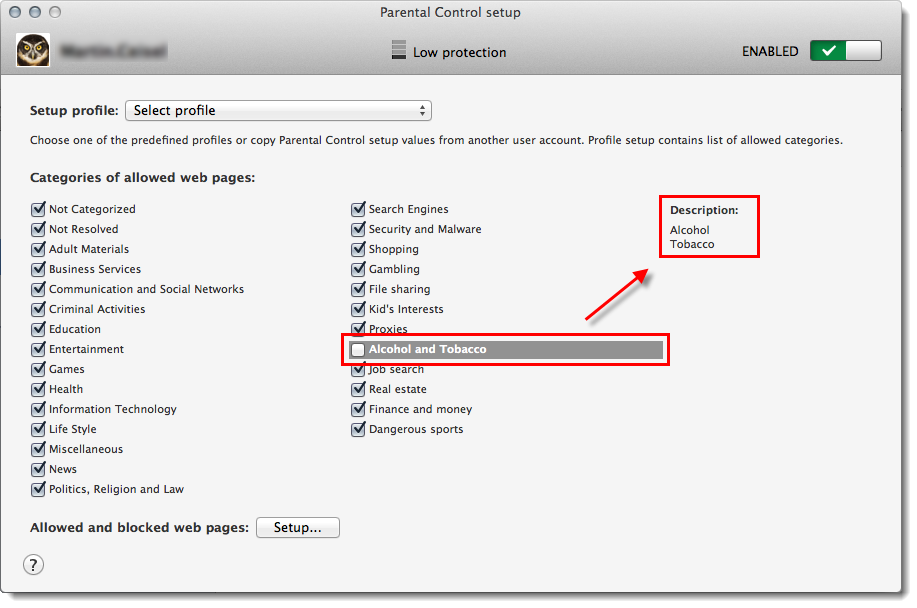
Figure 1-5
Click the image to view larger in new window


