Issue
- Download, install, and activate standalone ESET Security for Microsoft SharePoint Server
- Install ESET Security for Microsoft SharePoint Server remotely using ESET PROTECT or ESET PROTECT On-Prem
Solution
Download, install, and activate standalone ESET Security for Microsoft SharePoint Server
-
Download the ESET Security for Microsoft SharePoint Server installer file and save it to your computer.
-
When the download is complete, double-click the downloaded file.
-
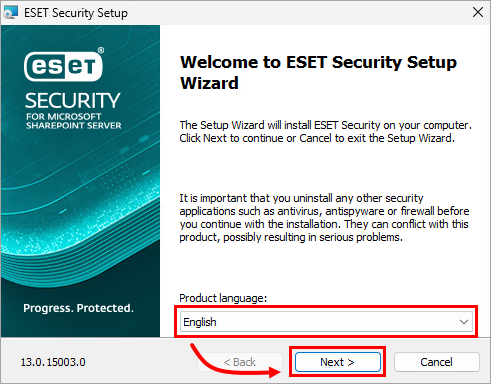
Select your language and click Next.
-
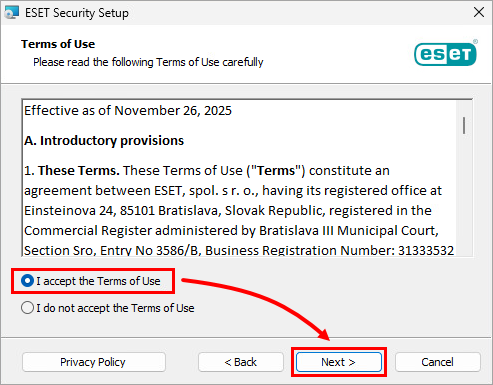
Read the Terms of Use, select I accept the Terms of Use and click Next.
-
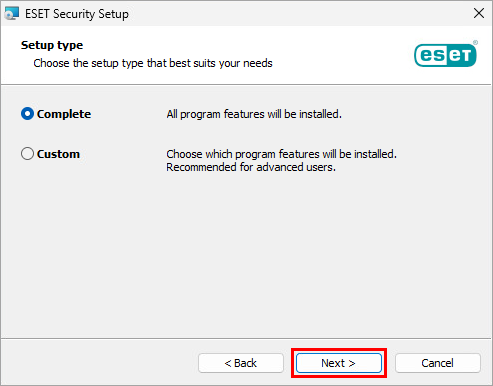
In the Setup type window, the option Complete is pre-selected. Click Next to continue.
-
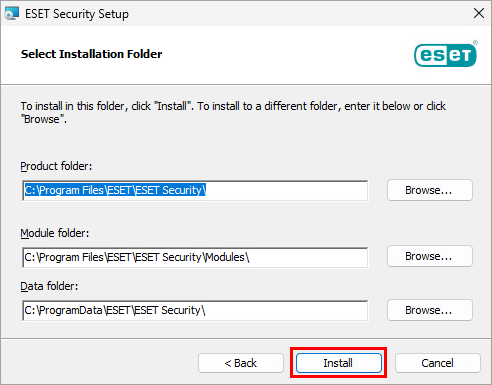
Verify the install location for the ESET security application, module, and data folders, and click Install.
-
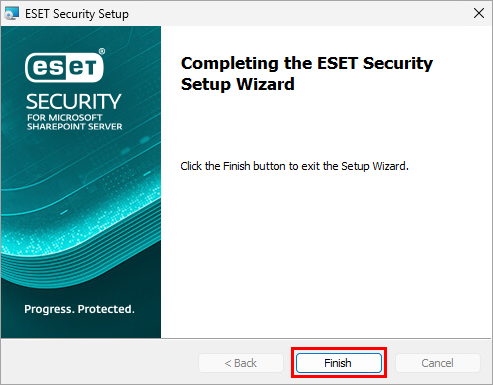
Click Finish.
-
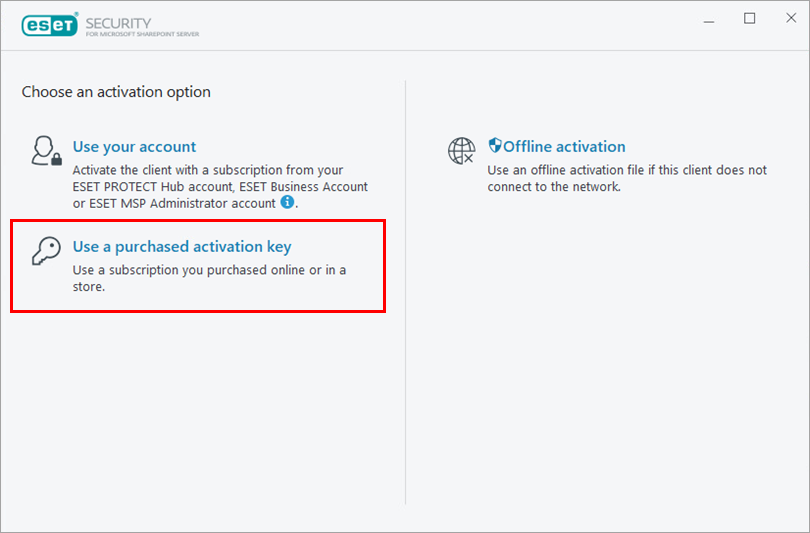
Select an activation option (in this example, Use a purchased activation key is selected).
-
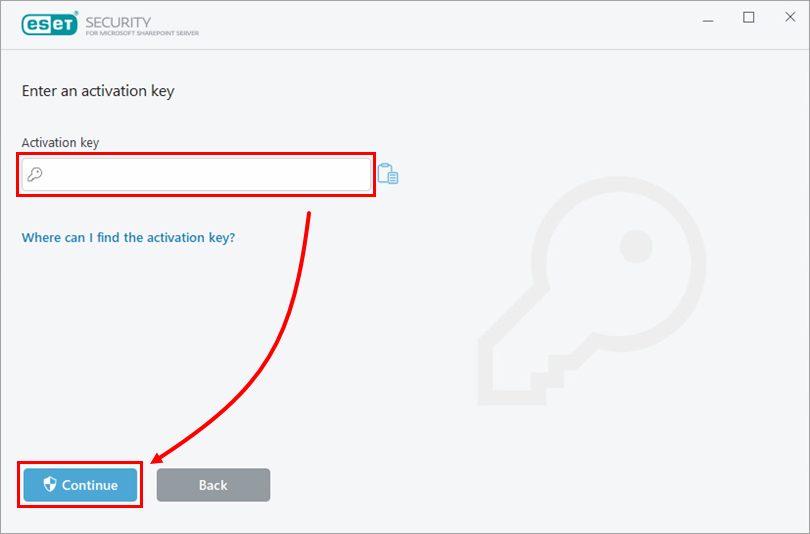
Type or copy/paste your Activation Key into the Activation key field and click Continue.
-
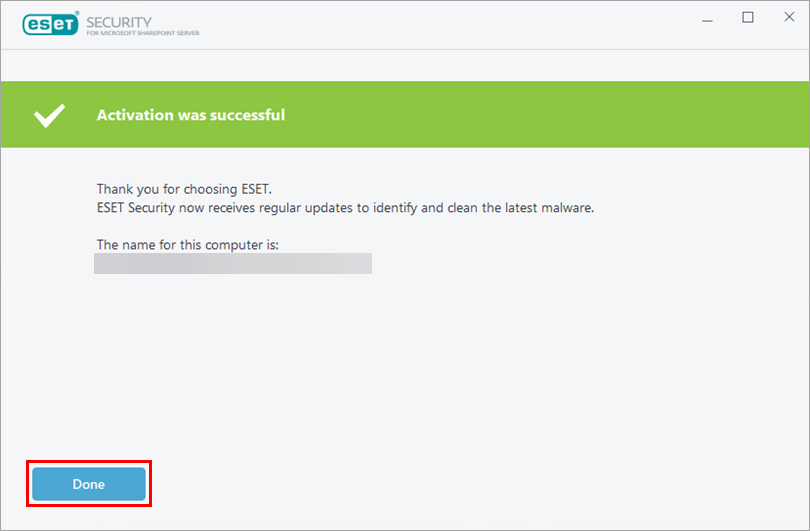
Click Done.
Install ESET Security for Microsoft SharePoint Server remotely using ESET PROTECT or ESET PROTECT On-Prem
The ESET Security for Microsoft SharePoint Server can be deployed and managed remotely using ESET PROTECT or ESET PROTECT On-Prem.
Deploy ESET Management Agent and ESET Security for Microsoft SharePoint Server using ESET PROTECT or ESET PROTECT On-Prem. If you already have the ESET Management Agent installed, deploy only ESET Security for Microsoft SharePoint Server.


