Issue
- Verify your current ESET Endpoint Encryption Server (EEES) version
- Verify your current ESET Endpoint Encryption (EEE) Client version
- Report of the current ESET Endpoint Encryption managed client versions
- Verify your current ESET Endpoint Encryption Go version
Solution
ESET Endpoint Encryption Server
- On the ESET Endpoint Encryption (EEE) Server login page, the version number is displayed at the bottom-right of the screen.
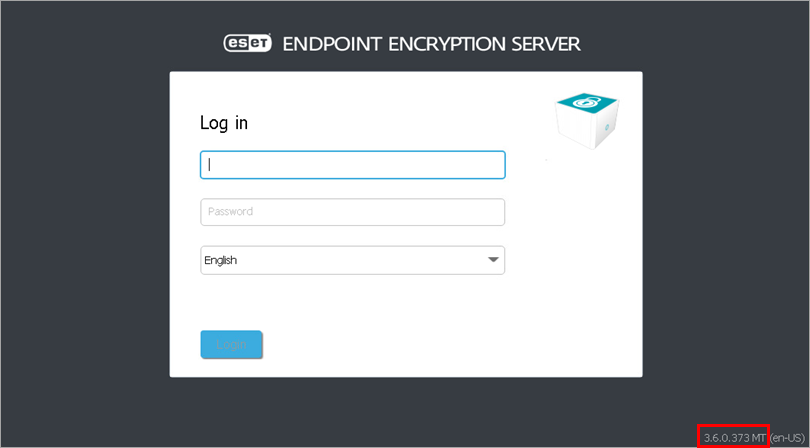
Figure 1-1 - After you log in to EEE Server, the version number is displayed at the bottom-right of the EEE Server console.
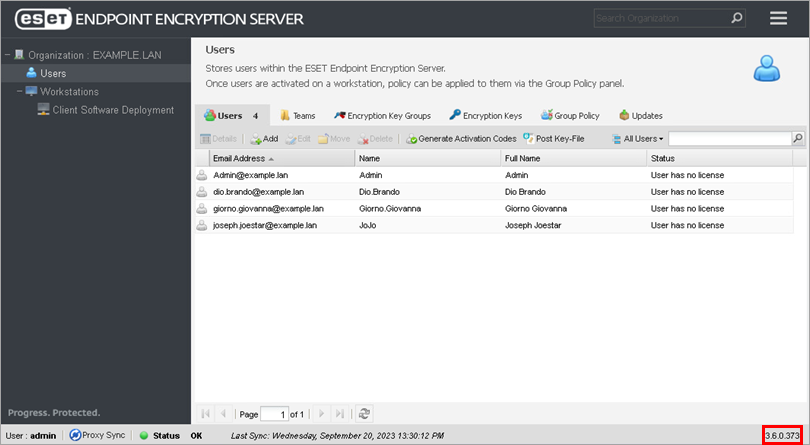
Figure 1-2 - Click the menu icon → Control Panel → Server Details. The version number is under Version Information.
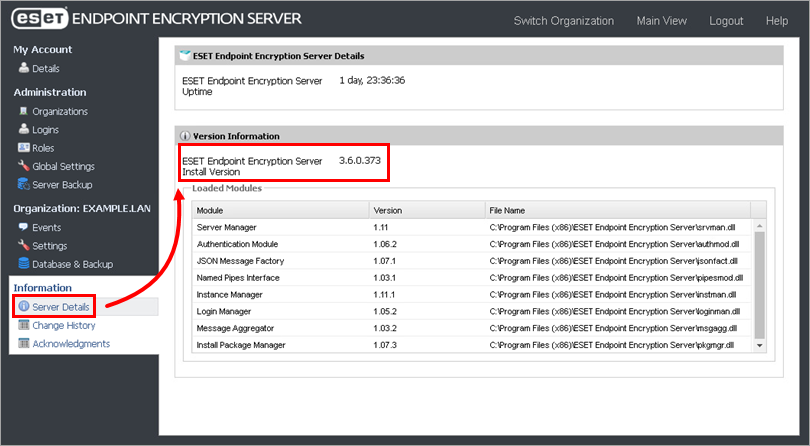
Figure 1-3
ESET Endpoint Encryption Client
- Right-click the EEE icon in the system tray, and select About ESET Endpoint Encryption. If the EEE icon is unavailable, click the arrow to show the hidden icons.
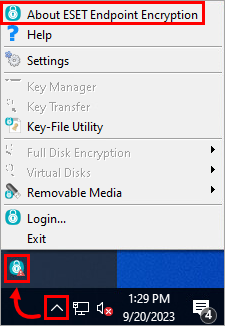
Figure 2-1 - The EEE version number is displayed in the About window.
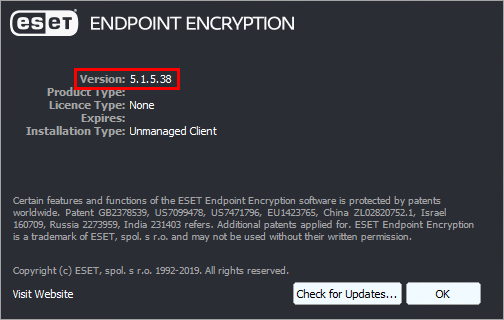
Figure 2-2
ESET Endpoint Encryption managed client
For managed EEE clients, a report in the EEE Server lists the EEE version of all client machines.
- Click Organization: organization name → Reporting → ESET Endpoint Encryption Client Version. Select Run in Window, Download as CSV or Download as PDF.
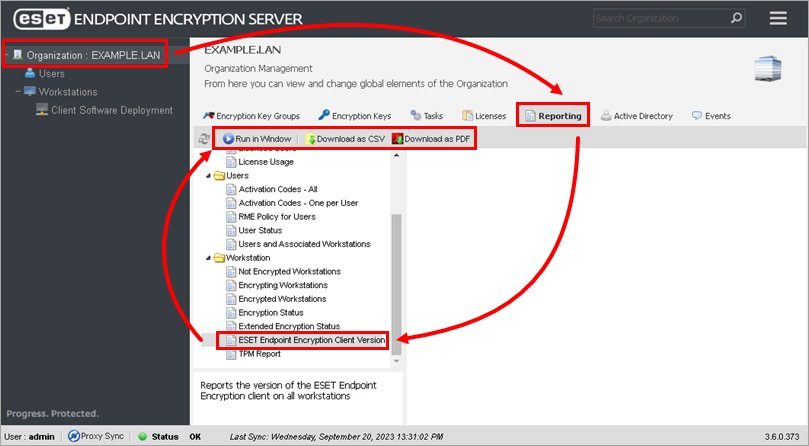
Figure 3-1
ESET Endpoint Encryption Go
- Plugin the encrypted removable device and run DLPGO.exe.
- On the Enter Password screen, click About.
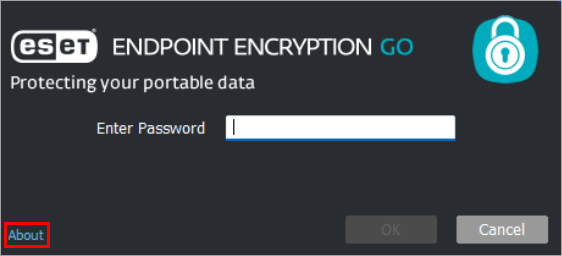
Figure 4-1 - The current version number is displayed below ESET Endpoint Encryption.
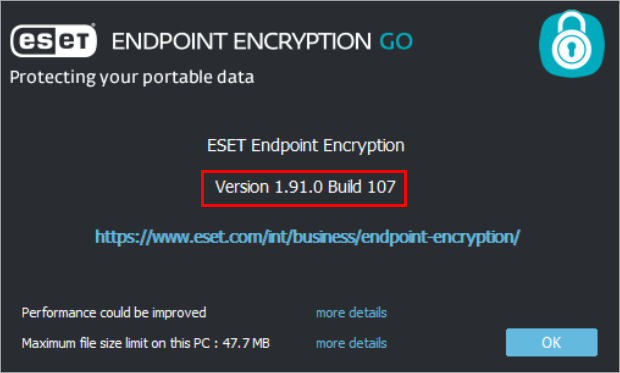
Figure 4-2


